Filter › Policy Editor
Category Lookup tool
You might want to know more about a URL to make a decision to allow or block it. For this, you can use the Category Lookup option in the top right corner.
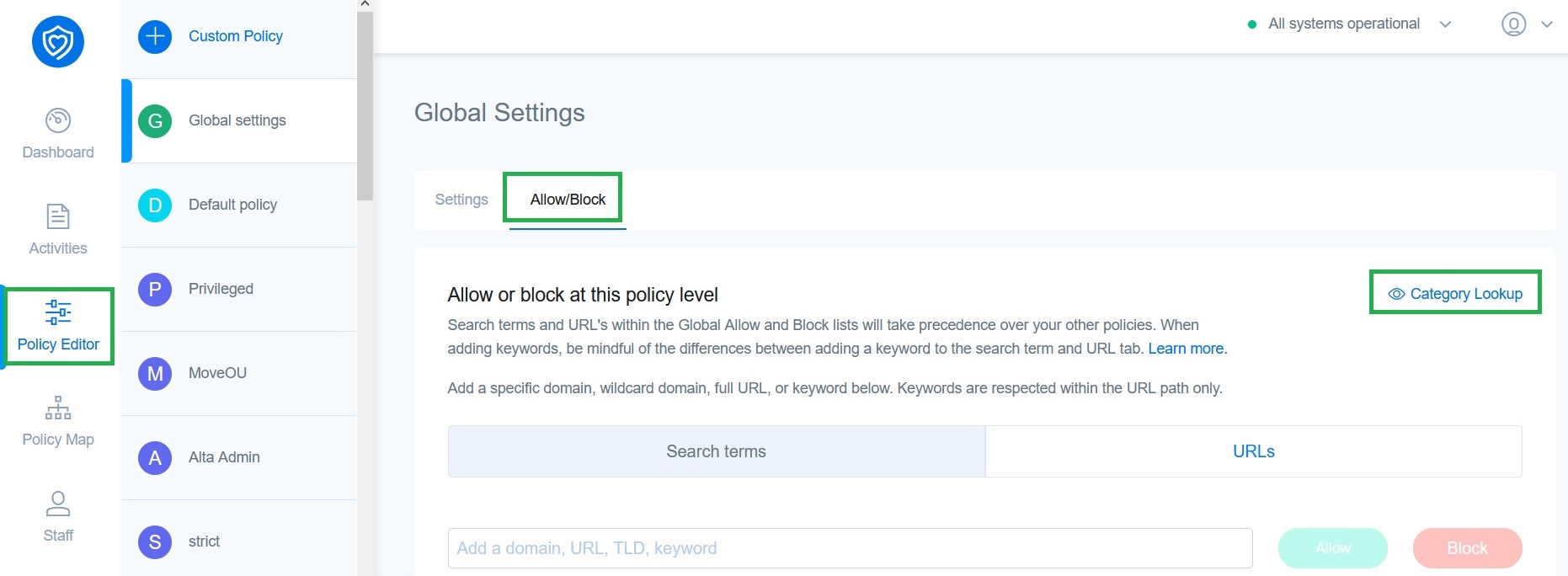
This lets you search for the category (eg: drugs, gambling, social media, etc.) a website is listed in our database. You must enter a valid domain name, keywords and wildcards are not supported by the tool.
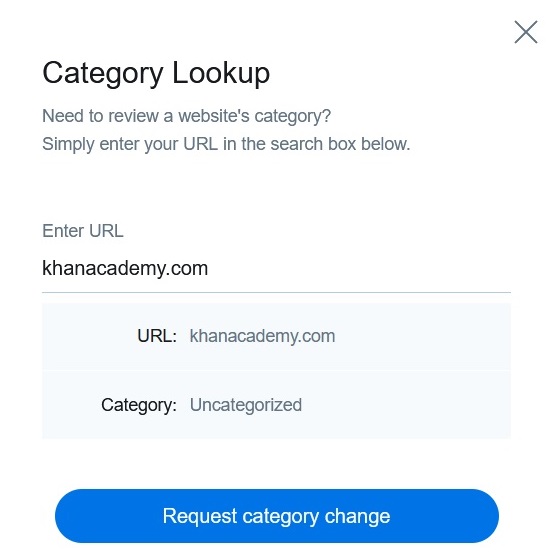
You can also click on the Request category change button if you do not agree with the category returned by the search. Just select a category, enter a comment, and submit a request for that website.
Note- Changing a site’s category will affect whether it is automatically allowed or blocked toggle for the said category in the Categories tab. However, sites added to the allow/block list will take precedence over the Categories tab settings.
- You cannot request recategorization of websites such as google.com or any others that impact the basic browsing for the user or any system-critical functions.
In addition to the Category lookup tool, Securly offers a quick way to check if a website is accessible to students through the Website Access Lookup tool.