Pass › Visitor
Customized Questions
Securly Visitor offers a configurable screening feature that can help schools identify guests who could potentially pose a risk.
To enable the Visitor Customized Screening Questions, slide the toggle to the right. Once enabled, admins can click on the Edit button.


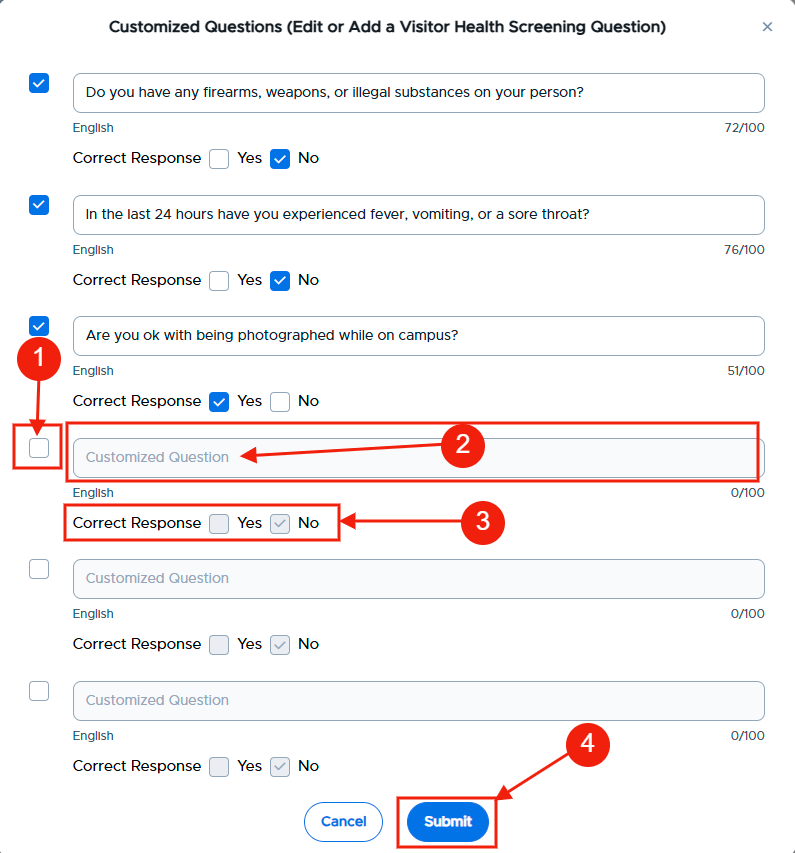
On the next screen, add questions and the correct answers that visitors need to answer before gaining access to the building. When finished adding questions, click Submit.
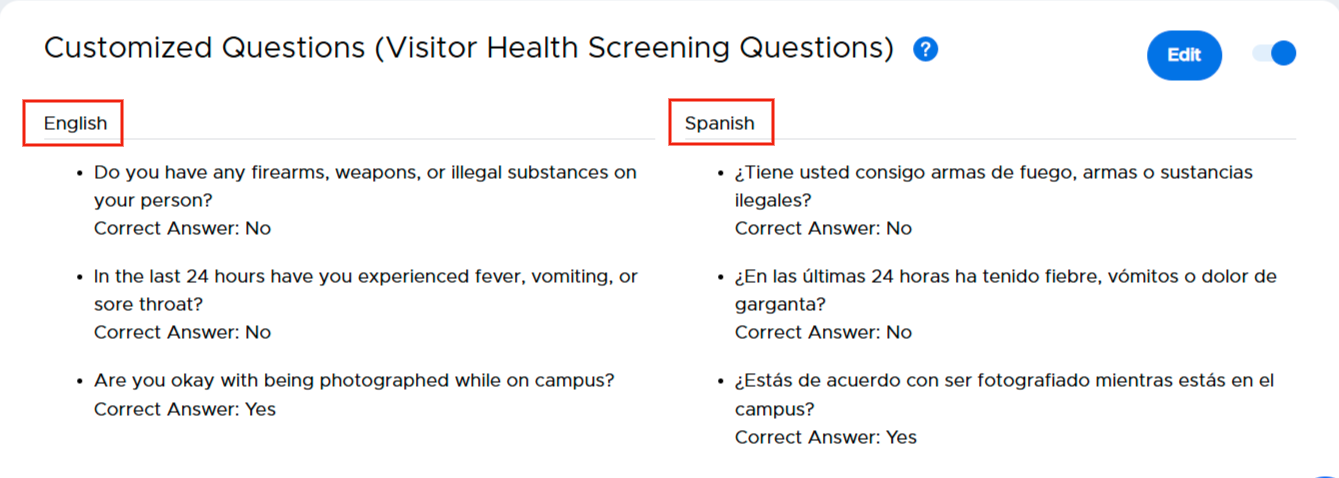
Customized Questions with Spanish Translation enabled.
Please note:
- If the guests select your chosen answer for each question, they pass the screening process and go to the next step of guest check-in.
- The questions configured here will be displayed to the guests in the iPad app.
- If a guest fails the screening process, they will be denied entry and asked to talk to the front desk staff. The front desk staff can decide to either deny entry or make an exception for that guest.
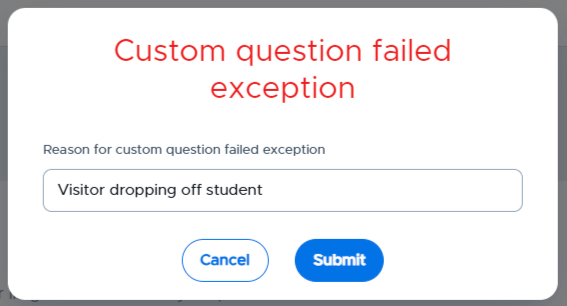
The visitor record will indicate if a guest fails the screening check and is allowed or denied entry.
