Aware › Observe
Making an observation
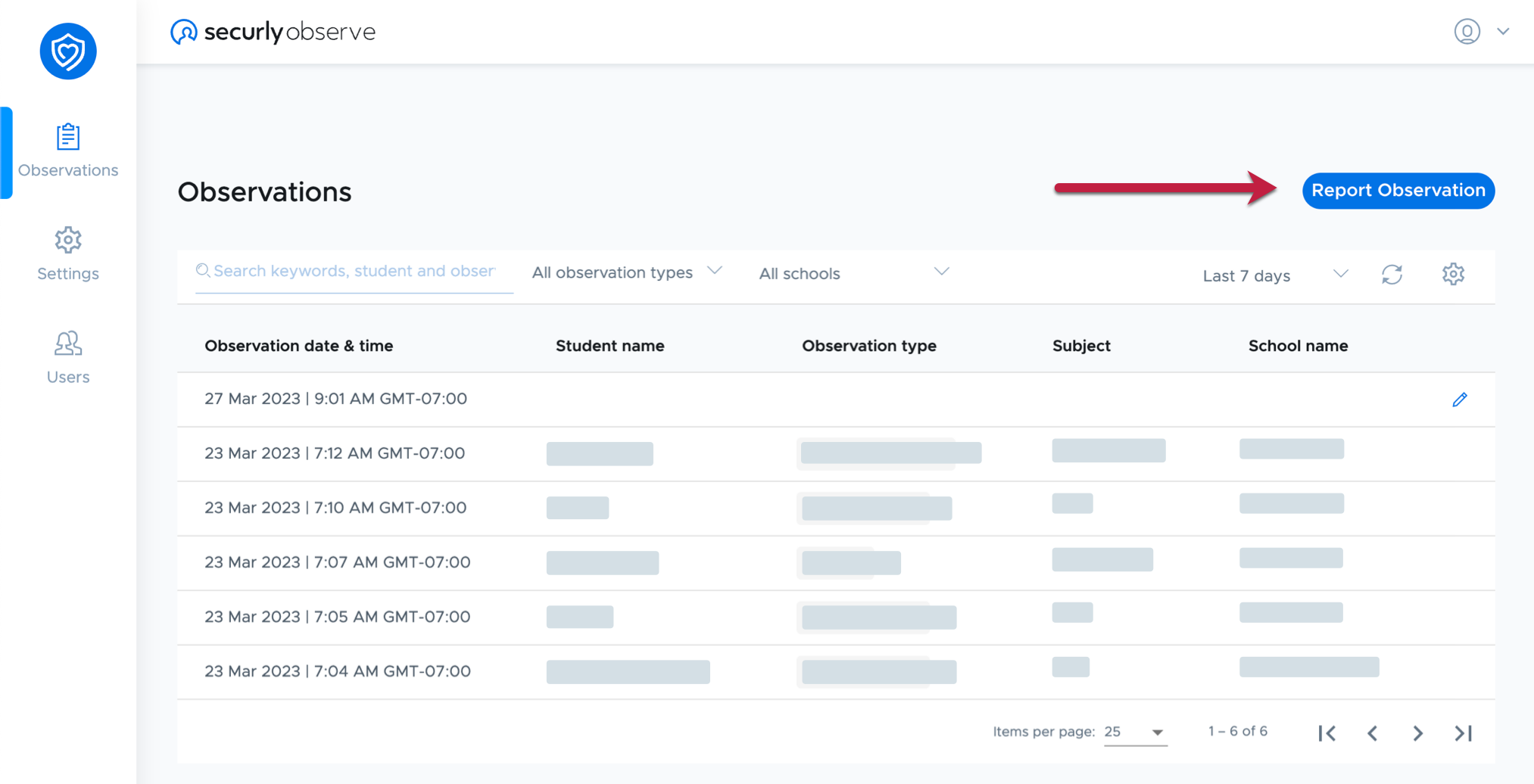
To make an observation, click the Report Observation button.
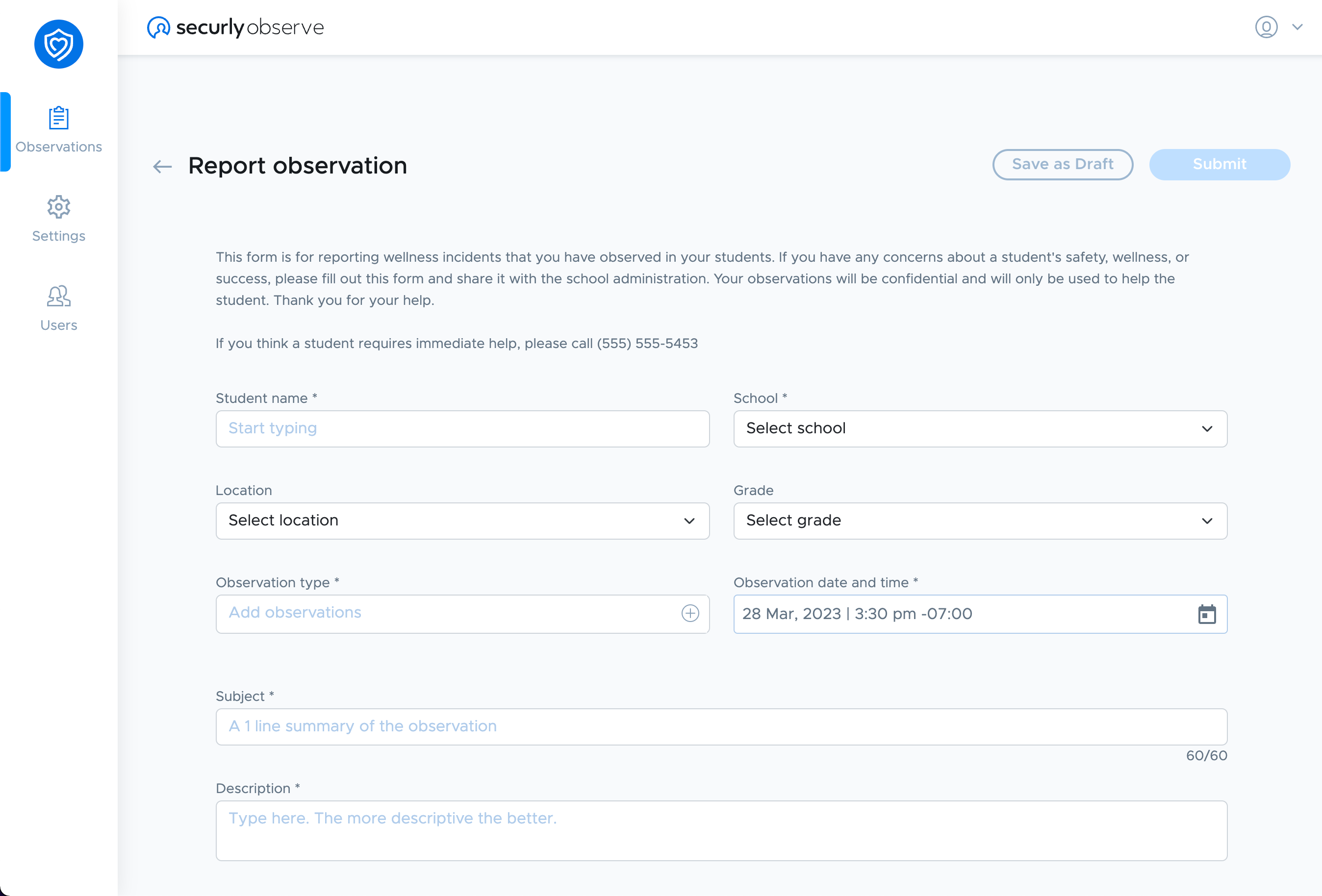
Here you will see the Report observation form. Your district may add some instructions or other information to the top of this form.
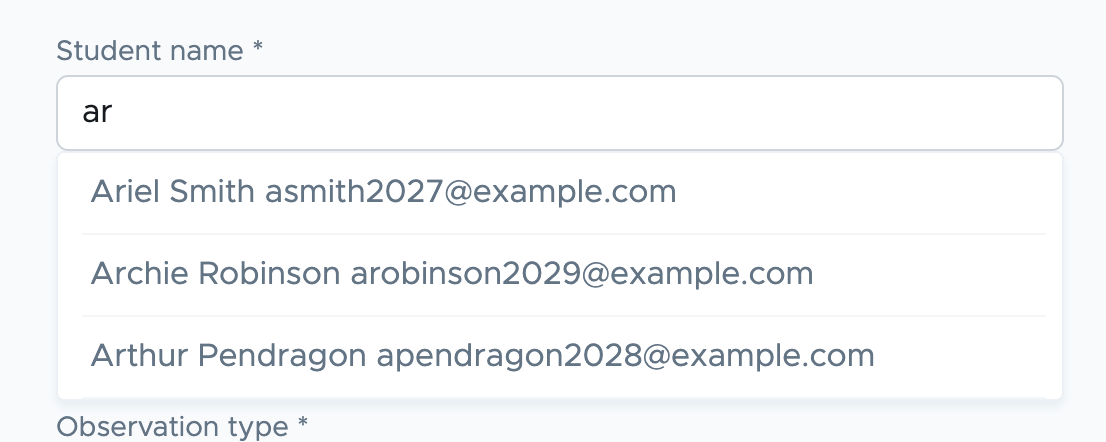
In the Student name field, enter the name of the student this observation concerns. Start typing the name of the student, then select their name from the drop-down list that appears.
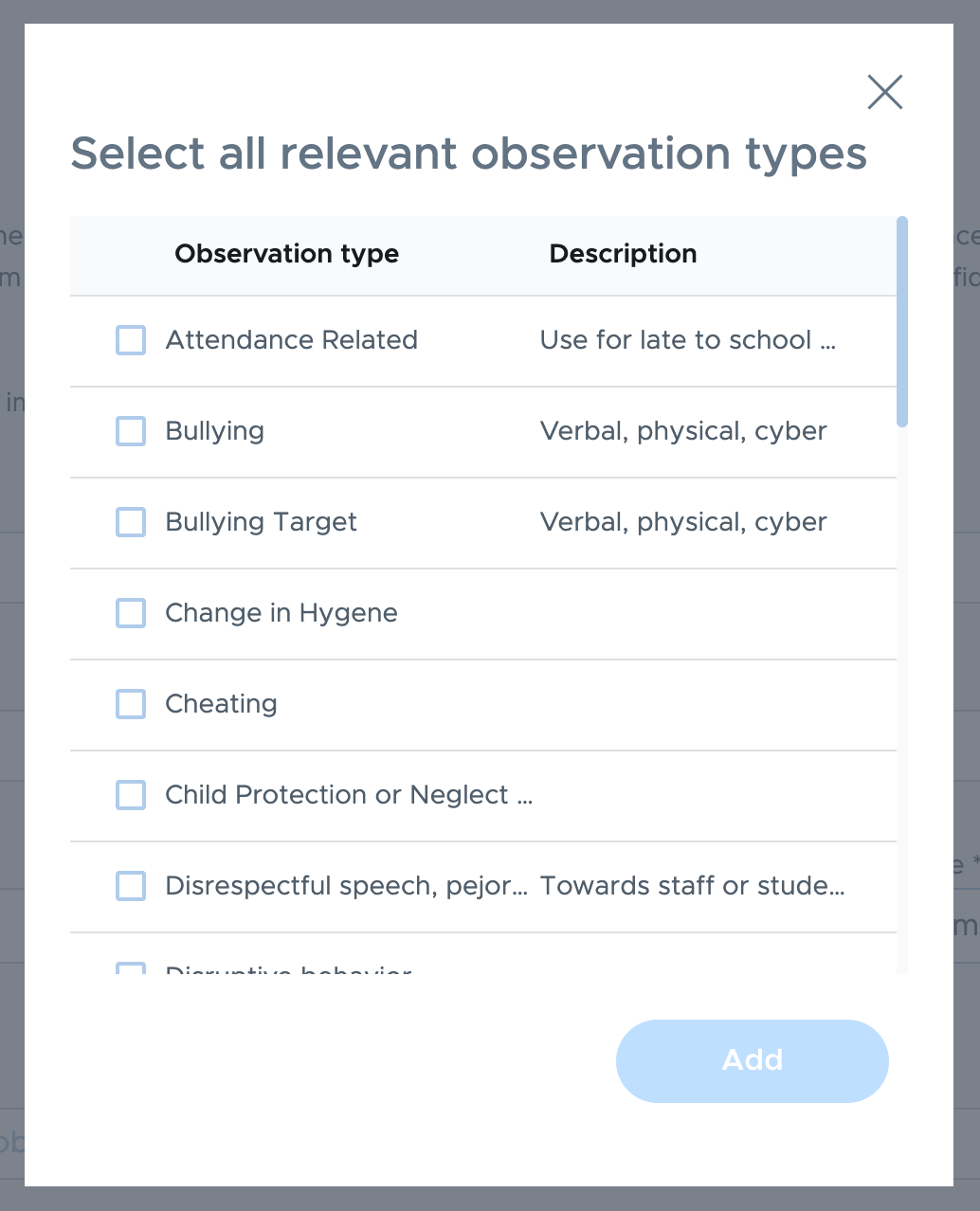
In the Observation type field, click the plus icon to select observation types. In this window, check the box for each observation type that applies to this observation, then click Add.
Once you’ve filled out all the information for your observation, you can click Submit. If you aren’t finished and want to save your information for later, click Save as Draft.