Pass › Visitor
List 1
List 1 can include those individuals who work in the school and are on the Security Team when needed. This list could include staff members, teachers, admins, and/or the SRO. Admins can manage their security staff by adding these individuals via CSV file upload or individual entry.
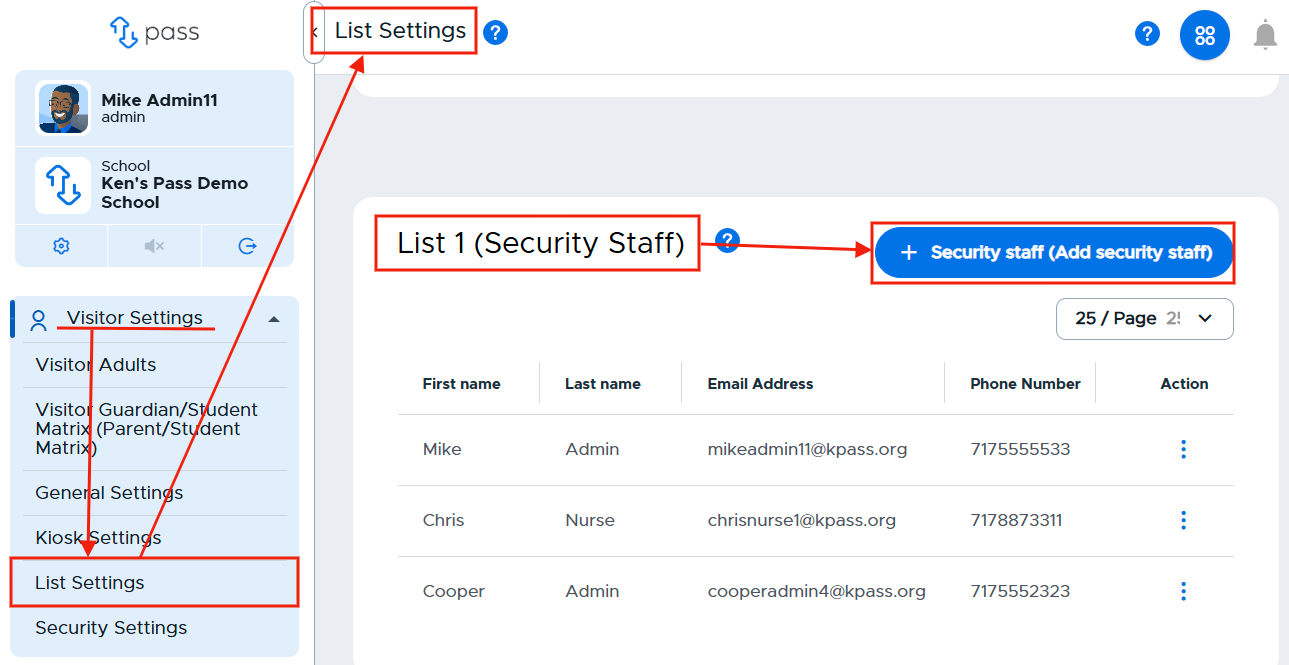
To create a List 1, under Visitor Settings, click on List Settings. In the white List 1 box, click the blue + Security staff (Add security staff) button.
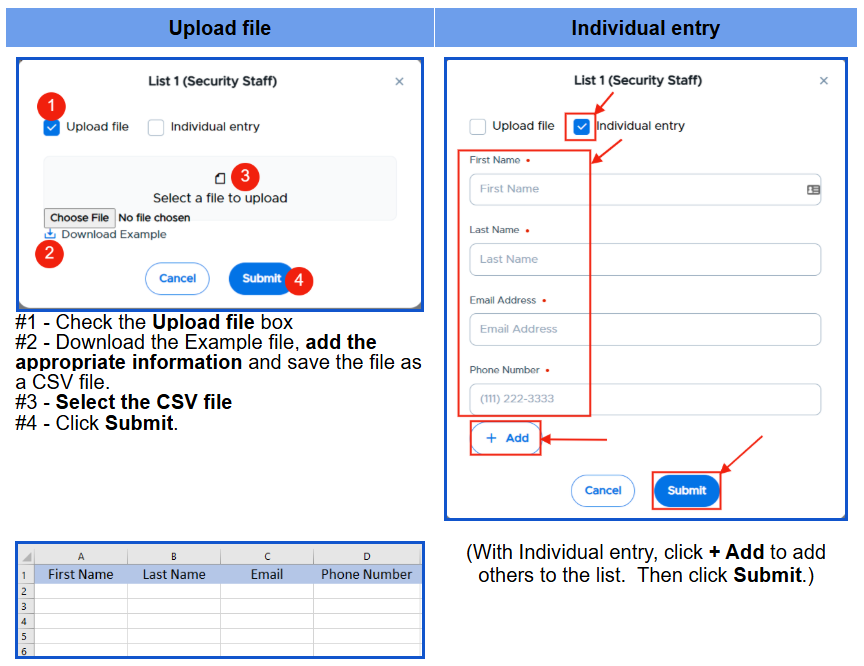
On the white popup screen, you have two options to add names to your List 1. You can add names by uploading a CSV file OR by adding the individual names.
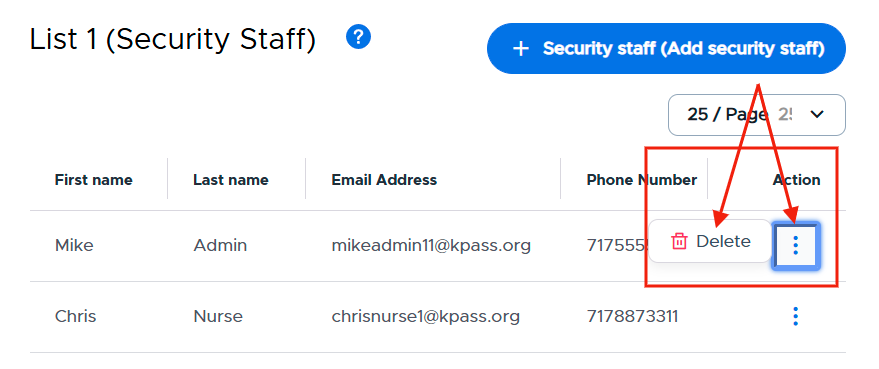
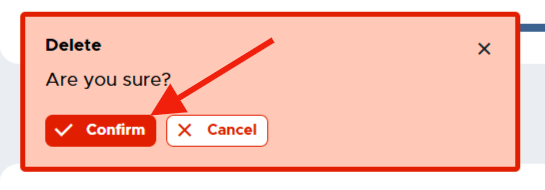
Once these individuals have been added either by a CSV file or manually, the list will be displayed on the screen. If you need to remove an individual from the list, simply click on the three (3) dots to the right of that person’s name, click Delete, and then Confirm.