Home › FAQ
Securly Home Restrictions for Parent Settings
When you enable customized parental settings for your school’s parents, you can expect the following changes in parental access:
-
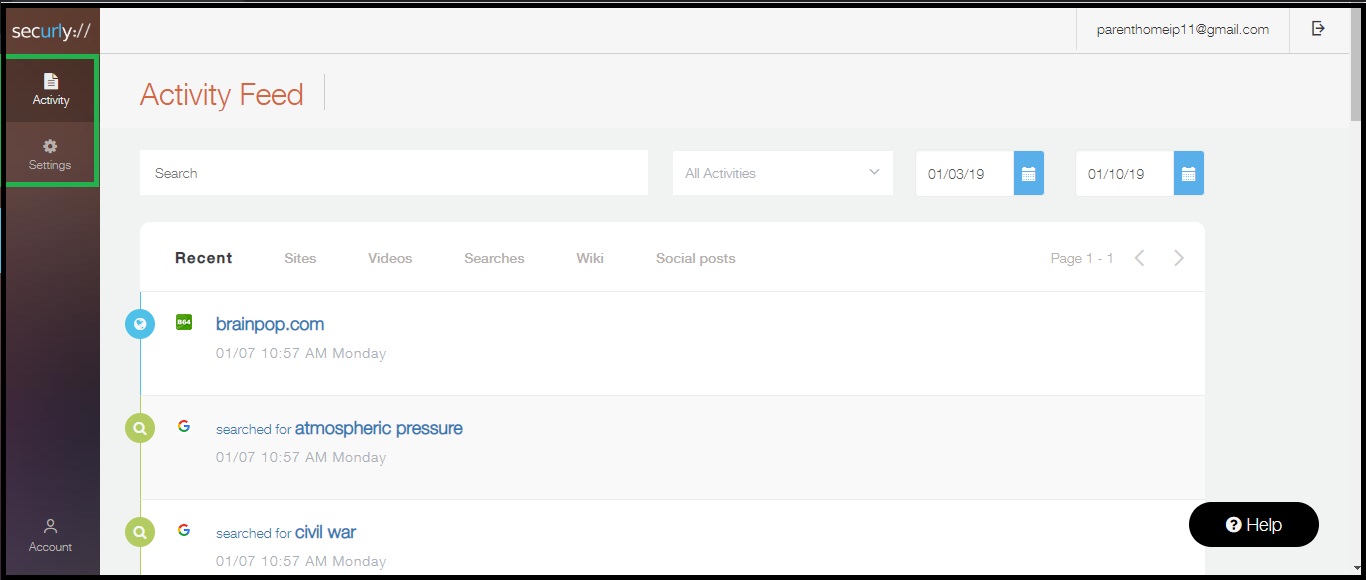
Parents will only have access to the Activity and Settings/Rules tabs; the Flagged tab will not be visible to them.
-
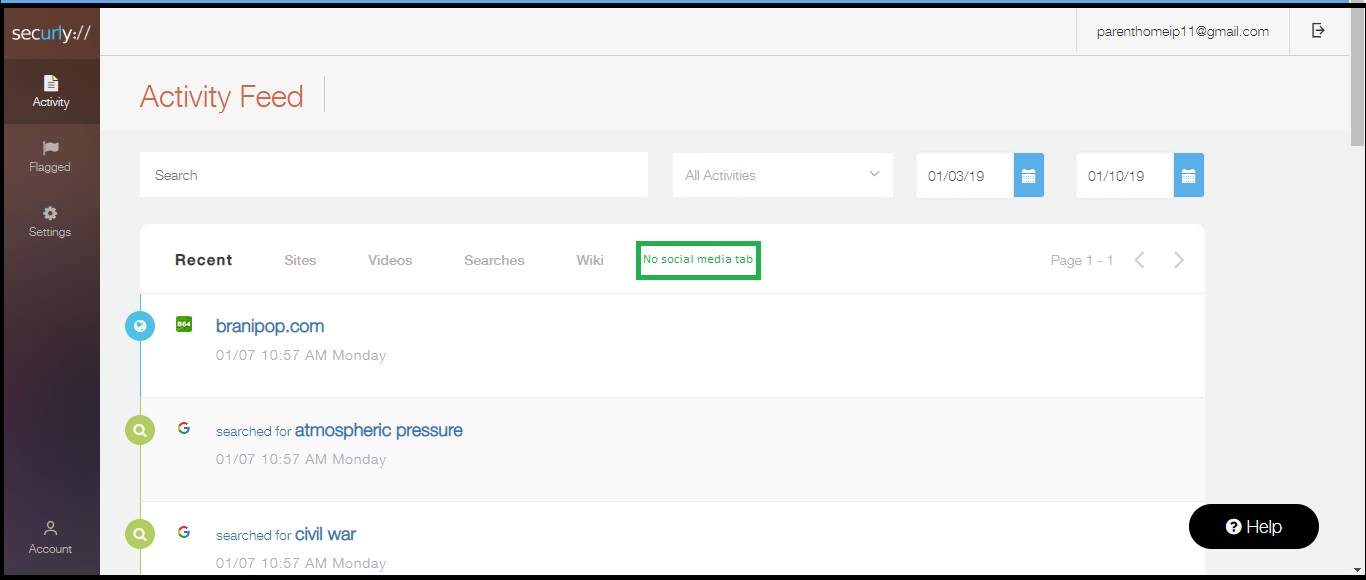
You can choose to hide all social media activity from parents in both the Activity and Flagged tabs. This means they will still see other blocked or allowed activities, but social media interactions, such as posts on Facebook or Twitter, will be excluded.
-
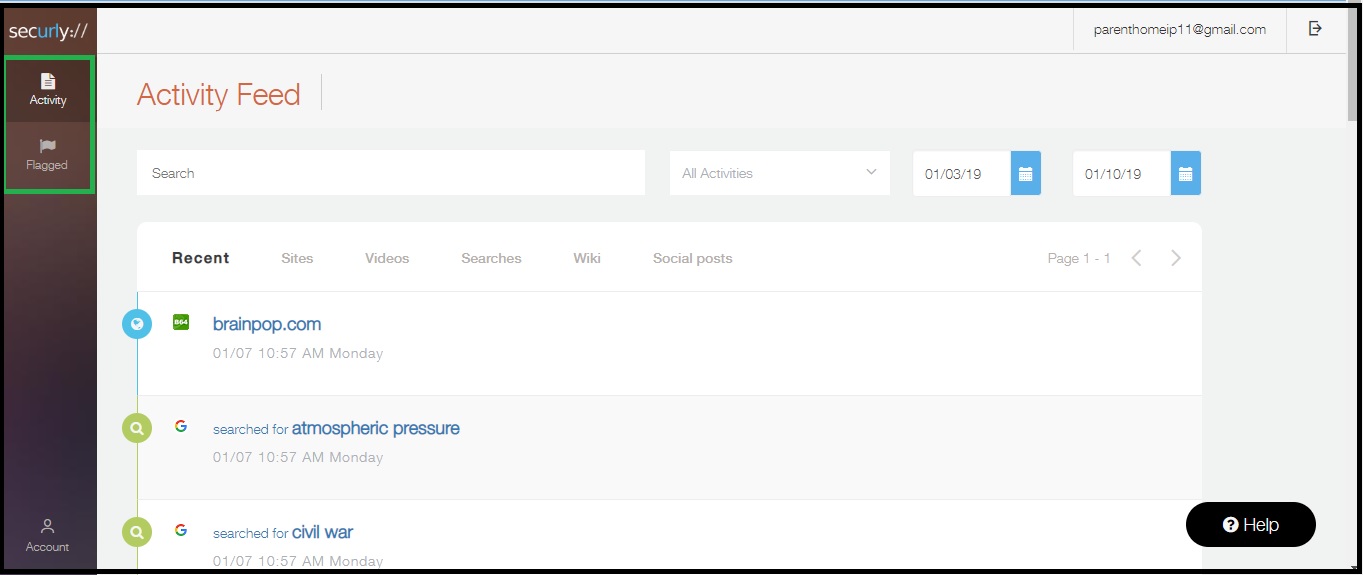
You can allow parents to see only the Activity and Flagged tabs, excluding the Settings/Rules tab, by selecting ‘No Control’ from the Parents tab in your Securly portal.
Please note that if a parent has a child enrolled in your district, but also has a child enrolled in a different district that chooses to display the Settings/Rules tab, they will still see the Settings/Rules tab but with limited functionality.
To enable the customized parent settings, please contact us at support@securly.com