MDM › How to
How to update an expired or expiring Content Token (VPP server token)?
MDM administrators will receive advance email notifications when a token is approaching its expiration date. You can also check whether your token is expired or nearing expiry by navigating to Settings > ASM Apps & Books and reviewing the Expiry column.
Once a token has expired, a popup will appear when you log in to Securly MDM, providing instructions for updating the token.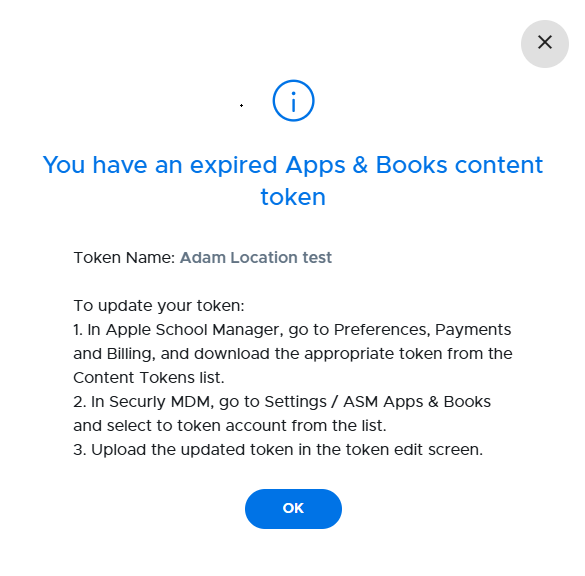
You do not need to wait for the Token to expire before replacing it with an updated token.
You can download your new Content Token from Apple School Manager (or Apple Business Manager). To do this, click your name/email address at the bottom of the left menu, and then select Preferences > Payments and Billing, then click on the Content Token you wish to download.
Now, replace the Content Token in Securly MDM
- In the Device Console go to Settings > ASM Apps & Books.
- Click on the name of your ASM account for the Content Token you are updating.
- Click the Choose file button, then find and select the Content Token you saved earlier.
- Click Save.
- The Expiration Date column should now show the new date. Wait several minutes, then check the Last Sync column to make sure the token is syncing with the MDM.