Classroom › How to for Admins
Setting up Canvas Link in Securly Classroom
To set up the Canvas link in Securly Classroom, follow these steps:
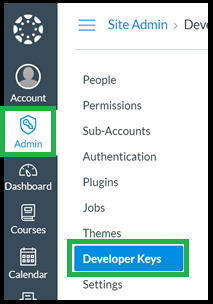
1. Access Developer Keys
In Canvas, go to Admin > Developer Keys.
2. Create a New Developer Key
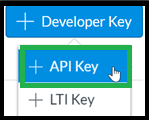
Click the +Developer Key button and choose API Key to add a new key.
3. Configure Key Details
Enter any key name and owner's email address. In the Redirect URI (Legacy) field, enter:
https://deviceconsole.securly.com/en/app/canvas/callback

4. Enable Scope
Click Enforce Scope to enable it.

5. Select Required Scopes
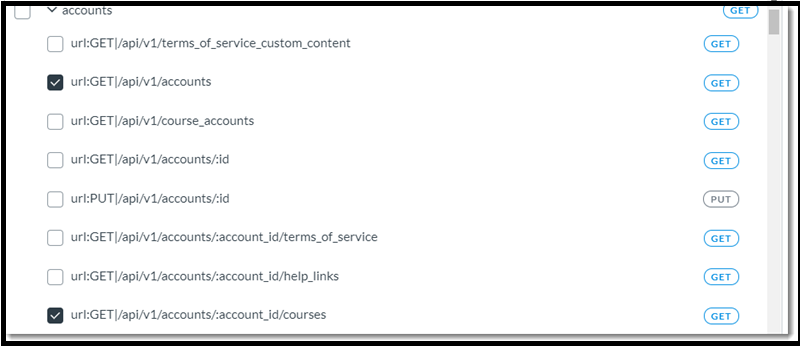
There are 9 scopes that need to be enabled. Expand the category for each one to find the scope and click the checkbox to enable it. If you're having a hard time finding a particular scope, there is a search box on the top right that will allow you to copy the scope from this article, paste it, then search.
6. Required Scopes
Accounts category:
- url:GET|api/v1/accounts
- url:GET|api/v1/accounts/:account_id/courses
- url:GET|api/v1/accounts/:account_id/sub_accounts
Courses category:
- url:GET|api/v1/courses/:course_id/users
Sections category:
- url:GET|/api/v1/courses/:course_id/sections
Enrollments_api category:
- url:GET|/api/v1/sections/:section_id/enrollments
7. New Additional Scopes
- url: GET|api/v1/sections:id
- url:GET|/api/v1/courses/:course_id/assignments
- url:GET|/api/v1/accounts/:account_id/scopes
8. Save the Key
Verify that all nine scopes are selected and click Save Key.

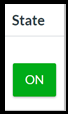
The new entry will be displayed. Change the state to "ON".
9. Copy Key Information
Copy the number above the Show Key button and paste it into Securly Classroom in the Consumer Key field.
Click the Show Key button, copy the value shown, and paste it into the Consumer Secret field.
10. Enter Base URL
For the URL, enter the base URL of your Canvas site. This will be the URL in the address bar after you are logged into Canvas up to the point of the first slash. For example, if you log in to Canvas and then see the URL:
http://ec2-33-222-208-11.compute-1.amazonaws.com/login/canvas in the address bar, you should use the base URL of http://ec2-33-222-208-11.compute-1.amazonaws.com.
11. Link and Authorize
After entering the values, click the Link button, then authorize the link with Canvas.
12. Verify Sync
Once the sync is complete, Canvas classes should now be visible on a new Canvas Classes tab in Classes. They will be available for selection on Teacher Tools in the Selection box.