Filter › Filter Deployment
How to Configure Securly DNS Locally on Windows
To deploy Securly DNS on your standalone Windows machine, follow the steps below:
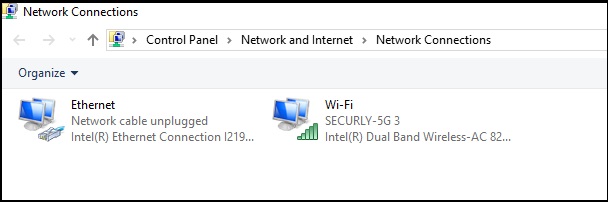
- Navigate to Start > View Network Connections.
- Double-click your current network adapter.
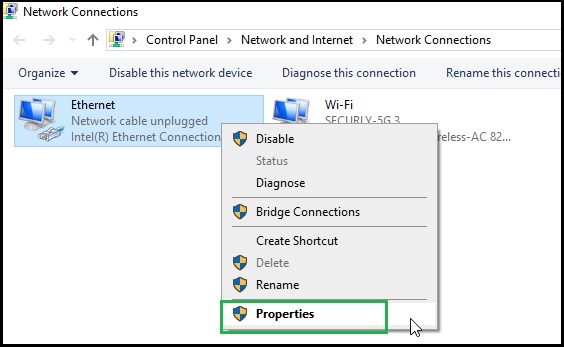
- Click on Properties
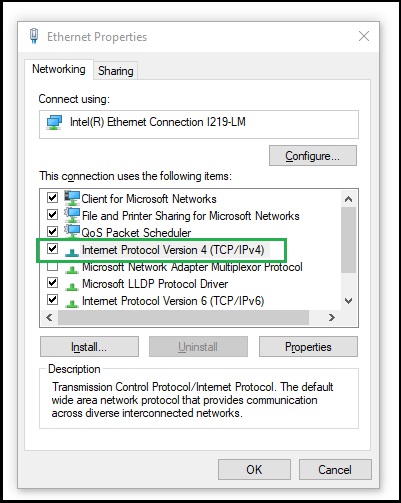
- Double-click on Internet Protocol Version 4 (TCP/IPv4)
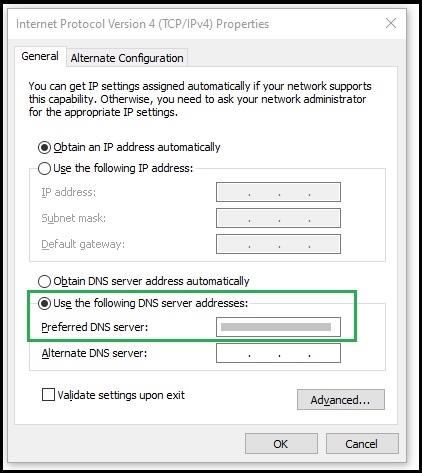
- Select Use the following DNS server addresses instead of the default Obtain DNS server address automatically.
- Enter the DNS server addresses provided by your Sales Engineer.
Note: These steps must be performed on all DNS servers for your school.