Filter › Filter Deployment
How to deploy Securly DNS on standalone OSX
Deploying DNS on a standalone OSX involves the following steps:
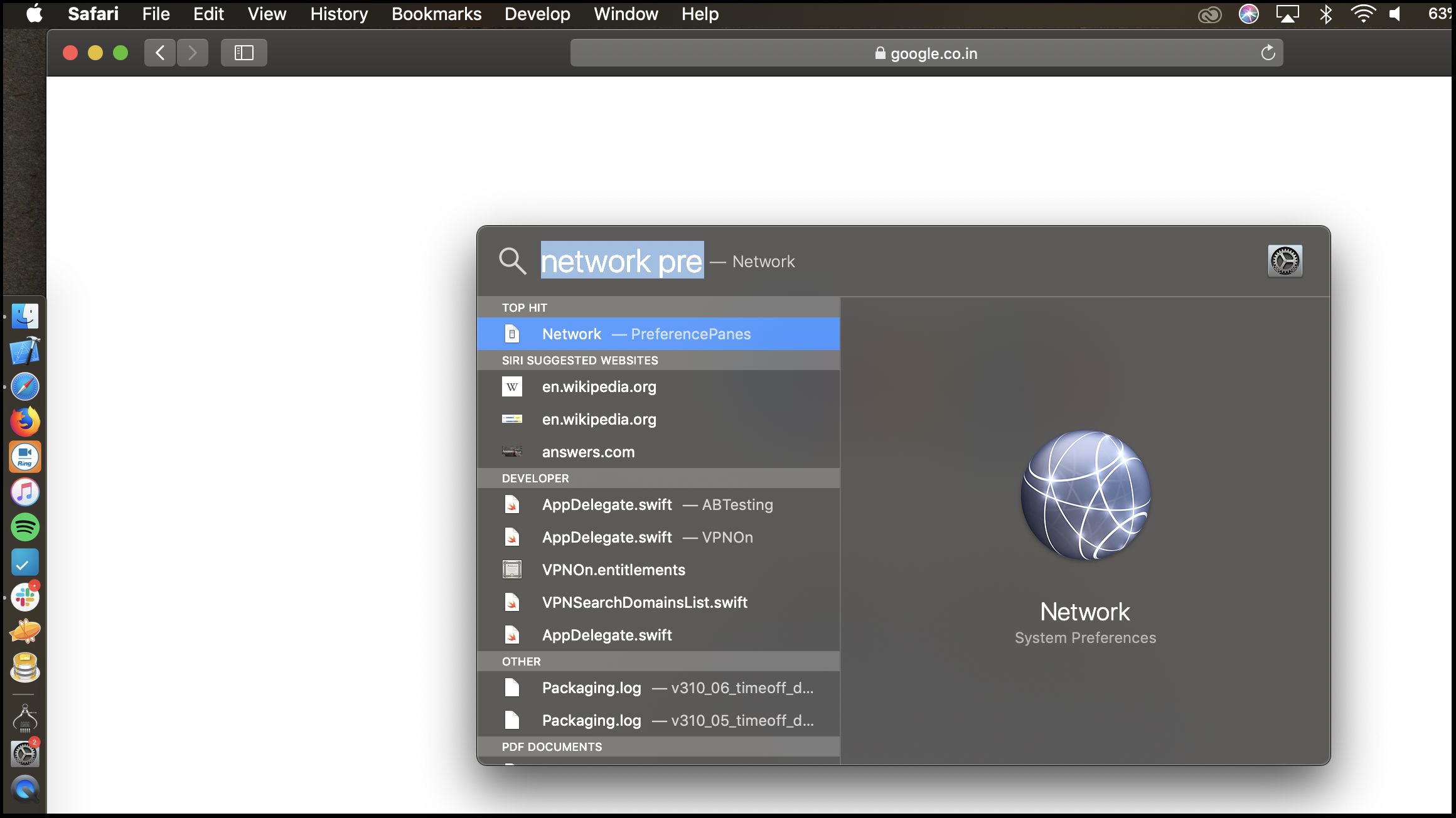
- Click the magnifying glass in the top right corner of the screen.
- Type in “network” and select the network preferences.
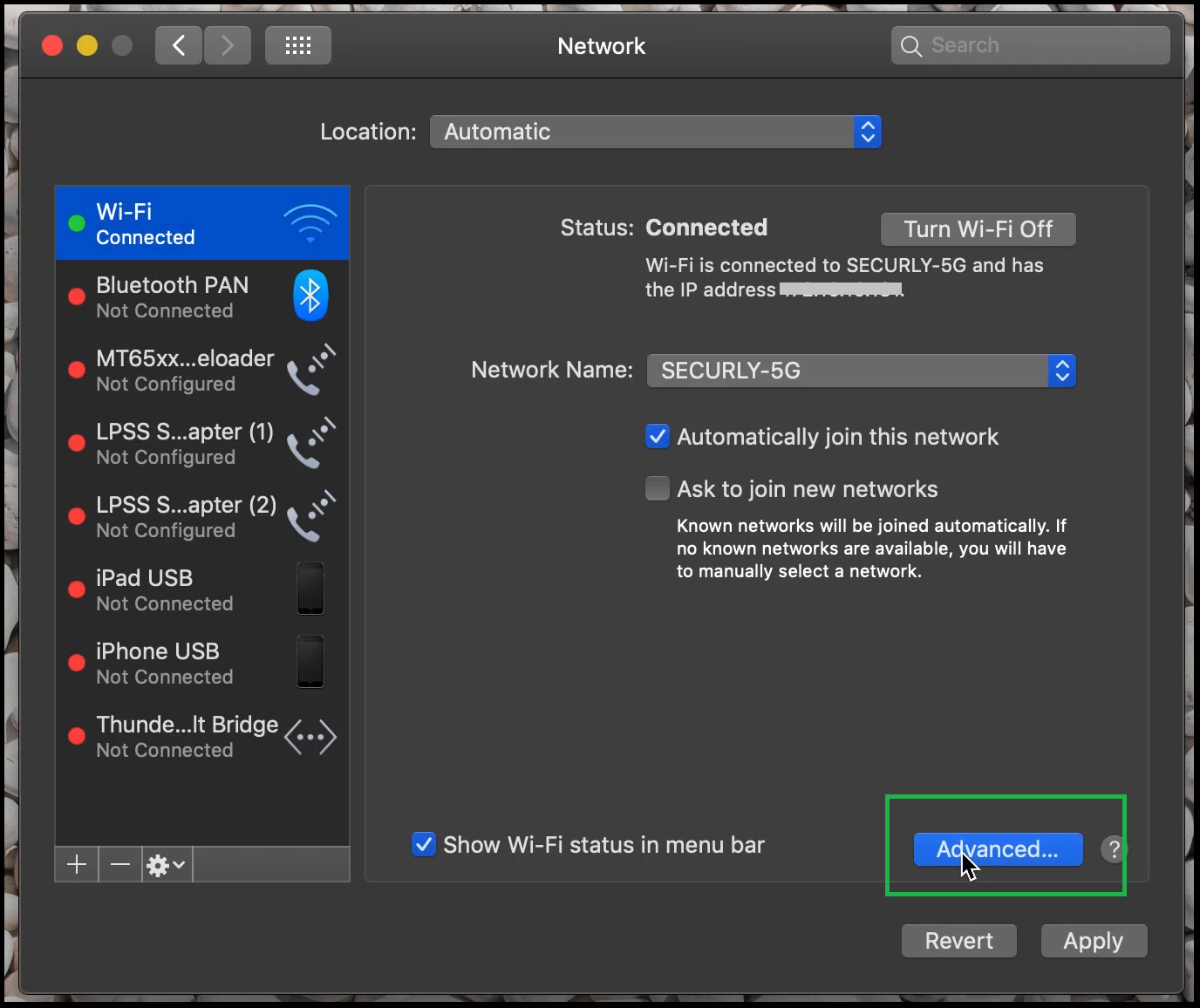
- Select the current connection on the left.
- At the bottom, click on “Advanced.”
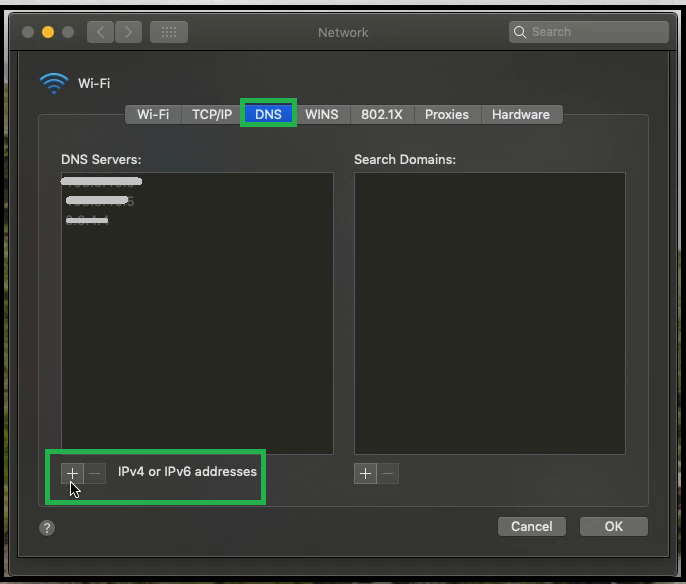
- Then select DNS and click “+” at the bottom for “IPv4 or IPv6 address.”
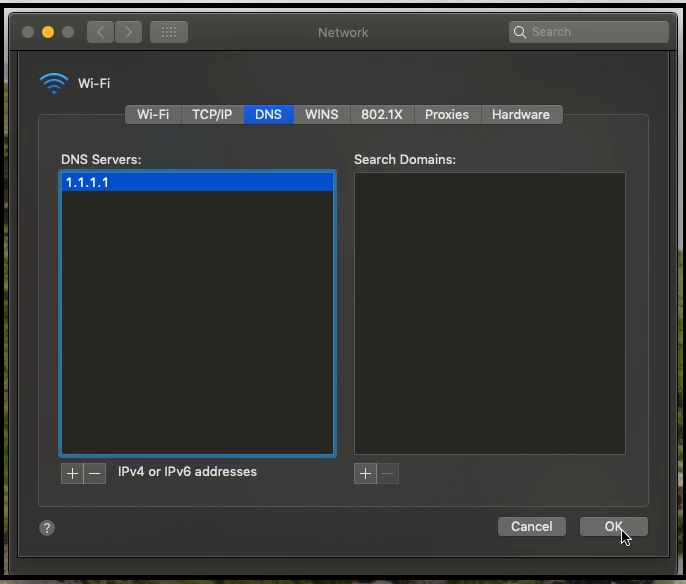
- You can now enter the applicable DNS server provided to you by your Sales Engineer.