MDM › How to
Enable Teacher Tools for Students at Home
To allow Teacher Tools to control an iPad while a student is at home, log in to the Securly MDM (deviceconsole.securly.com) and navigate to Organization > Settings > System tab. Disable the Exclude Teacher Tools for outside IP address ranges feature (uncheck the box) and click Save.
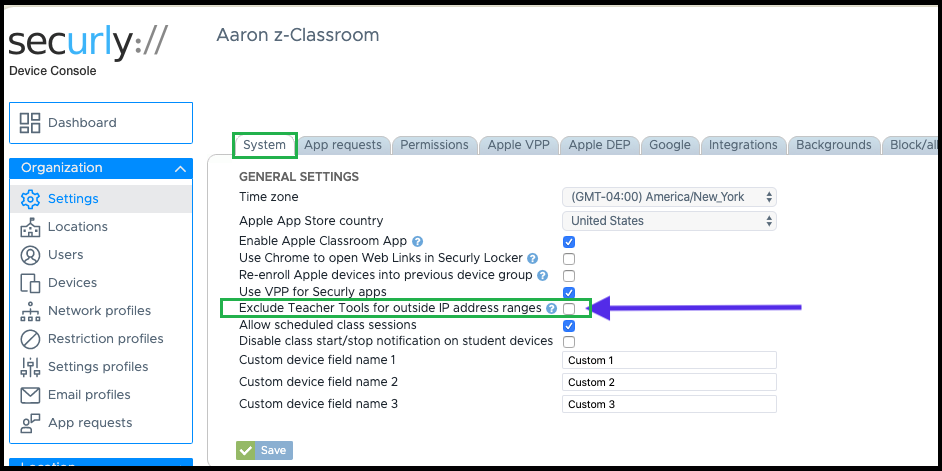
Now, students will be able to work from home, and teachers will have access to all functions of Teacher Tools during "school hours" (navigate to Settings > School Schedule tab).
Please remember that a student may only be monitored in a single class at a time. Multiple classes cannot manipulate a single student simultaneously.