Classroom › How to for Admins
How to allow students to be monitored while at home via IP Exclusions
To allow students to be monitored at home from Teacher Tools please, log in to the Device Console (deviceconsole.securly.com) and go to Organization > Settings > System tab > disable the Exclude Teacher Tools for outside IP address ranges feature (uncheck the box) > Save.
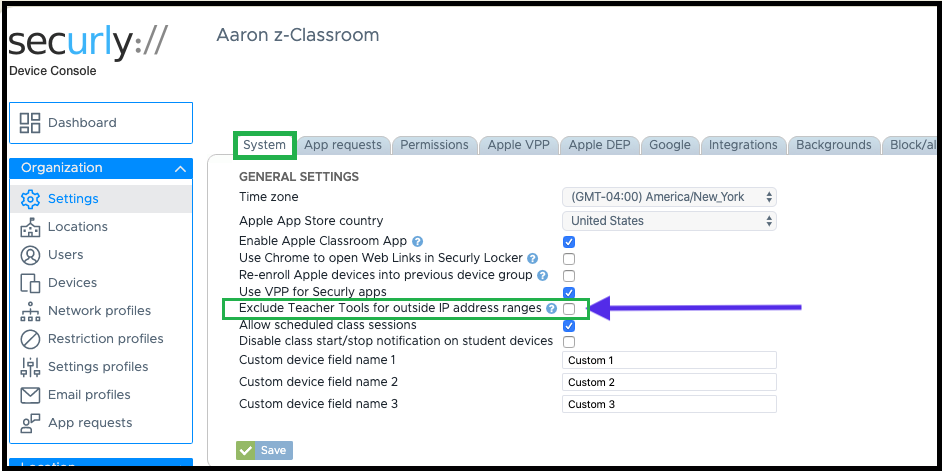
Now students will be able to work from home and teachers will be able to do all the functions of Teacher Tools during "school hours" (Device Console > Settings > School Schedule tab).
Please remember that a student may only be monitored in a single class at a time. Multiple classes cannot manipulate a single student simultaneously.
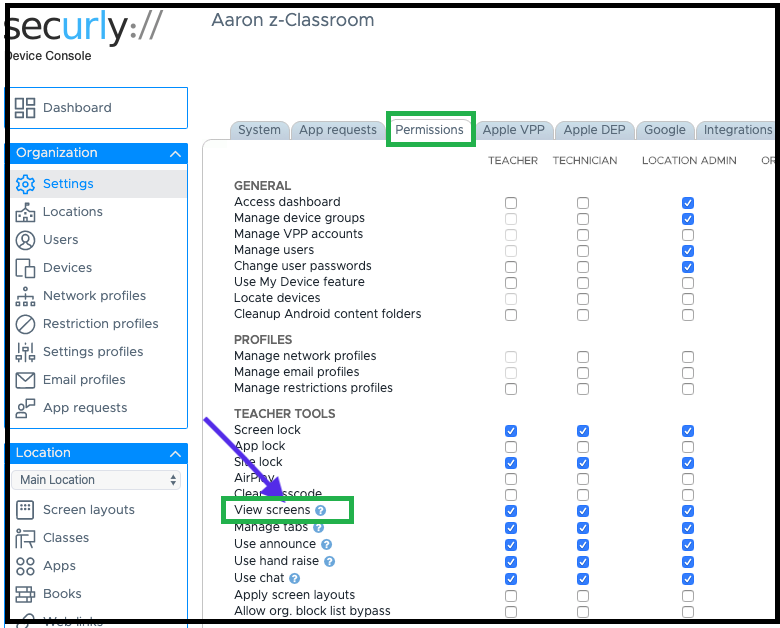
Please also remember that there might be a liability/privacy issue with viewing a student's screen while he/she is at home. You may elect to disable screen monitoring by going to the Device Console > Organization > Settings > Permissions tab > In the Teacher Tools section turn off View Screens (uncheck) > Save. This will turn off the view screen feature for all users in those roles.