Filter › Filter Deployment
How to enable API access for Securly in Google Workspace
To ensure that you can access the Securly admin console without errors, it is essential to add Securly as an Application to your API control in Google Workspace.
1. Log in to your Google Workspace admin console and navigate to Security > Access and Data Control > API controls. Click on the MANAGE APP ACCESS. 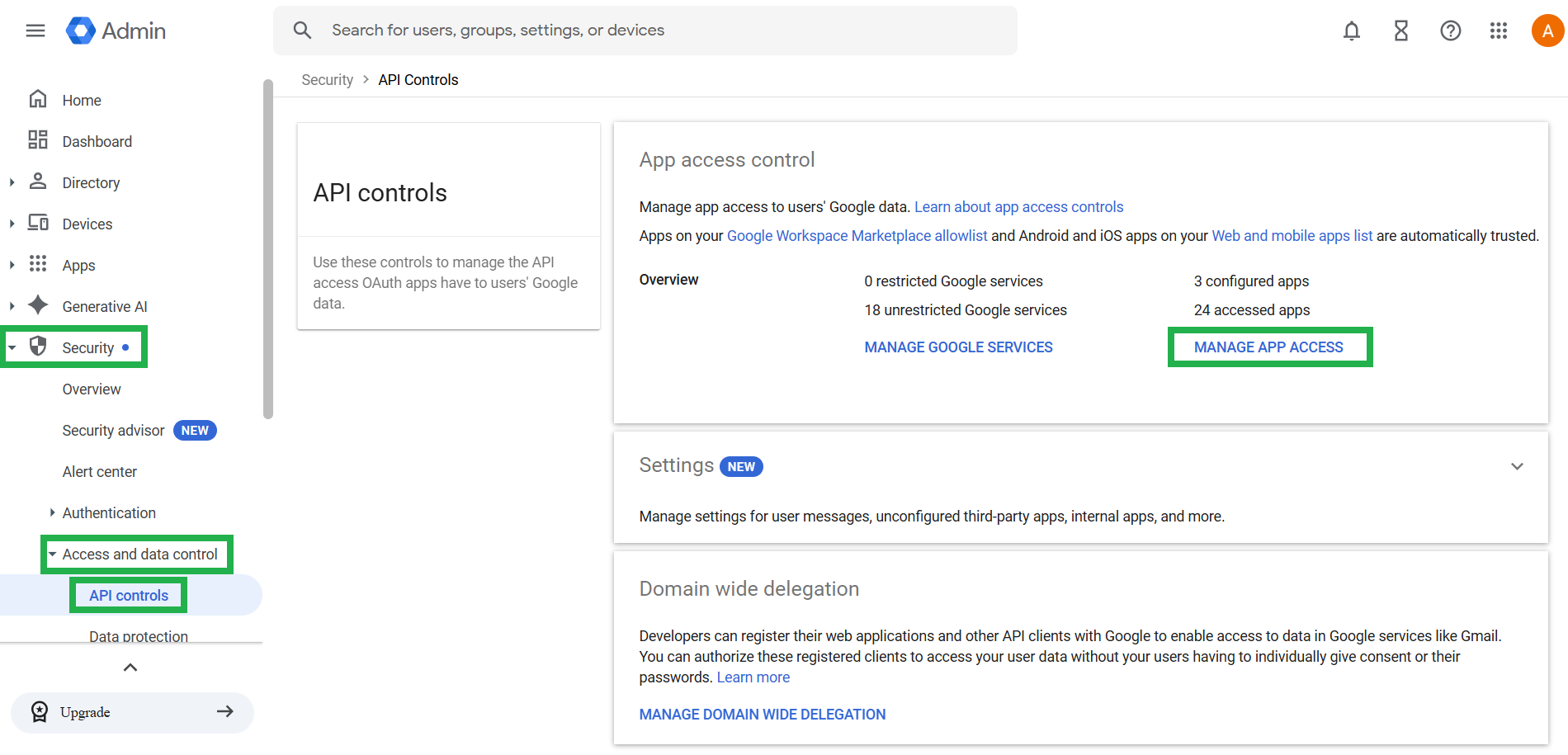
2. Now click on Configure new app.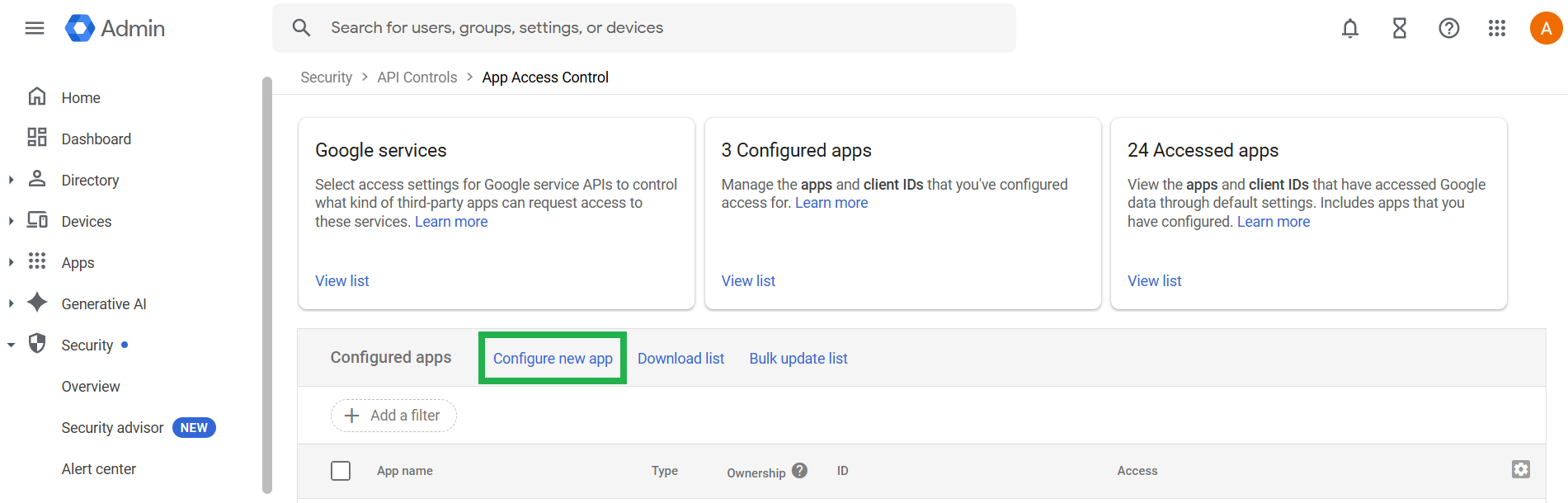
3. Search for 'Securly' and you will be displayed all the Securly apps. Select the one you need to enable access for.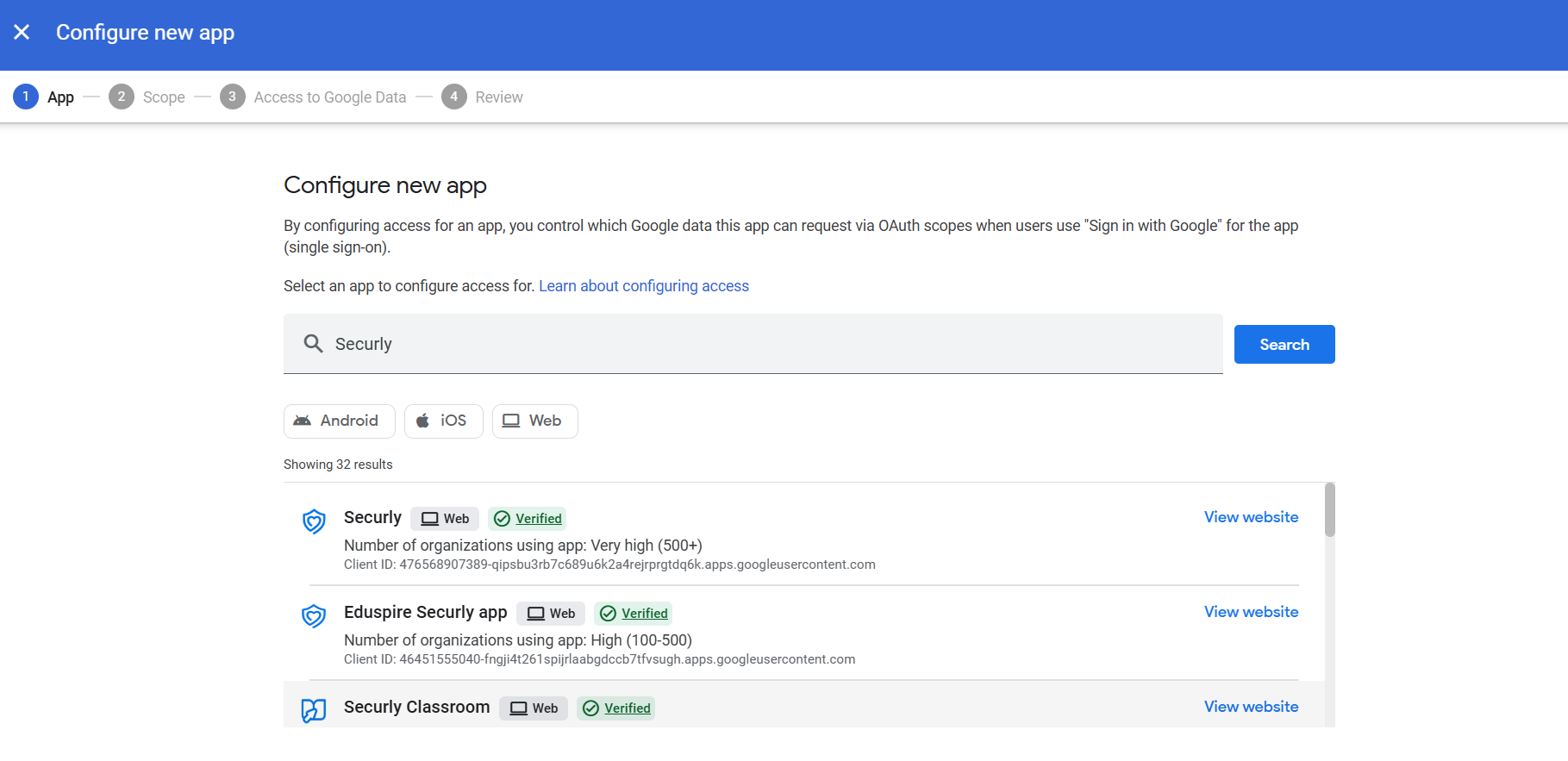
4. Under Scope, select which org units to configure access for. By default, it is selected for all users in your org's Google Workspace.
5. Click on the radio button for 'Trusted: Can access all Google services' on the subsequent page.
6. Continue to the next page to review your selections and click the ‘Finish’ button at the bottom.