Filter › Policy Management
How to Add Users to Custom Groups
Custom Groups allow admins to create special groups of users and assign them a filtering policy that is different from the policy assigned to their OU. Custom Groups can include users from multiple OUs.
You can add or edit users in a Custom Group at any time after the groups have been created. To do this:
- Log in to Securly Filter or Securly Aware and navigate to the Policy Map.
- Select the policy you want to add users to the Custom Groups for. You can also select All Policies.
- Go to the 'Custom Groups' tab and click the more icon (...) to view the 'Add Users' option.
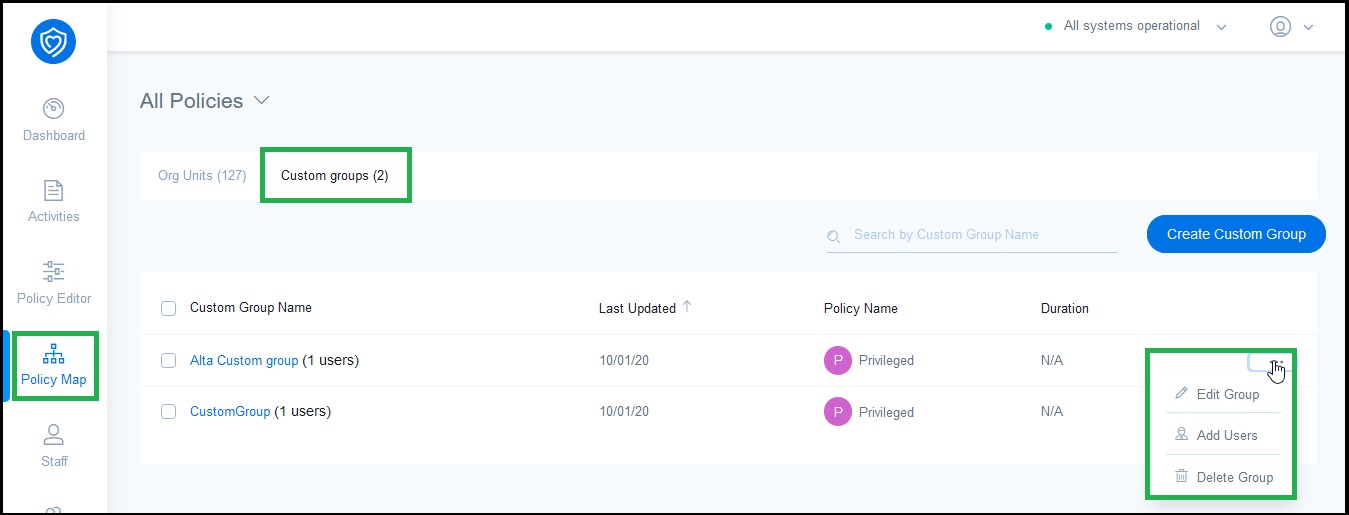
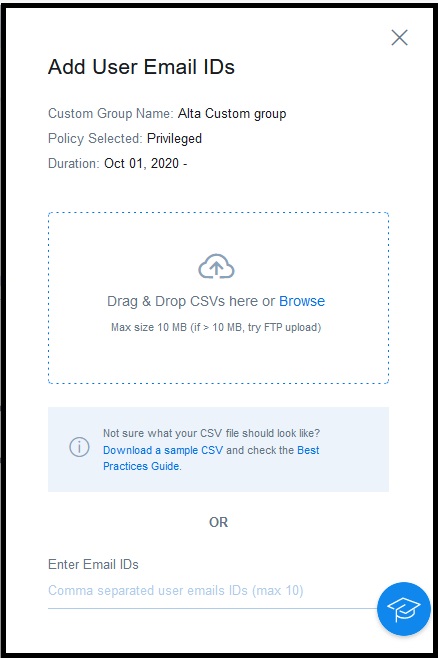
- You can add users individually or upload a CSV; the maximum CSV size is 10 MB.
- Alternatively, you can click on the name of the Custom Group to view its details.
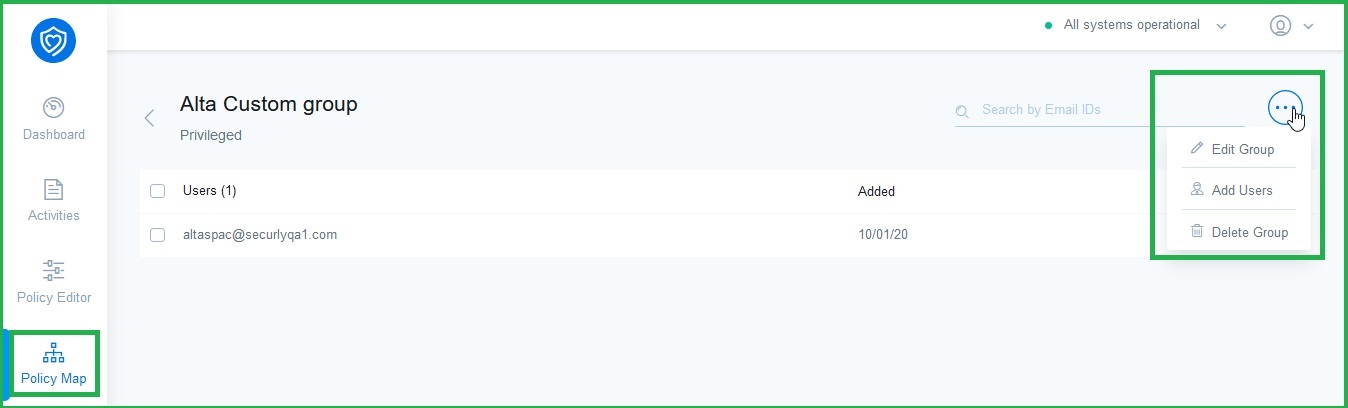
- Click on the More icon (...) to view the 'Add Users' option and add users as in step 4.