Pass › FAQs
Can a teacher or admin who works in more than one building switch between schools in Pass?
Short answer: Yes. A teacher, staff member or admin who is a user in more than one school (for example, a teacher who works in two buildings) can switch between those schools inside Securly Pass using the school selector at the top of the Pass menu. They do not need a second login.
This is a Pass feature and is separate from the Pass / Classroom integration. The Classroom integration connects Pass to Securly Classroom for users who have accounts in both products. It is not how you move between schools in Pass.
How to switch schools in Pass on the web
- Sign in to Securly Pass.
- In the left menu, find your school name just under your own name. It is labeled School.
- Click the arrow (the down-pointing triangle) to the right of the school name.
- A dropdown lists the other schools where you are a user. Click the school you want to open.
Pass then loads that school. To go back, open the same dropdown and choose the first school again.
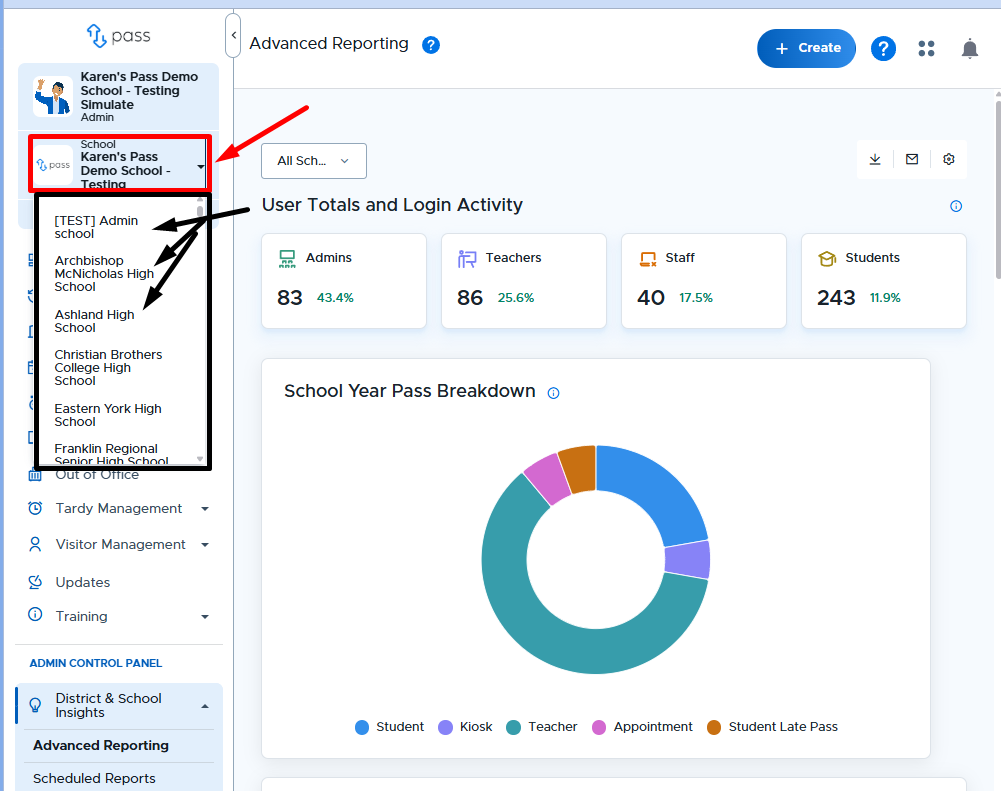
Switching schools in the Pass mobile app
On the Pass mobile app, tap the menu bars, then tap the arrow to the right of your school name. The other schools where you are a user appear in a dropdown. Tap the school you want to open.
What if I do not see the other building in the dropdown?
- The dropdown only lists schools where you are a user. If you work in two buildings, you need to be included as an active user in each school's Pass.
- If your district provisions users through a third-party service, Clever and ClassLink both allow a user to be shared across multiple schools.
- If the second school does not appear, ask your Pass admin or Securly Support to confirm that you are an active user in that school.