Classroom › Getting Started
Link Securly Classroom to Google Admin with a limited-access API user
Link Securly Classroom to Google Admin with a limited-access API user.
These instructions are for creating a limited admin user in the Google domain that can be used for linking to Securly Classroom. Note that this user will not work for syncing with Google Classroom as a roster source. If Google Classroom classes are needed, only a full domain super admin account will work.
In Google Admin Console
-
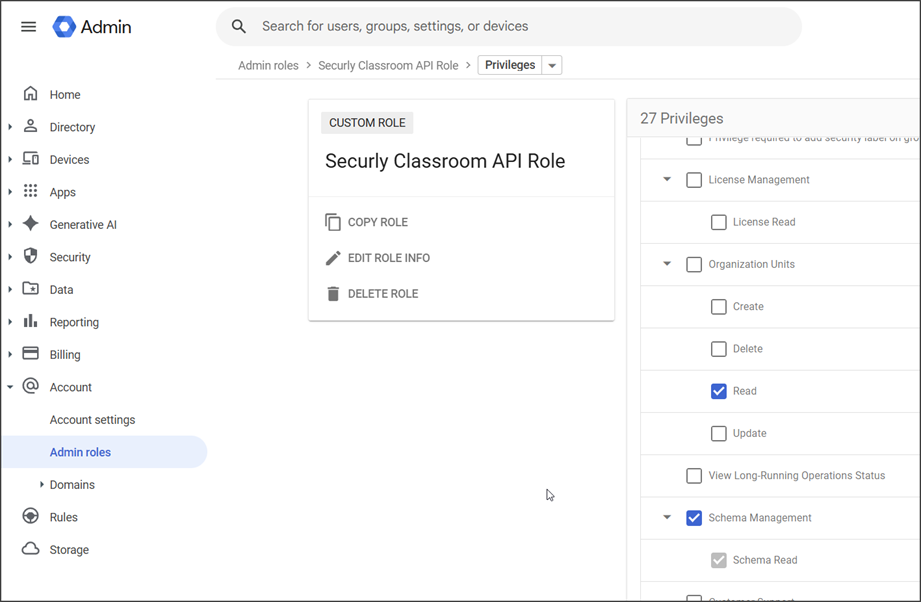
In GAC create a new Admin role (Account/Admin Roles) called Securly Classroom API Role
-
Assign the following Privileges to the role
-
Organizational Units: Read
-
Schema Management: Schema Read
-
Users: Read
-
Services > Directory Sync > Manage Directory Sync Settings: Read Directory Sync Settings
-
Services > Chrome Management > Settings > Manage ChromeOS Devices: Read
-
-
Create a new user called Securly Classroom API User, assign a password, and assign the user to the new Securly Classroom API Role
In Securly Classroom
Go to Settings > Deployment > Google and link to Google Admin using the user and password created for Securly Classroom sync.