Filter › Home
Managing Admins
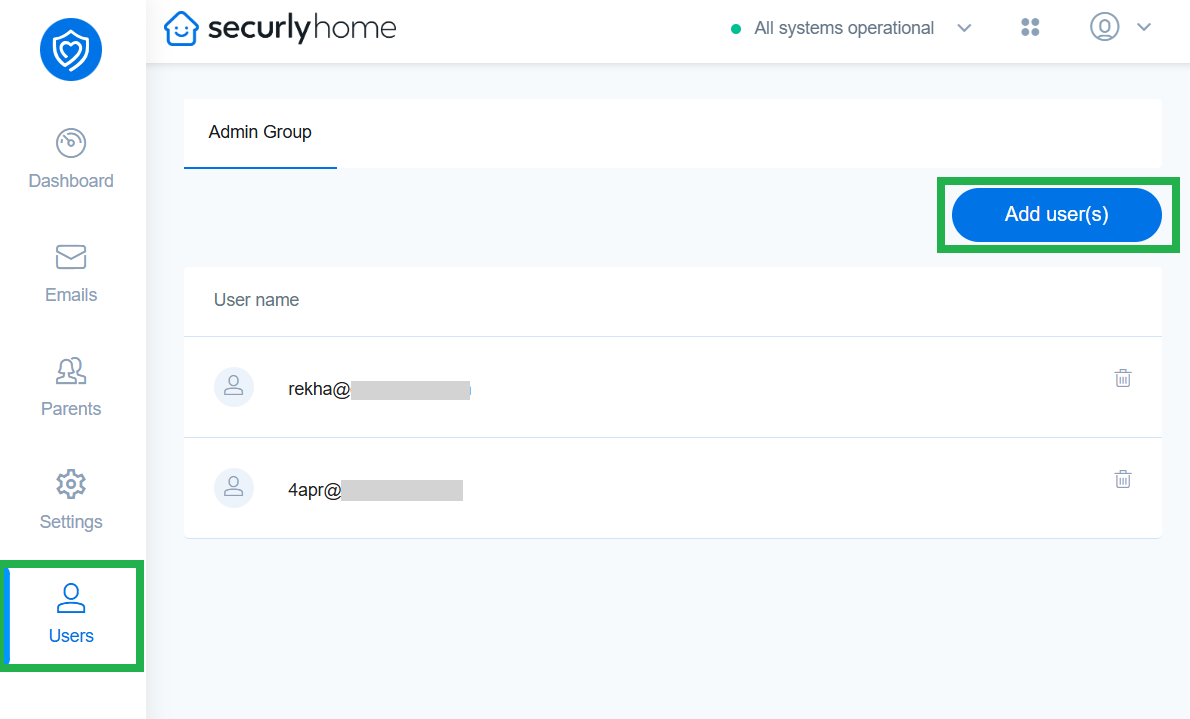
Like the Admin Groups in Securly Filter and Aware, Securly Home allows admins to share responsibilities with co-workers from the Users menu.
By adding users here, they will be able to add parents, adjust parental controls, customize activity reports, and manage email notifications.
To add a user with admin priveleges:
- Click the Add users(s) button.
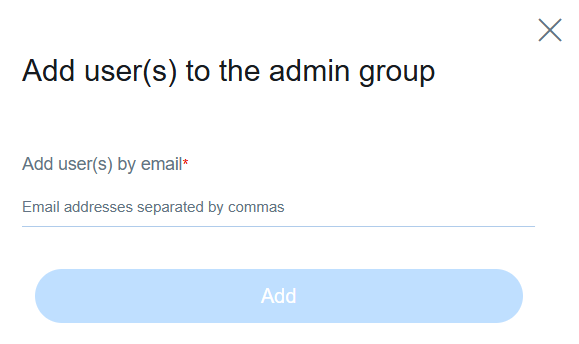
- Enter the email IDs separated by comma in the sidebar popup and click Add.
You can use the delete icon on the right of each user to remove their admin access.