Filter
How to block Google AI Overviews and AI Mode in Securly Filter
The Restrict AI-powered mode in search engines setting in Securly Filter lets districts remove Google's AI Mode and AI Overviews from student searches. Students keep using Google Search and get standard results without an AI-generated summary at the top.
This gives districts a way to keep Google Search available to students while they decide if, when, and how to introduce AI.
How it works
Google shows AI content in two places. AI Mode is a chat-style search with its own tab, and AI Overviews are the summary that appears above regular results on the All tab.
With the setting on, Securly Filter hides or redirects these features depending on your filtering method, and students land on Google's standard web results. Images, Videos, and News stay available, and SafeSearch settings don't change.
Knowledge panels and shopping carousels also drop out of the results. The setting works per policy, so you can keep AI off for some grades and allow it for others.
How to turn it on
1) In Securly Filter, open Policy Editor.
2) Select a policy and open Settings.
3) Turn on Restrict AI-powered mode in search engines.
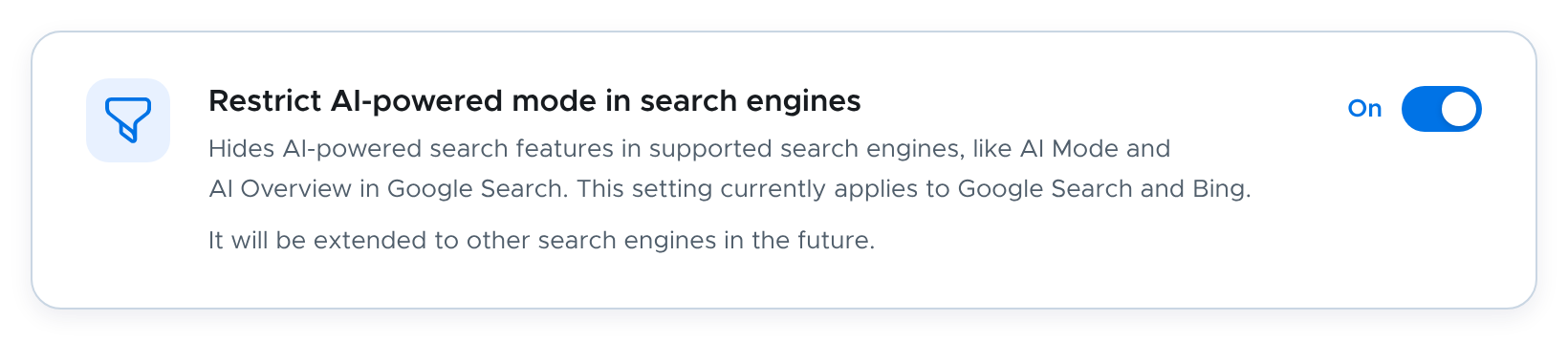
If the setting is already on, AI Overview removal applies automatically, with nothing extra to configure.
Availability
Google AI Overviews on SmartPAC: available today
Google AI Overviews on the Chrome extension: coming next week
Bing AI answers and Copilot Search: coming next week