Pass › Pass Admin Guide
My Locations
Any adult can associate with a location. Once you associate with a location, passes created to that location will appear on your Dashboard. To associate with a location, click the gear icon below the name of your school and click My locations.
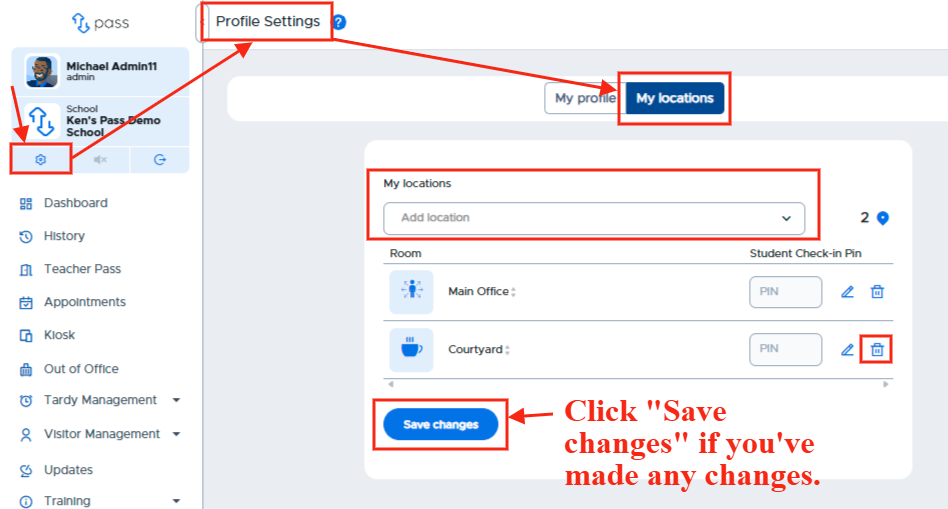
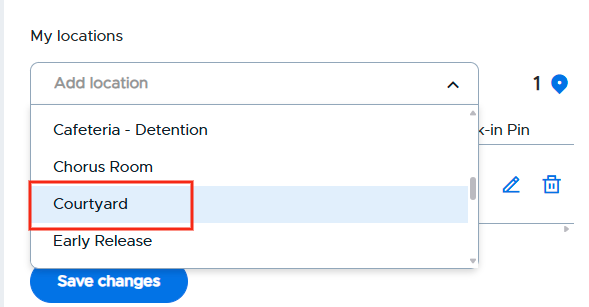
On the popup in the Add location field, (1) type the name of the location OR (2) click in the Add location field and then scroll down the list and click on the desired location.
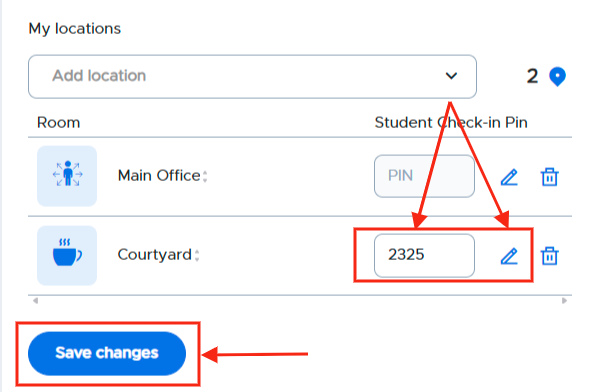
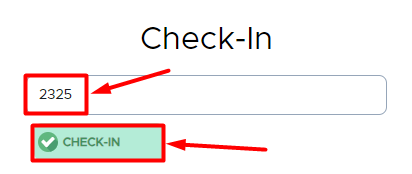
If the Auto Check-in module (Modules tab in the Control Panel) is enabled, you can assign that location a Check-in PIN that students will enter on their device when they enter that location. To add a location PIN, click the Edit pencil, click in the PIN field, and add the PIN. Then click Save changes.
My locations - Setting an Auto Check-in PIN
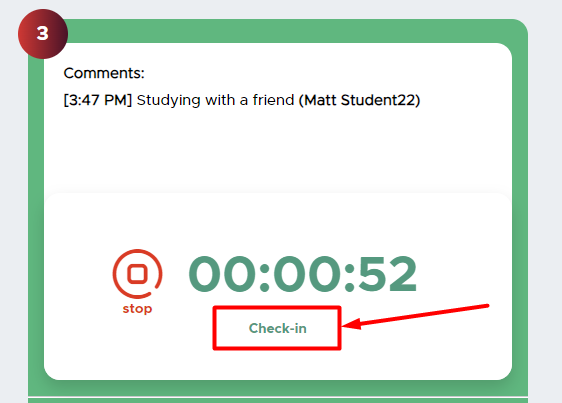
Student’s Device using the Check-in PIN
You can update your Profile Settings at any time.