Classroom › How to for Teachers
How to monitor student screens
Note: Monitoring student screens is only available if enabled by district admins. If you don't see the controls described in this article, your district has disabled this feature.
Student screen thumbnails are visible once a class is started unless an administrator has disabled the screen viewing feature.
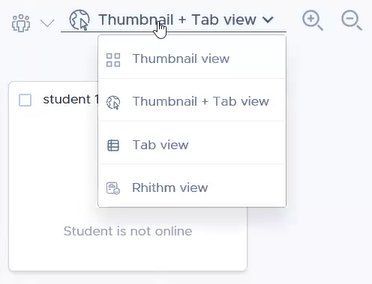
If you are in Tab View (seeing only a list of open tabs for each student) and want to view the student screens, switch to Thumbnail View or the Thumbnail+tab view by using the dropdown selector.
Securly Classroom sends a request to devices for a screen update about once every 5 seconds. However, if the device has recently been restarted or asleep, it may take up to 2 minutes for it to begin responding to requests.
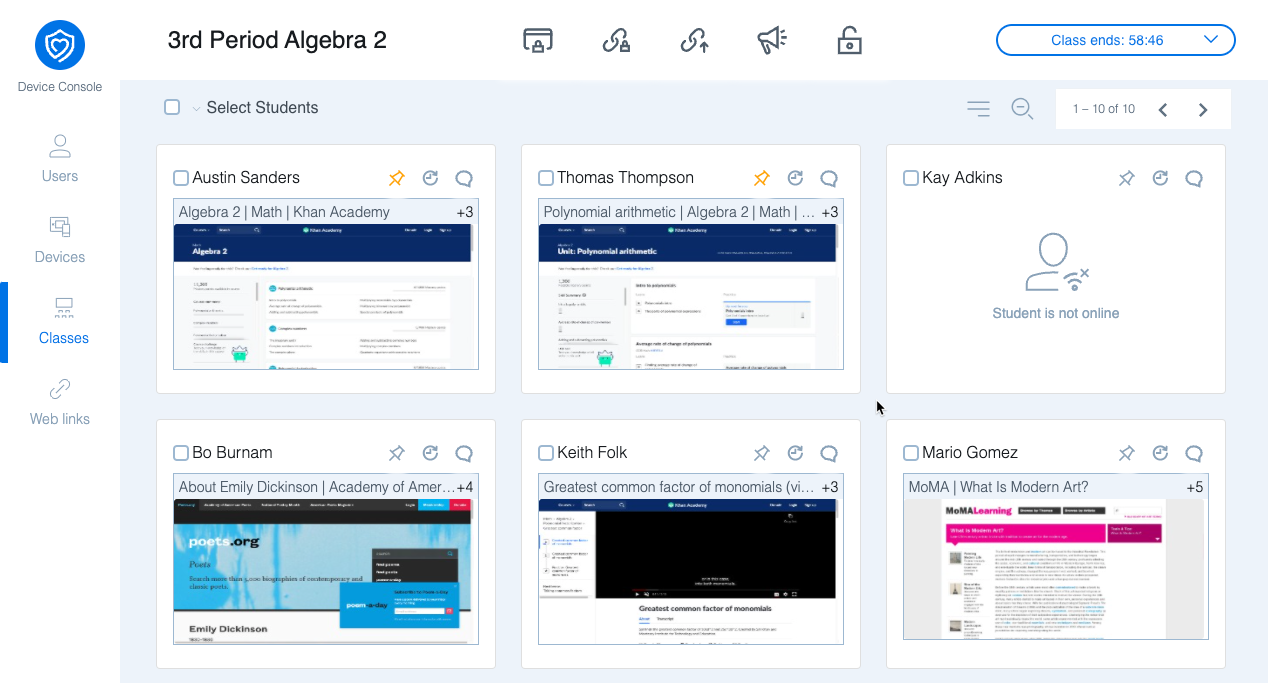
Student States
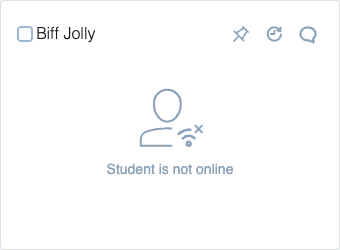
Student is not online will appear when the student's device is not online or not communicating with Securly Classroom.
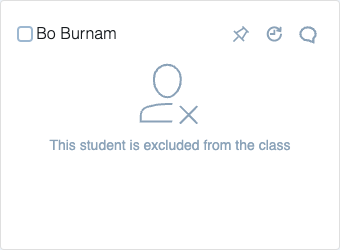
This student is excluded from the class can appear when a student was deselected before the class was started, or because their device connected to Securly Classroom but was detected on an outside (non-school) IP address, which typically means they are absent from school and connecting from home or elsewhere. This automatic exclusion from class based on IP address is an optional setting configured in the System submenu under Settings.
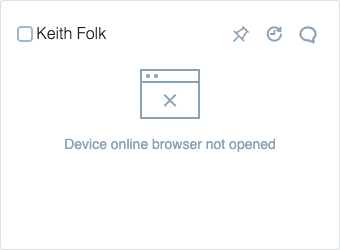
Device online browser not opened will appear when a student is in the class, but their device has not yet connected to Securly Classroom. This state can also appear when a student is viewing an empty tab.