Classroom › How to for Teachers
How to See a Tab That a Student Just Closed
When running a class, you may encounter a situation where a student is off-task and closes the tab they were on before you realize they were on a non class-related website. If this becomes an issue, you can always see what sites a student has been browsing during a class session in their History.
History is accessed during a class with the history button from Tab View or Thumbnail View. In Detail View, the icon is accessible from the right-hand sidebar.
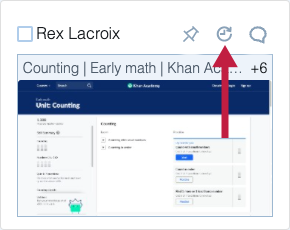
Site history, saved screens, and chat history for the current class session are accessible from this view.
If the class is over, and you want to view a student's history for a past class session, you can do so by going to the Users menu, then the Rostered Students tab, then selecting a student. Browsing history, saved screens, and chat history for past class sessions are accessible from this view. Note that browsing history is only provided during times a class session is active.