Classroom › How to for Teachers
How to Zoom In and Out to Manage Student Thumbnails
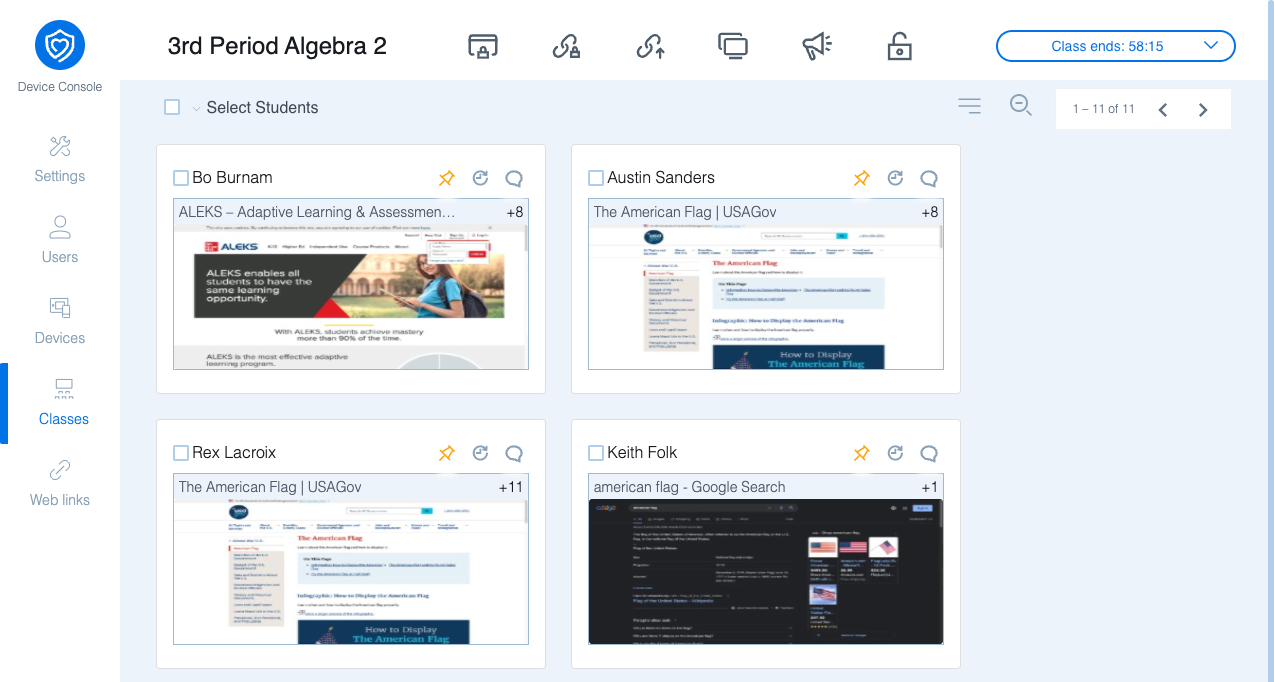
When running a class, you may want to see more student screen thumbnails to keep track of your entire class at once. You can achieve this using the zoom controls located at the top right of the screen. By zooming out, you can view many more student screen thumbnails, depending on your window and screen size.
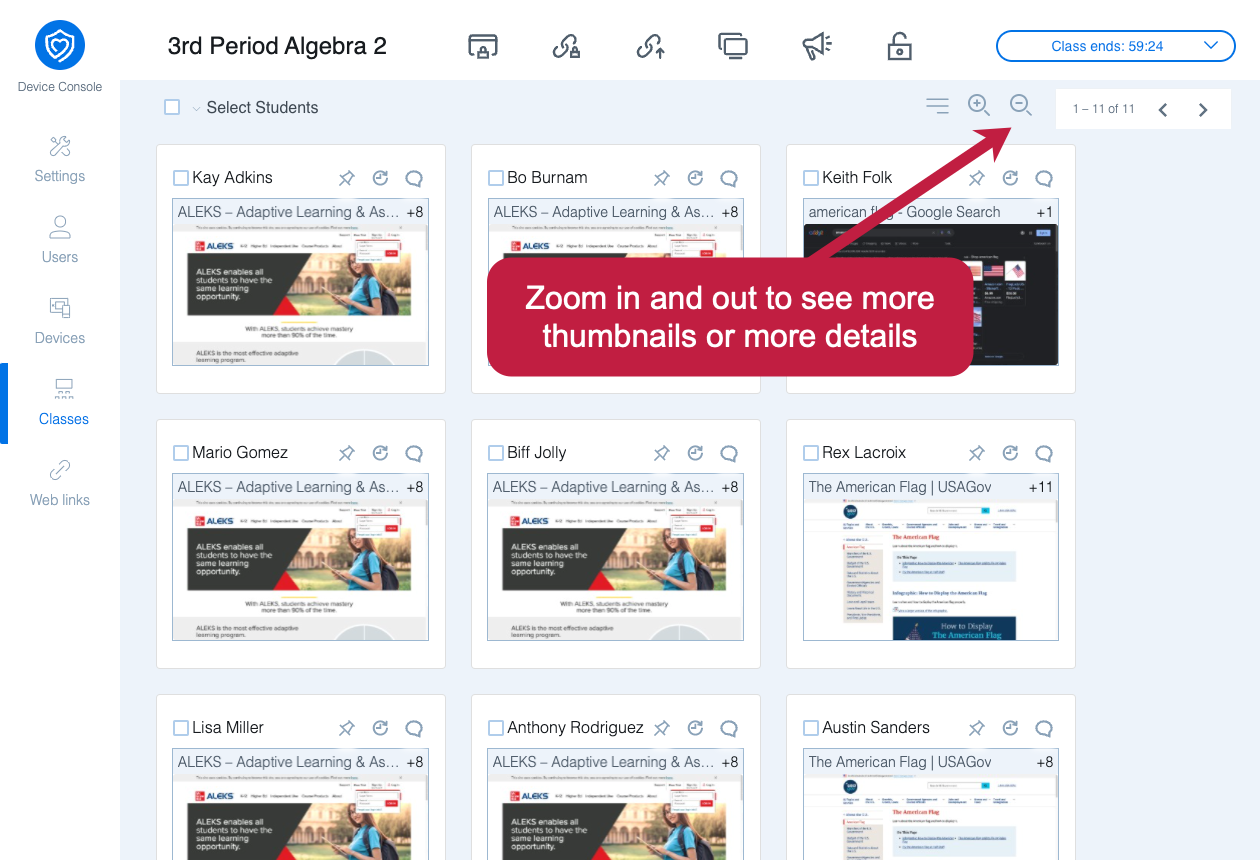
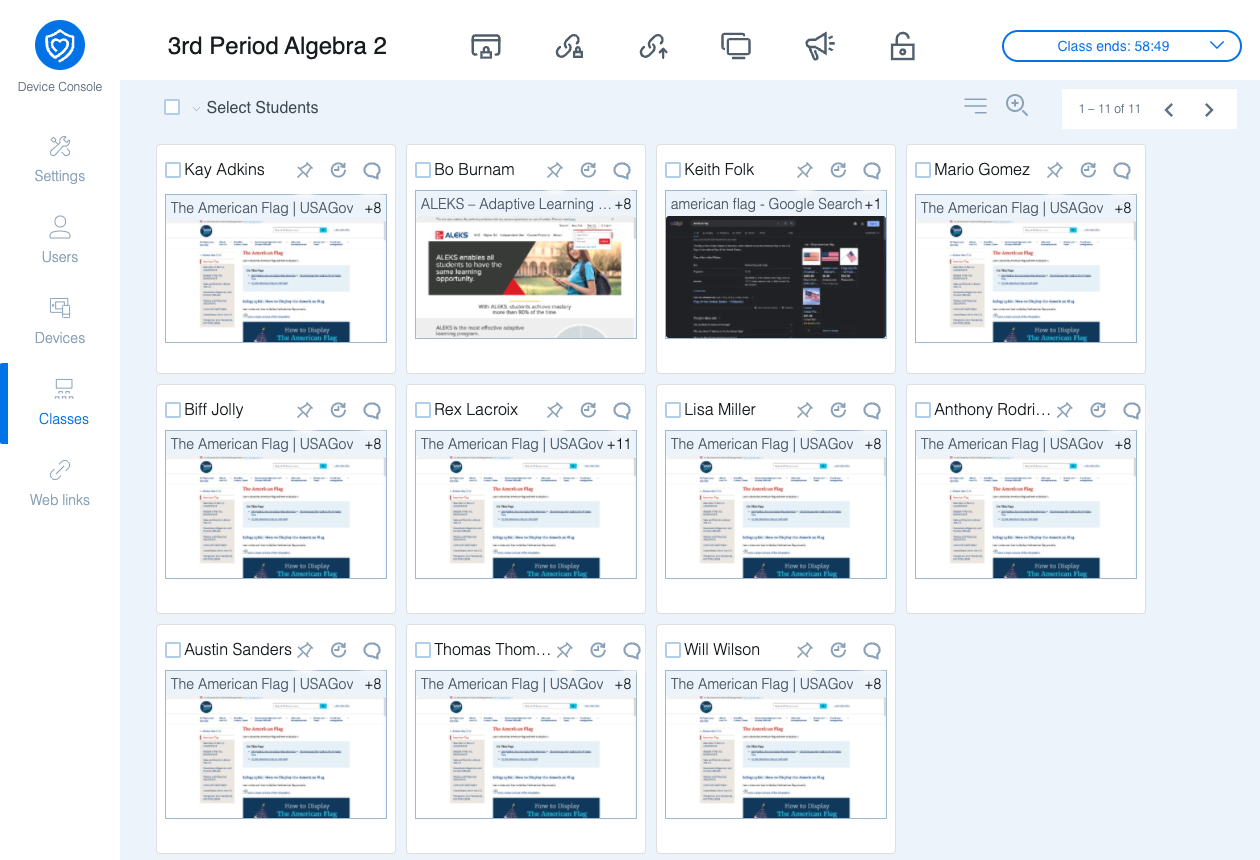
In addition to zooming out to see more student thumbnails, you can also zoom in to focus on specific students and view more detail.