Filter › Settings
General Settings
From the General settings tab, you can upload a logo to appear on the student activity reports and blocked pages. You can also enable verbose activities logging from here.
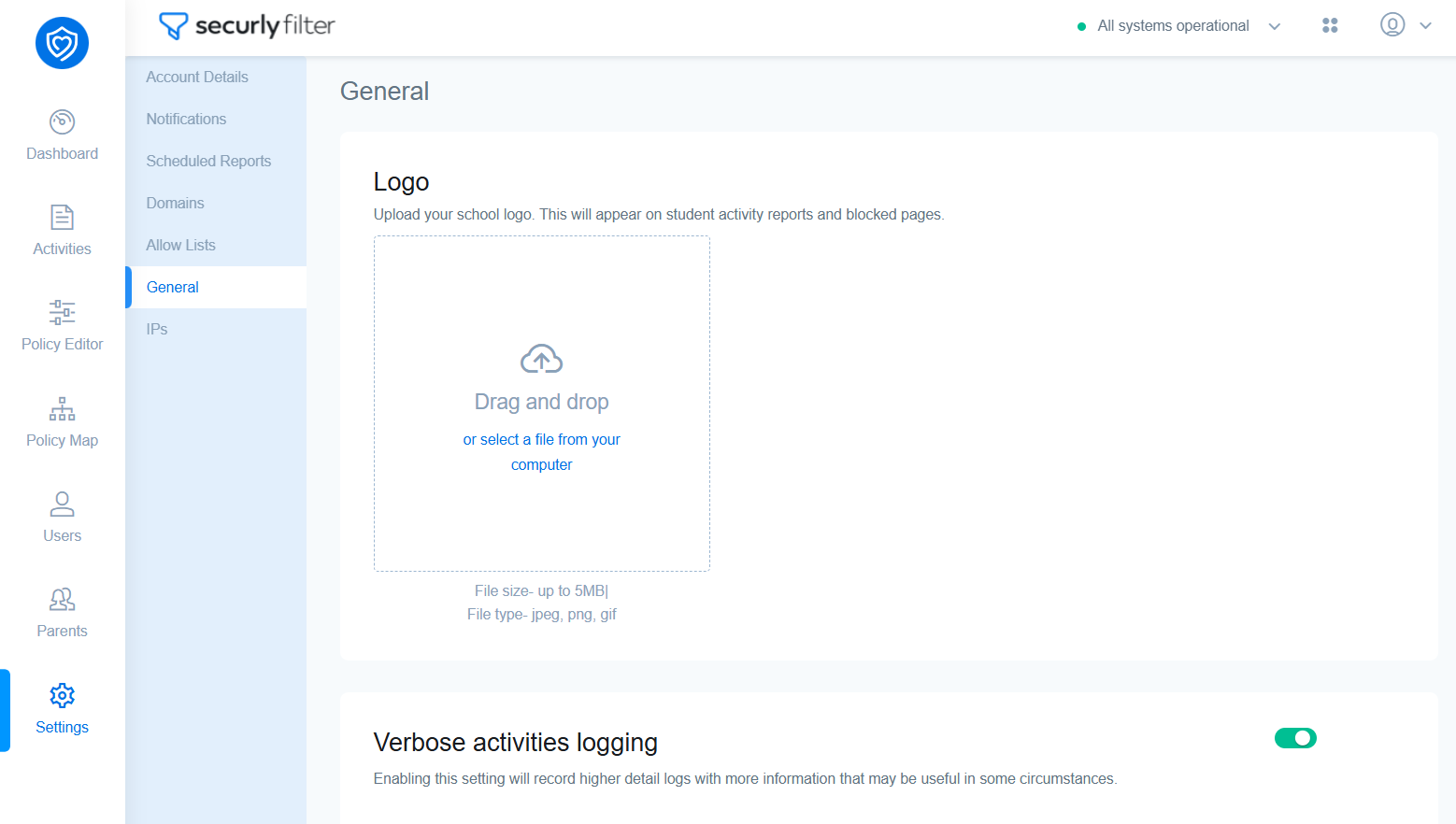
Verbose activities logging
Enabling verbose logging will record additional data that may be useful when troubleshooting, including url redirections or pop-up links that run in the background. These links can be viewed in the Activities tab by clicking the settings icon and checking the verbose logging option.
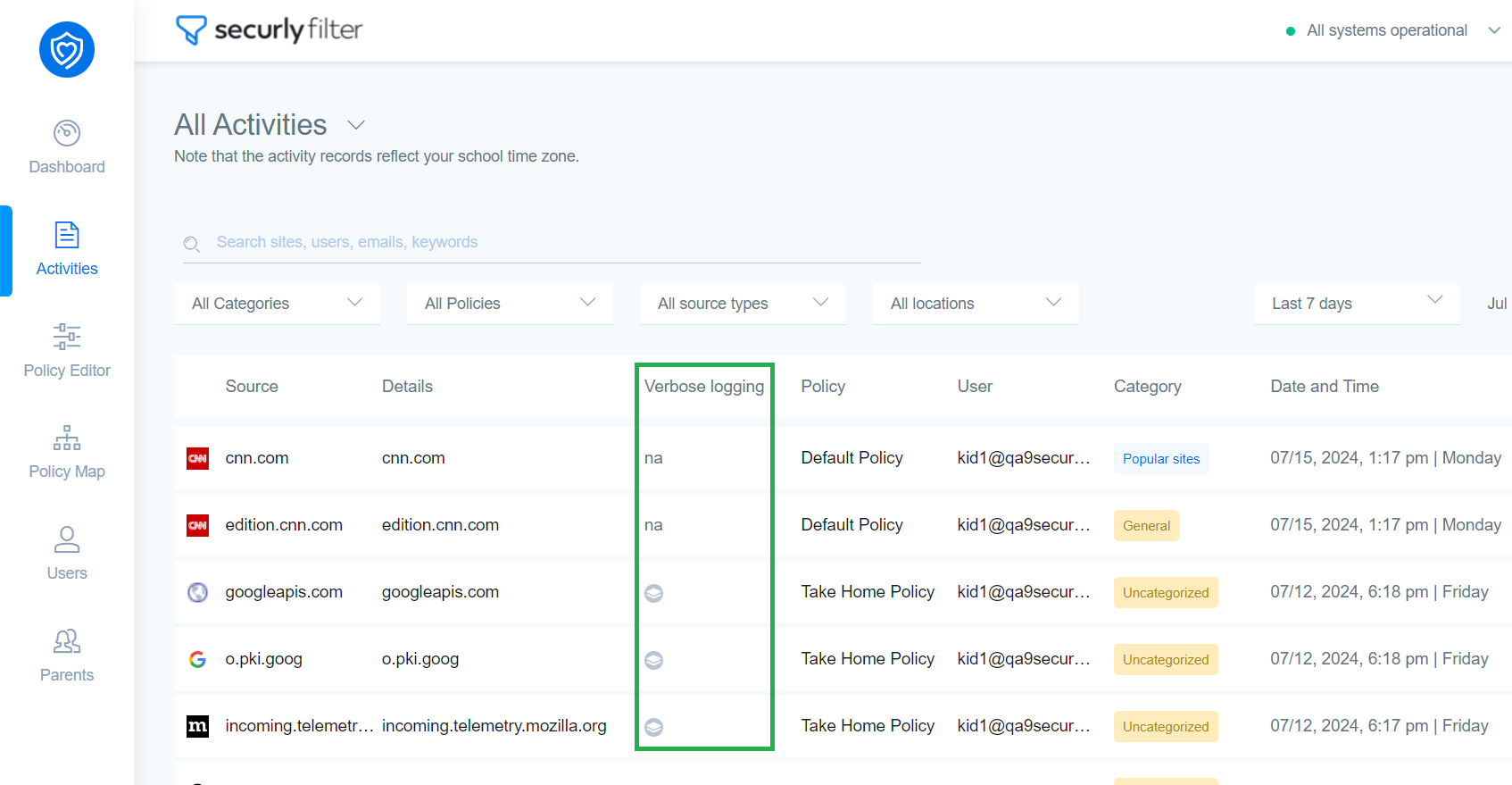
You can also generate custom reports with verbose activity logs or download PDF and CSV files.