Pass › Pass Mobile App Guide
Create Teacher Passes
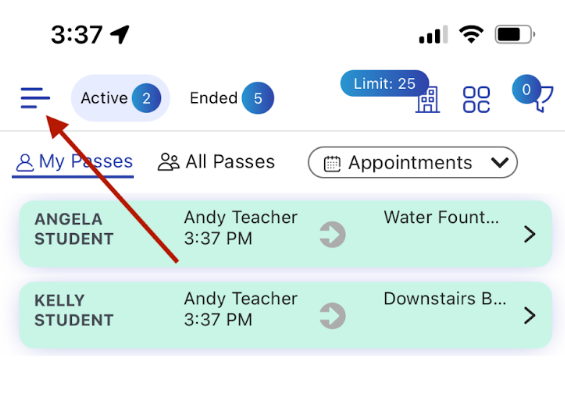
To create a Teacher (Adult) Pass, click on the Menu bars.
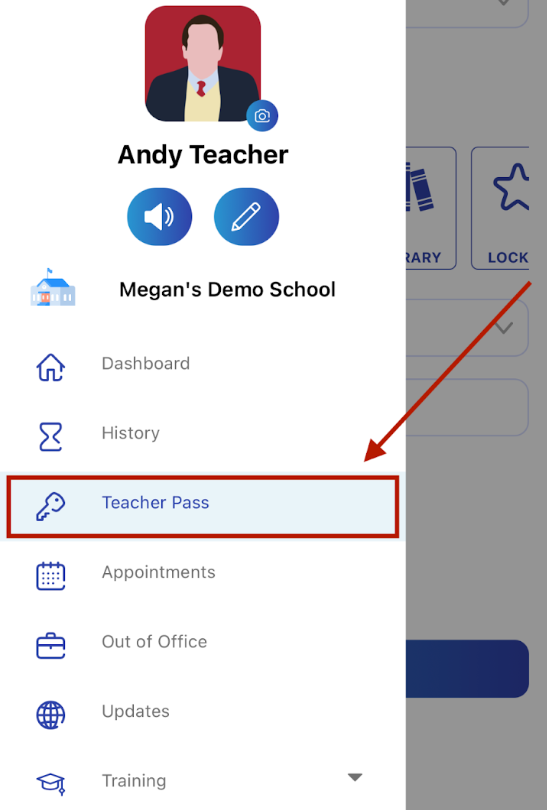
From the Menu options, choose “Teacher Pass (Proxy Pass)”.
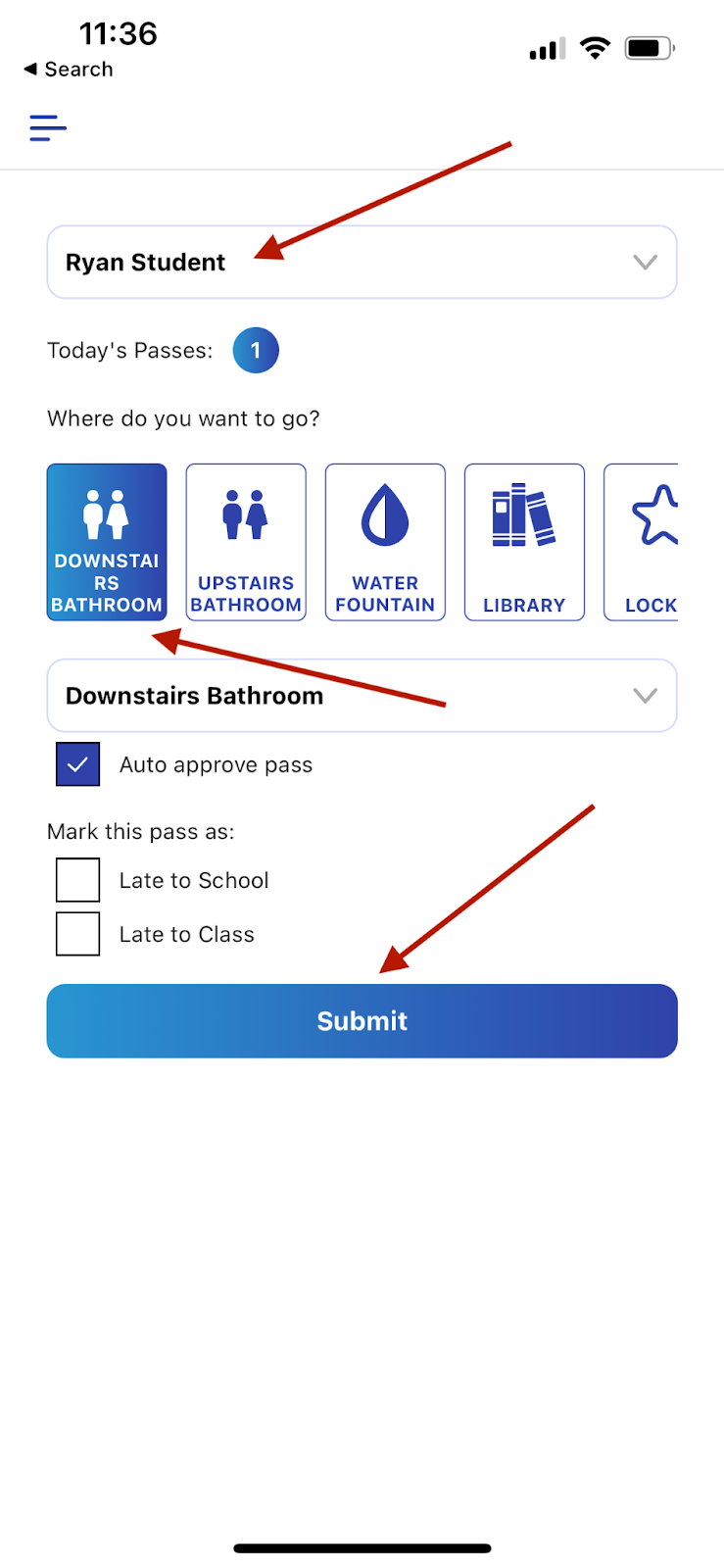
On the next screen, select the name of the student from the list of students or begin to type the name of the student and then select that student from the choices below. Then select the Destination for this pass, either from the Favorites buttons, or using the drop down list. Finally, click on “Submit”.