MDM › Managing Profiles
Creating and Editing Restriction Profiles
To create a restriction profile, choose the tab for the OS type, iOS/iPad OS, macOS, or tvOS, then click the Add Restriction Profile button.
To edit a restriction profile, click to choose it from the list. Configure the restrictions for the profile on the Restrictions tab.
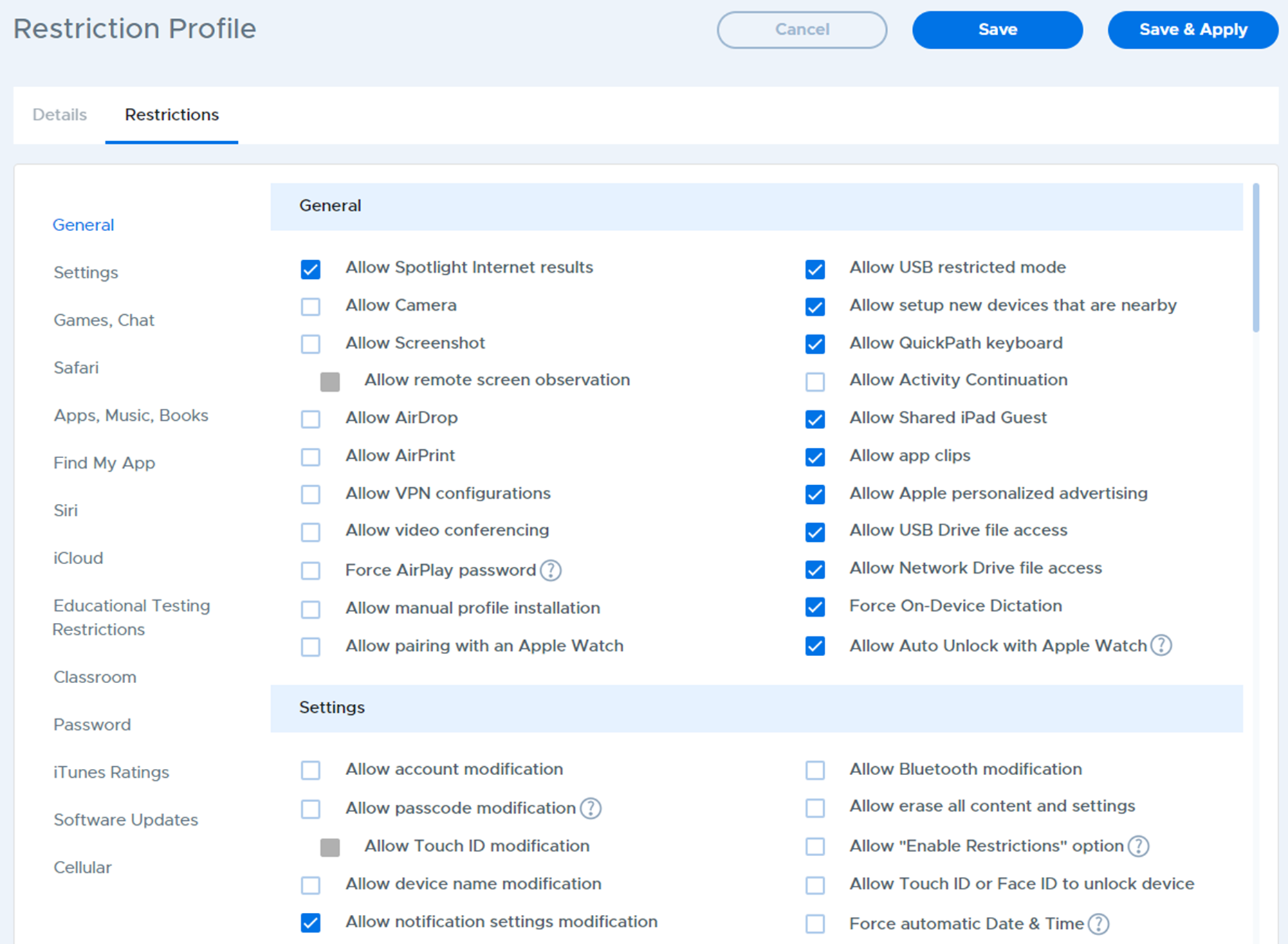
Restrictions are arranged in categories to make them easier to find. You can either scroll through the page to view all categories and restriction settings or use the category index along the left side to jump to the appropriate section on the page.
After configuring the desired restrictions, click the Save button at the top to save your changes.
If the restriction profile is already assigned and applied to devices, and you want your changes to immediately be pushed to those devices, use the Save & Apply button.