Pass › Visitor
Pre-set Visitor
The pre-set visitor list is a great way for schools to ensure that only visitors vetted by the school are allowed entry to the campus. If the guests/visitors are present on the list, the Visitor system approves them immediately and provides them the guest pass.
Please note the following:
- The individuals on this list WILL NOT be background checked against the National Sex Offender Registry, the school’s Watch List, nor the school’s Guardian/Student Matrix as they have been checked by the school prior to Check in.
- Visitors NOT on the list will not be able to check themselves in and will need to report to the front desk.
- Office personnel can then “Allow entry” with a note or “Deny entry”.
- Schools could have volunteers/chaperones check in the day(s) before using the kiosk or front desk staff, thereby doing a background check to see if any of those individuals come back as a possible match to the offender list or the school watch list. Then, on the day of the event, the school could use the Pre-set Visitor List, knowing that those on the list have been properly vetted.
To enable the Pre-set Visitor option, slide the toggle to the right.

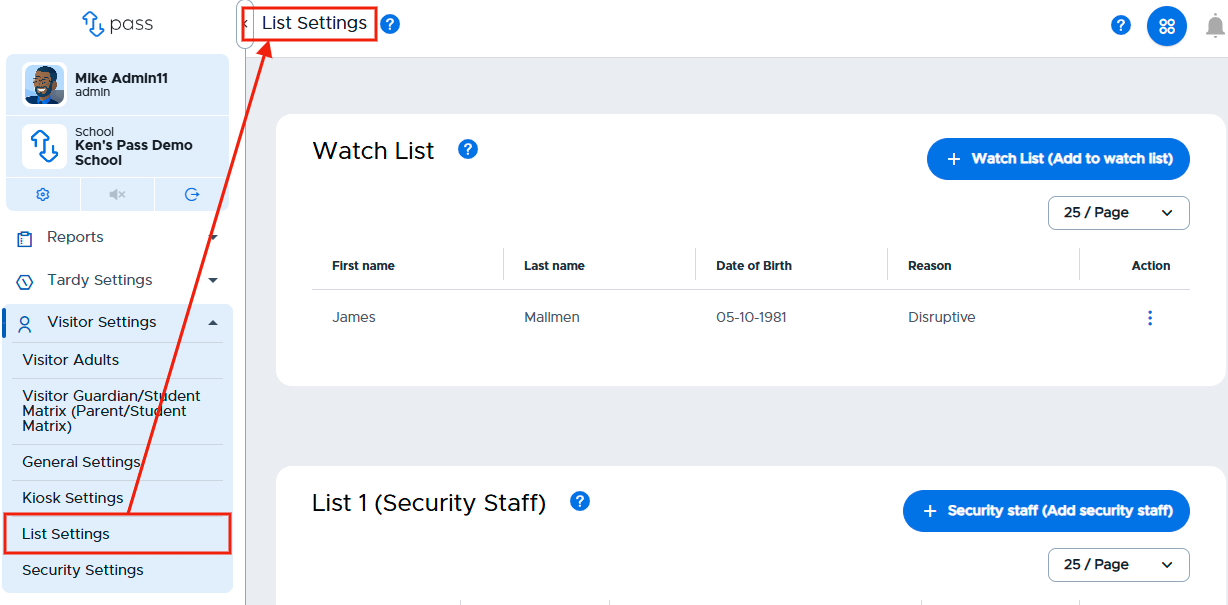
When enabled, you can easily add visitors to your Visitor Pre-set List. Click on List settings.
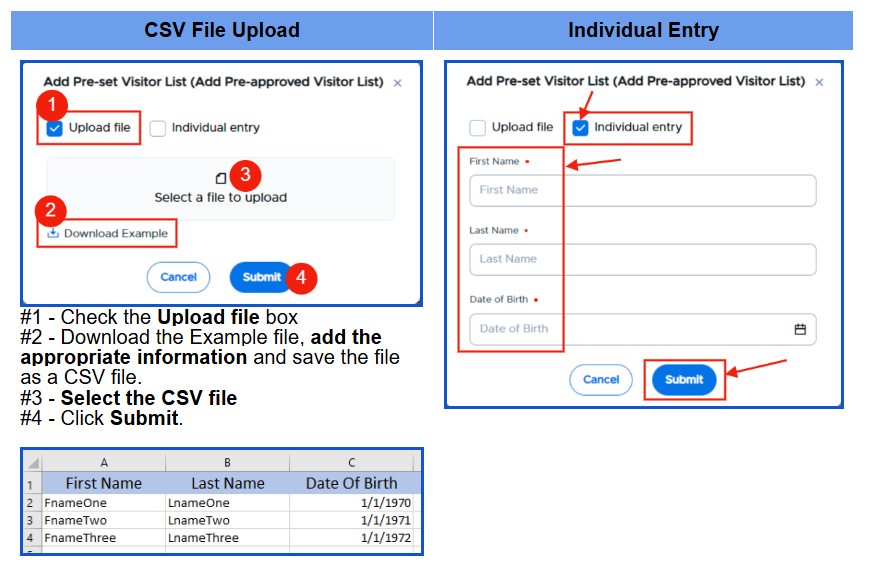
Scroll to the Visitor Pre-set List section and click on the blue + Pre-set visitor (Add pre-approved visitor) button. On the popup, you can add Pre-set visitors by CSV file upload (first name, last name, and Date of Birth) OR by individual entry.
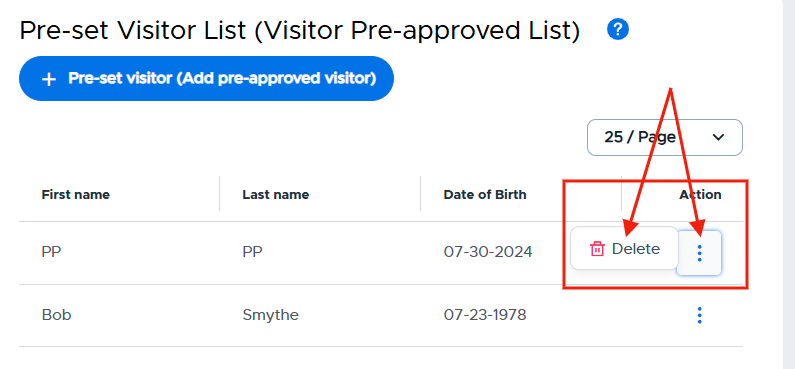
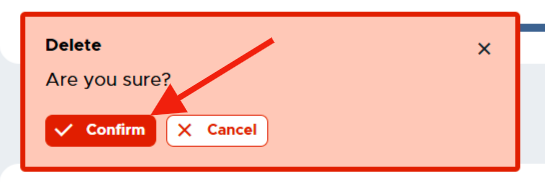
Once added to your list, you can easily remove these visitors by clicking on the three (3) dots under the Action column, clicking Delete, and then clicking on the red Confirm button.