MDM › Teacher Tools
Airplay
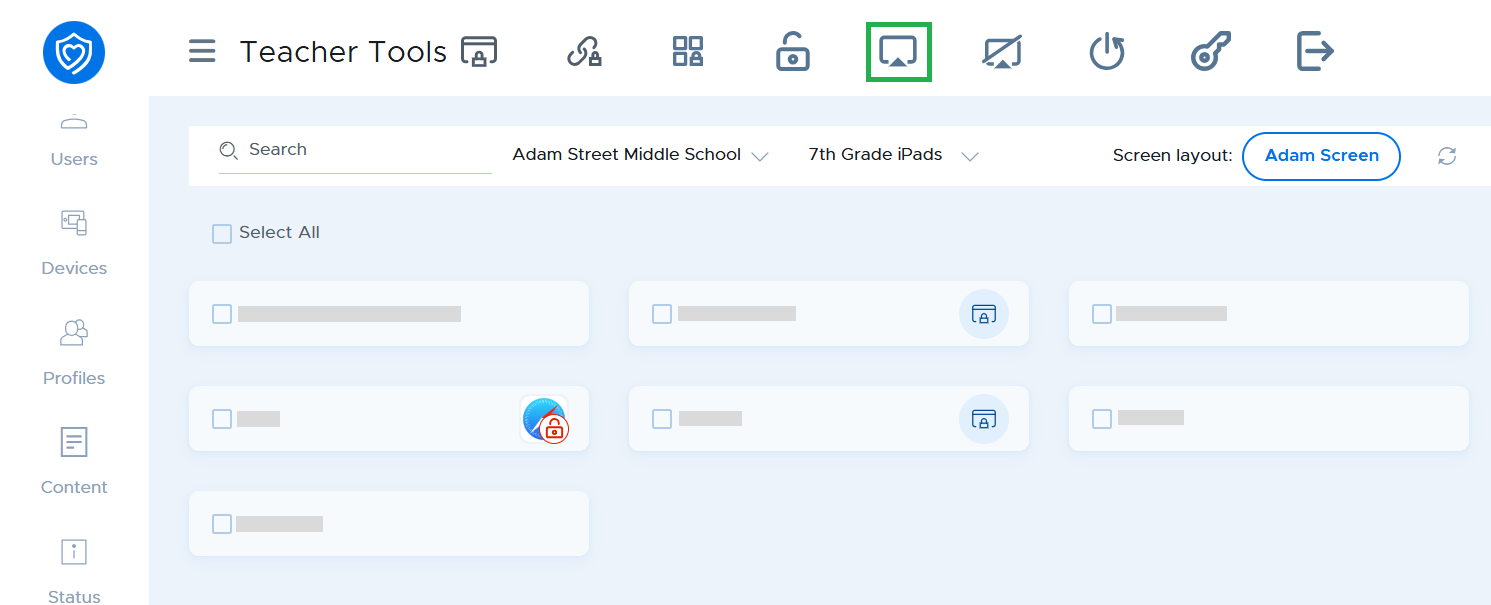
The AirPlay function in Teacher Tools lets you select a device to start broadcasting to an Apple TV device.
Select a single device from the group or class, then click the AirPlay button.
In the pop-up window you can either enter the information for an Apple TV device manually (it will be remembered for the next time you use the function) or you can choose from one of the devices in the list. The list shows the Apple TV devices configured by the administrator in Network Profiles on the Apple TV tab.
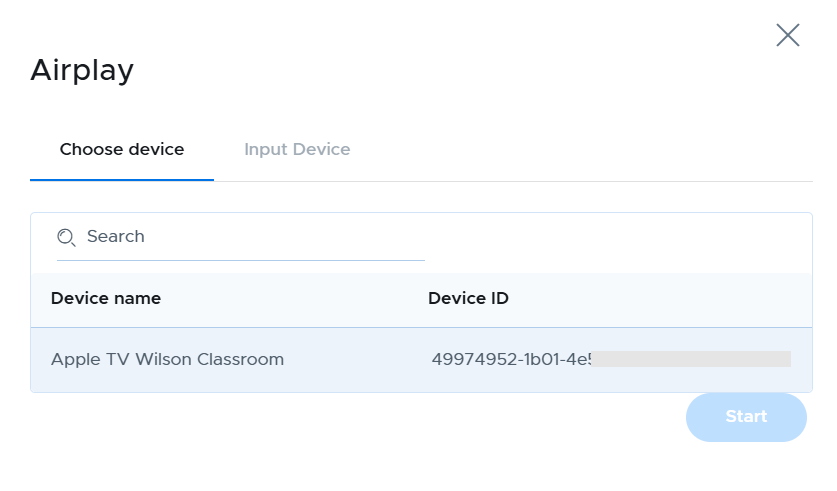
Click on the "Start" button, and then a command will be sent to the selected iPad to begin broadcast. The student will be presented with a prompt on the iPad and should choose "Display". To stop AirPlay, select the device and click Stop Airplay button.
