Pass › Pass Admin Guide
Main Users
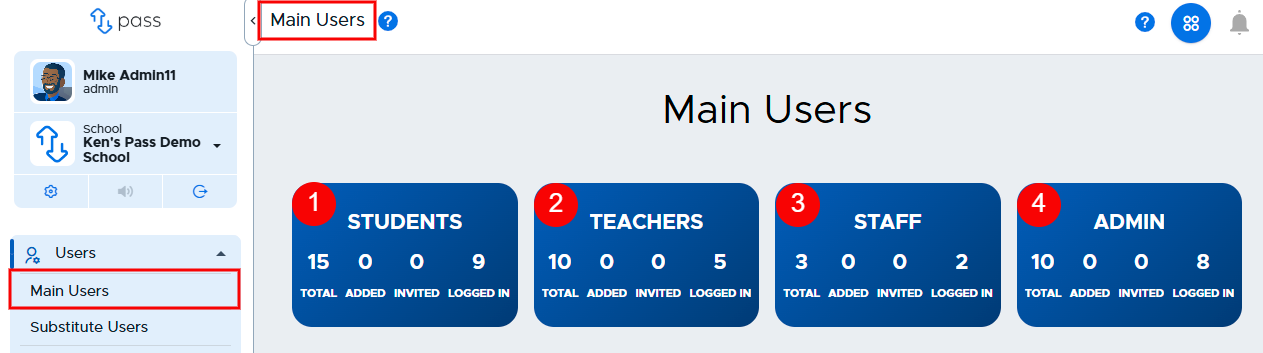
On the Main Users page, you can see who has access to your Pass system.
The four blue tiles across the top provide snapshots of the different role users (STUDENTS - 1, TEACHERS - 2, STAFF - 3, and ADMIN - 4) in your school. For each user, you can see the total number of users, the number of users added via file upload, the number of users who have been invited via email, and the number of users who have logged in.
Admin users have several options regarding users on this page. Click on the link below for more information about each of these options.
- Add User (full access) - #1
- Add Substitute (PIN only) - #2
- Print Student Digital IDs - #3
- Import Users (via CSV) - #4
- Import Kiosk Passcodes - #5
- Import Student Photos - #6

User Table
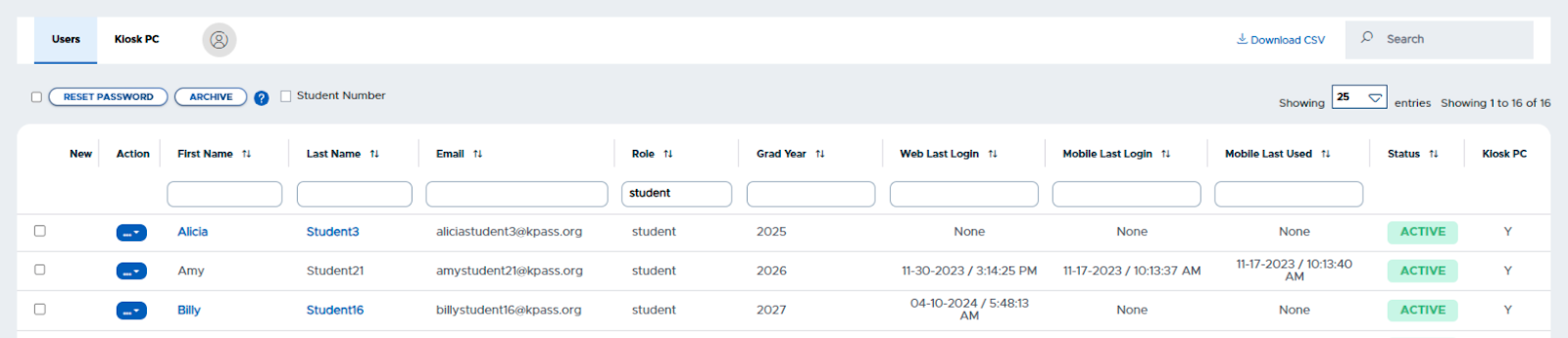
The User Table allows admins to see and interact with the list of individual users in their Pass system. From the Table, admins can do the following:
- Check Kiosk Passcode file uploaded
- Reset a User’s Password (Manual user)
- Archive a user
- Include student numbers in the Table
- Search for a specific user, email, Role, or Grad Year
- Sort the table by a specific column
- Download the user info into a CSV