Classroom › Settings
Deployment
Google settings
The Google submenu contains settings for linking your Google Admin account, configuring the Securly Classroom extension, and setting Lost Mode defaults.
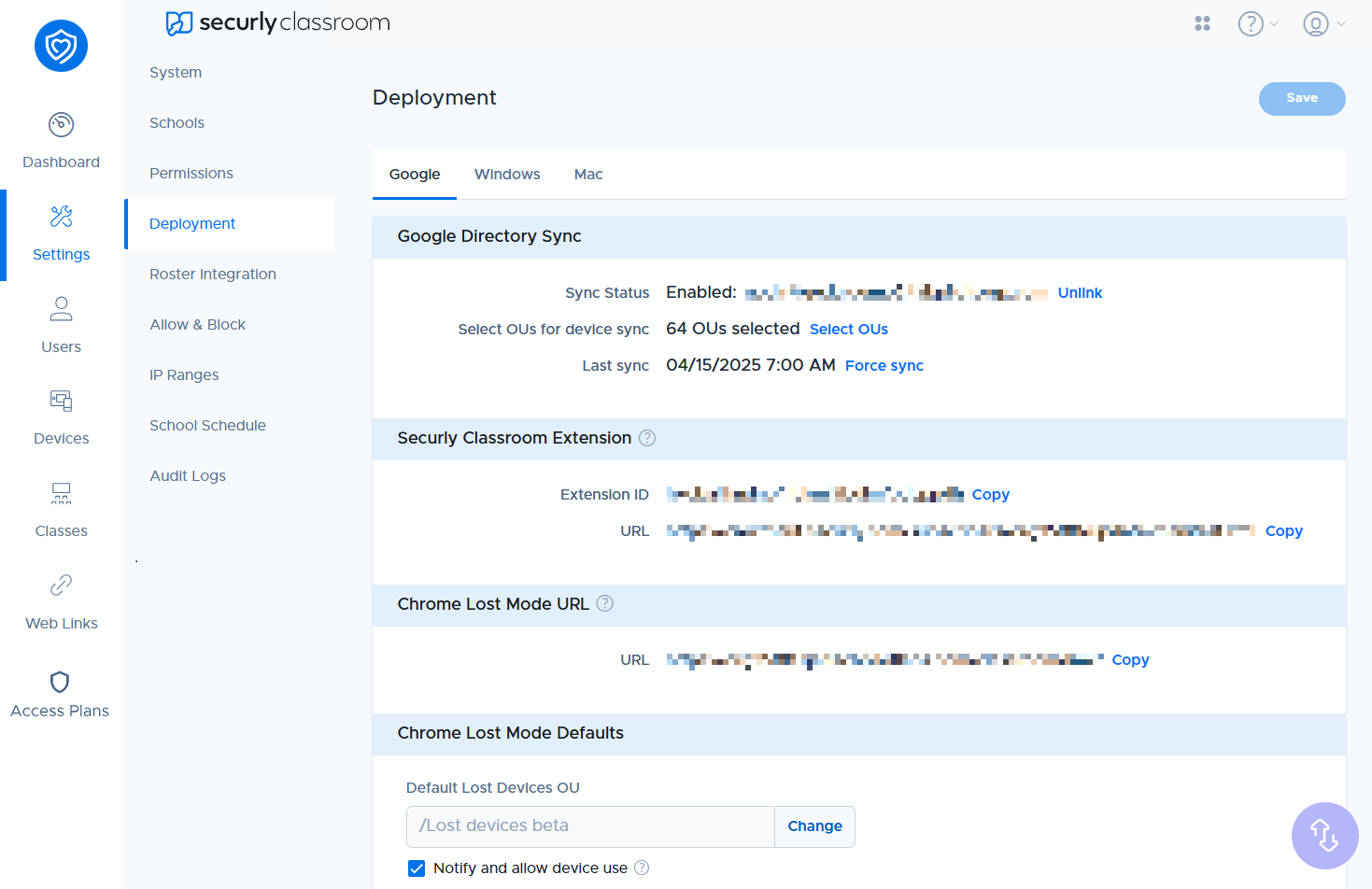
For more information on these topics, check out these articles:
Windows settings
Under the Windows tab, an MSI installer for Windows deployment can be generated and downloaded.
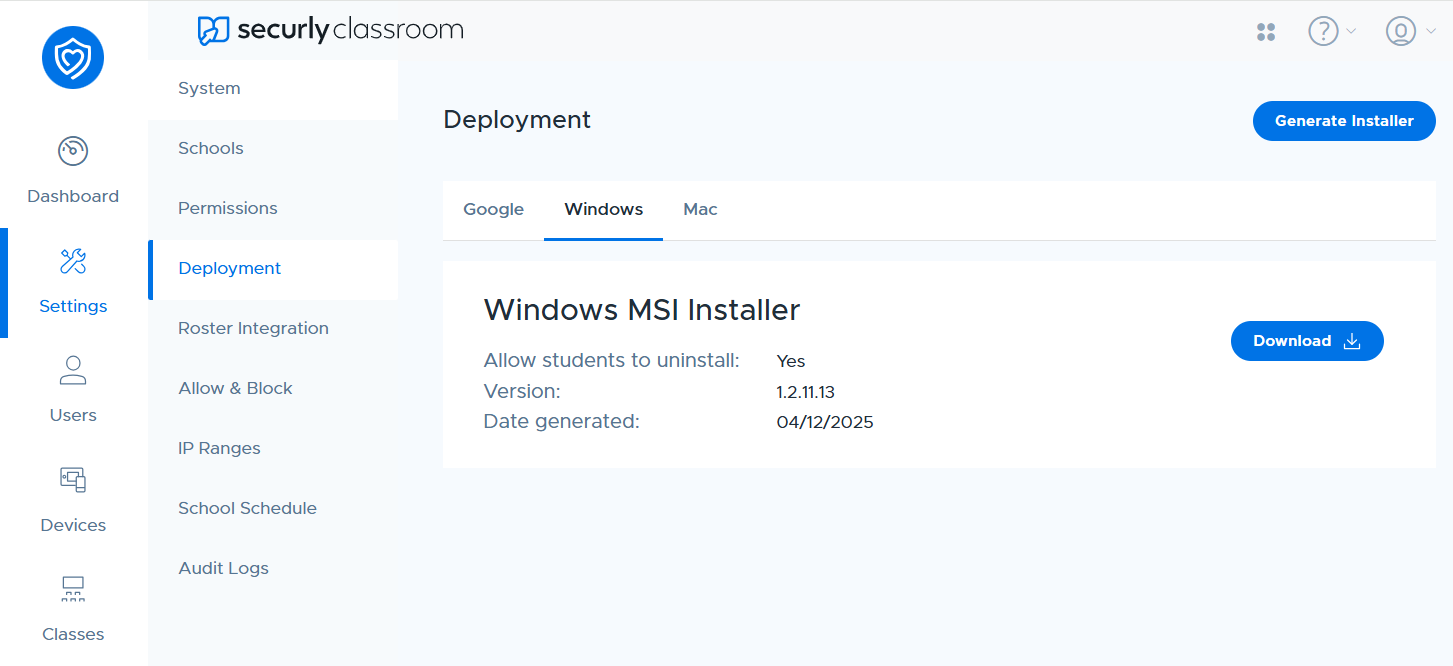
To create a new MSI package, click the 'Generate Installer' button. You will then be prompted to choose whether to allow students the option to uninstall the client from their devices
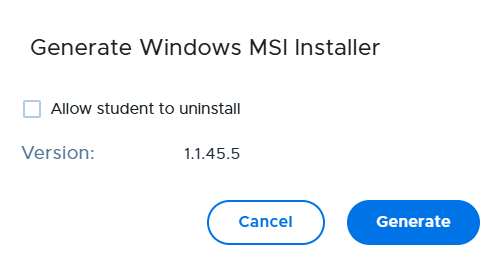
Once you've decided, click the Generate button, and a download option will appear.
Mac settings
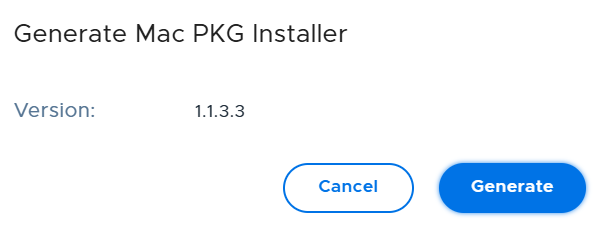
Under the Mac tab, a PKG installer file for Mac deployment can be generated and downloaded.
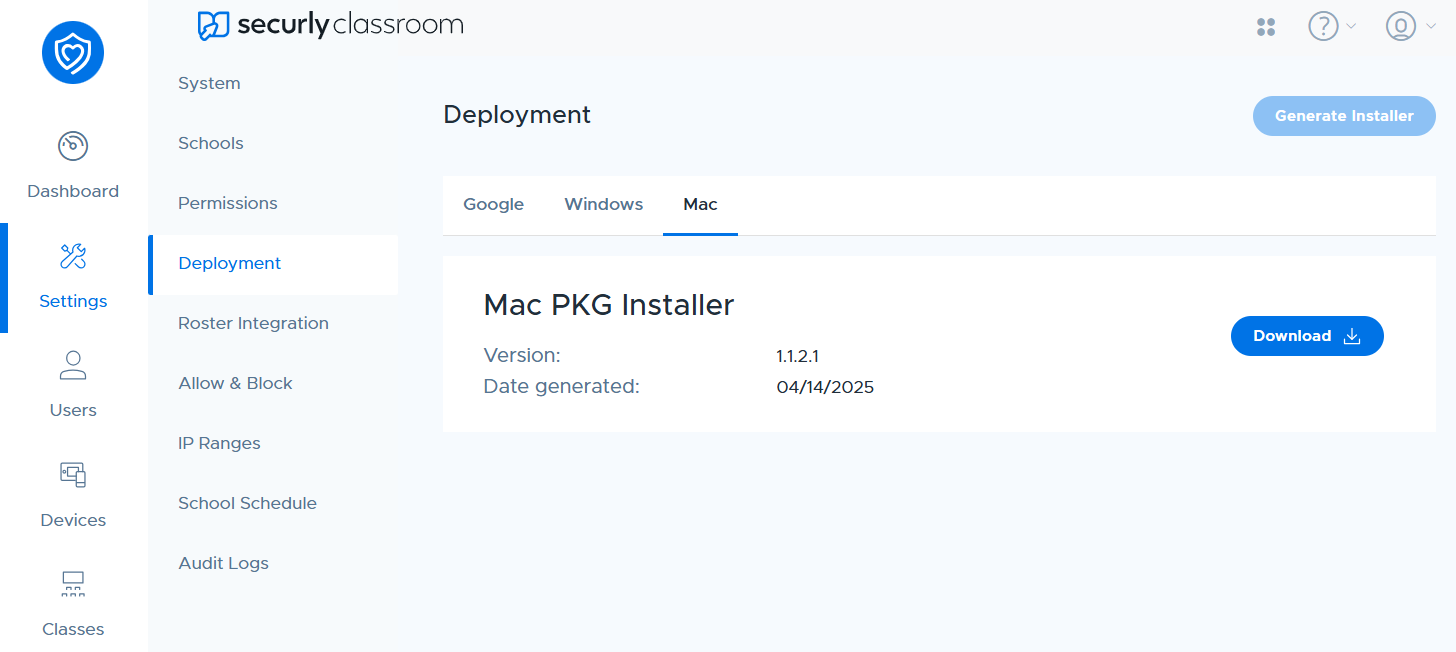
Just like the Windows deployment setting, use the Generate Installer button and click on the Generate button in the confirmation window to create a download option for the file.