MDM › Managing Content
iOS/iPadOS Blocked Apps
The blocked apps list is used to add and assign apps that you wish to have blocked on devices. To block an app, add it to the list, then assign it to a school, Device Group, or Class.
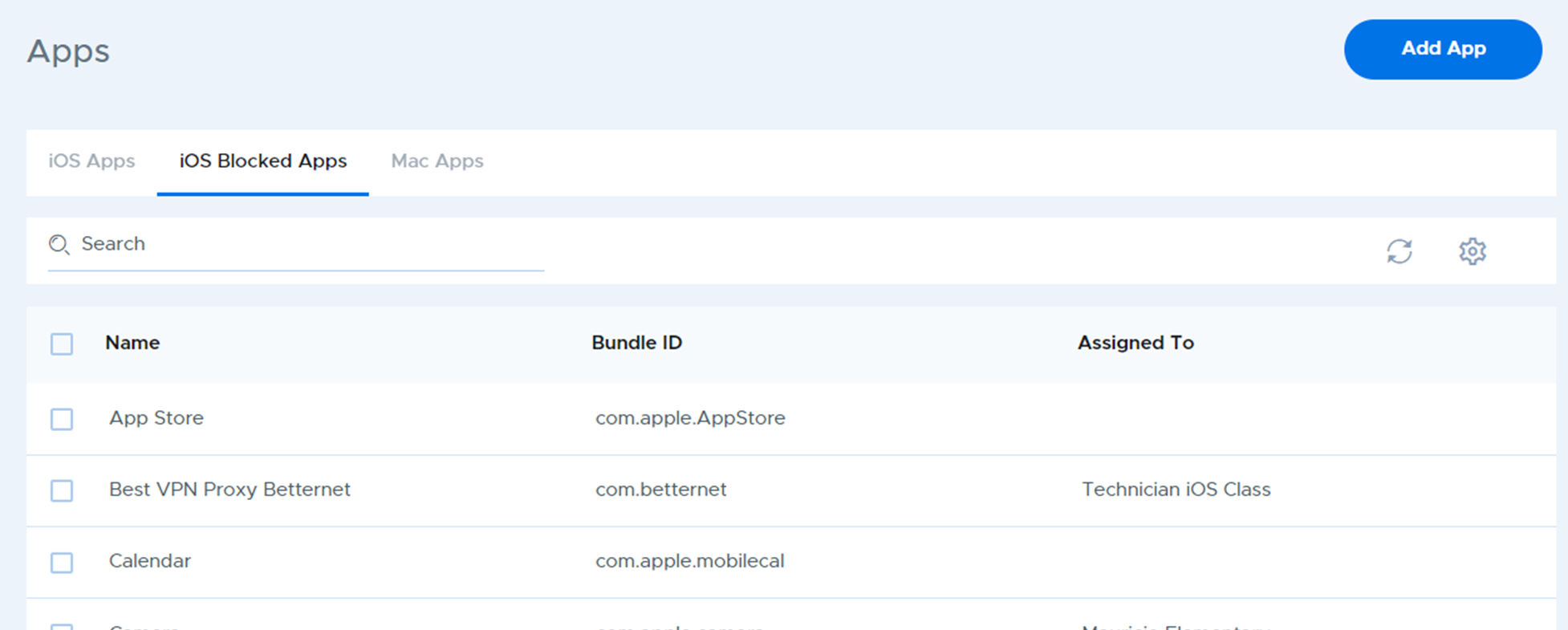
Adding an app to the blocked apps list
To add an app to the blocked apps list, click the Add App button at the top. There are four ways to identify and add an app to the list. Choose from the below tab for the desired method.
- App Store: Search the App Store to find the app to add to the blocked apps list
- Standard Apps: Choose a standard apps that comes pre-installed on the device
- App Store URL: Enter the URL of the app as it appears in the App Store when accesses via a browser. Ex: https://apps.apple.com/us/app/x/id98989898
- Bundle ID: Enter the Bundle ID for the app. Add a name to help recognize the app in your list. The name is for reference only. Blocking will function based on the Bundle ID alone.
Removing apps from the list
To remove an app from the list, select the app then use the Delete button.

Assigning apps to be blocked on devices
To block apps on devices, use the iOS/iPad OS Blocked Apps list to assign an app to a school, device group, or class that contains the devices where you want the app to be blocked. Click the name of the app, then use the Assign & Apply button to make the assignment

To remove the block, choose the app and use the Unassign button.