Reveal › How to and FAQ
What are individual activity reports?
Dyknow’s Reveal module (previously Device Impact Measurement) enables Administrators and Tech Coaches to identify wasted funds by measuring how school-issued devices and technology tools are actually used.
In Reveal, Administrators and Tech Coaches can use Individual Activity Reports to review even more information about the websites and applications being used such as:
Which specific pages were visited within a website or application
Which students used the website or application
Which days the website or application was used
Which hours of the day the website or application was used
Additionally, at the district level, Individual Activity Reports will provide the same information while also showing which school(s) used which website or application.
To access Individual Activity Reports:
Click on the desired website or application that is hyperlinked in the “Top 100 Websites” and “Top 100 Applications.” This will take you to a new page that shows specific activity for that website or application.
If you know what website or application you are looking for, use the Activity dropdown at the top of the page to select the desired website or application. The page will refresh to show specific activity for that website or application.
This document is a resource for Dyknow Administrators and Tech Coaches to understand how to:
Review Individual Activity Reports for a single website or application
For an educational website or application
For a distracting website and application
Review Individual Activity Reports at the district level for a breakdown by school
INDIVIDUAL ACTIVITY REPORTS (BY STUDENT)
Once a Dyknow Administrator or Tech Coach has created an Individual Activity Report for the desired website or application, review the Activity Report sections outlined below.
WEEK / PRIOR WEEK
Review usage comparison between last “Week” and “Prior Week” for a desired website or application.
WEBSITE USAGE BY WEEK
Review the top 100 activities within a desired website or application by week.
STUDENT USAGE BY WEEK
Review which students viewed activities within a desired website or application by week.
TOTAL STUDENT USAGE BY DAY
Review how many students used a desired website or application by day.
AVERAGE STUDENT USAGE BY HOUR
Review how many students used a desired website or application during each hour of the day.
Related: Learn more about Reveal report sections
FOR EDUCATIONAL WEBSITES & APPLICATIONS
Administrators and Tech Coaches can use Individual Activity Reports to review usage data for educational websites and applications in order to understand:
Which activities within that website or application are used most
Which students are using that website or application most (Limited to the top 100 students)
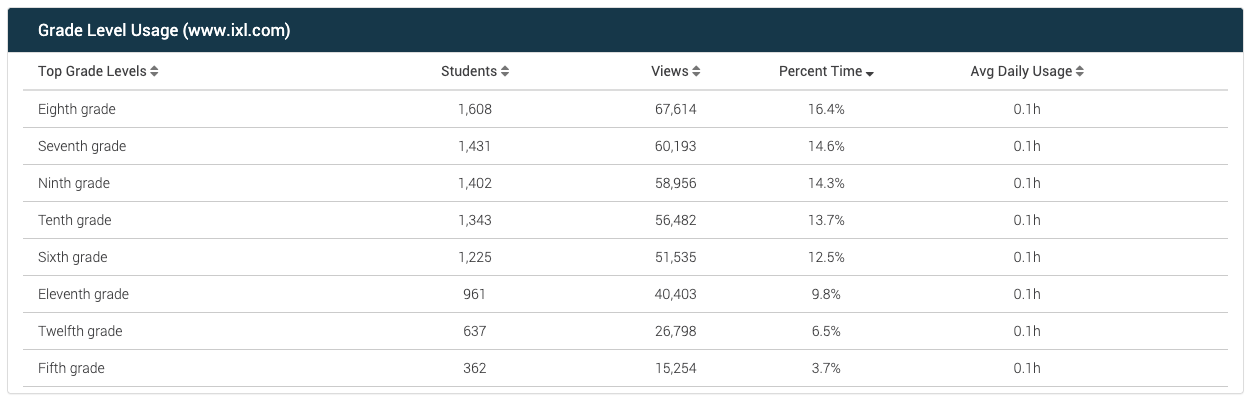
Which grades are using that website or application most
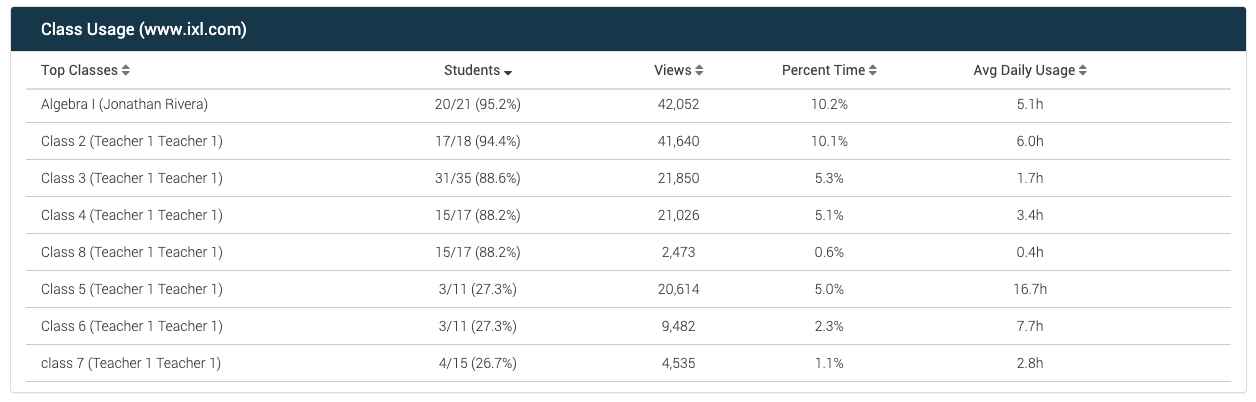
Which classes are using that website or application most (Limited to the top 100 classes)
How frequently that website or application is used during the week
Which hours of the day the website or application was used
FOR DISTRACTING WEBSITES & APPLICATIONS
Administrators and Tech Coaches can also use Individual Activity Reports to review usage data for distracting websites and applications in order to identify:
If that distracting website or application is actually being used for learning
Which students are accessing that distracting website or application most
How frequently that distracting website or application is used during the week
Which hours of the day the website or application was used
INDIVIDUAL ACTIVITY REPORTS (BY SCHOOL)
At the district level, Administrators and Tech Coaches can create the same Individual Activity Reports but also see a breakdown by school for specific activities within a website or application.