MDM
Managing Schools
School locations are configured from the Settings > Schools menu. If your district or school uses Securly Classroom or Securly Sync, your schools may already be imported from your roster source based on the roster integration configuration.
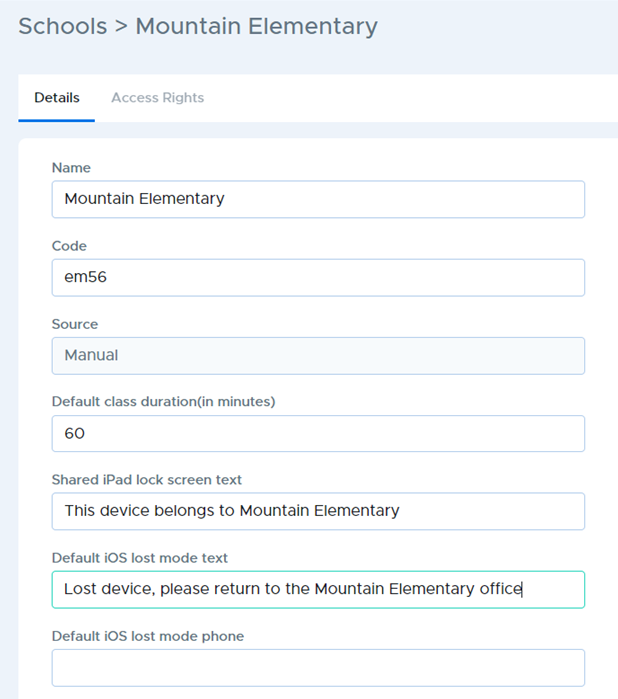
| Entry field | Description |
|---|---|
| Name | The name of the school or location. |
| Code | A short code used to represent the school, sometimes the school initials. |
| Default class duration (in minutes) | This entry field is only used in Securly Classroom. |
| Shared iPad lock screen text | This entry field is for iPads configured for Shared iPad. Text can be entered here to display on the lock screen. The setting in device group details for “Show shared iPad lock screen message” must be enabled. |
| Default iOS lost mode text | The text entered in this field will appear on the screen of an iPad that has been placed into Lost Mode. |
| Default iOS lost mode phone | The phone number entered in this field will appear on the screen of an iPad that has been placed into Lost Mode. |
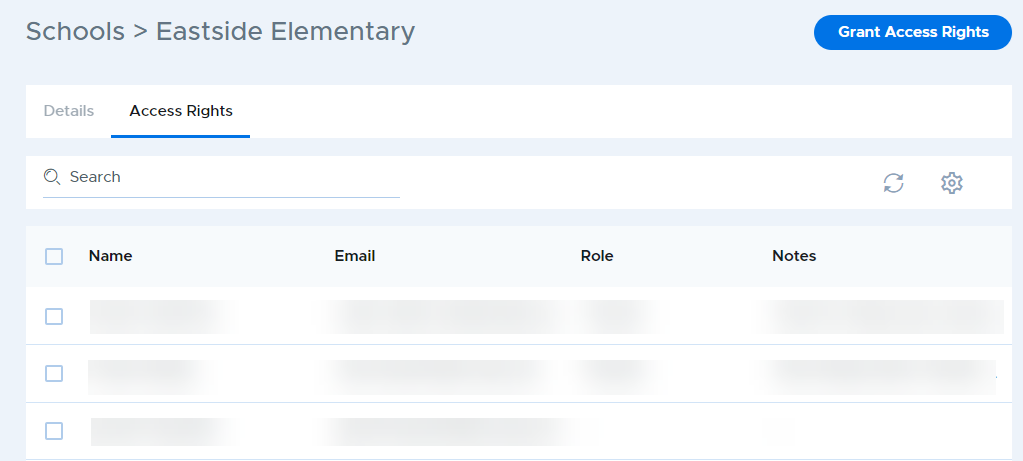
School Access Rights
Users who are assigned to a school will appear on the Access Rights tab when selecting the school from Settings > Schools. Users can also be assigned rights to the school using the “Grant Access Rights” button in this area. Users can also be assigned rights from the “School Access” area of the user’s record.