MDM › Setting up Securly MDM
Adding an ASM Token to Securly MDM
Follow these steps to add an ASM Content Token:
- In Securly MDM go to Settings > ASM Apps & Books.
- Click on Add Location button.
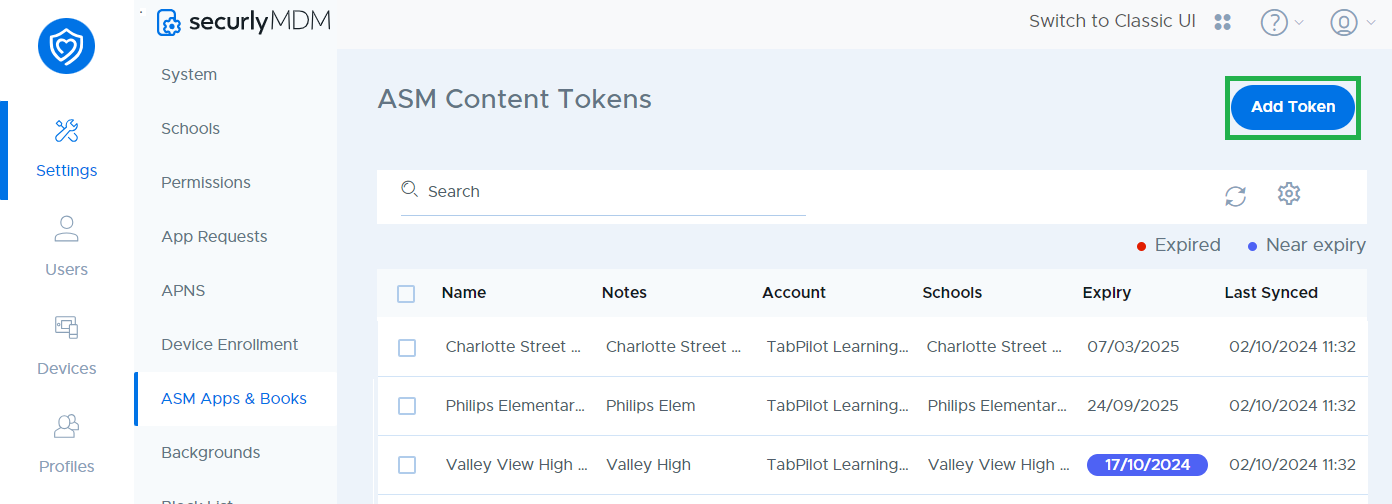
- In the Notes field, you can provide a name for the token as it should appear in Securly MDM.
- In a new tab, open Apple School Manager:
- Choose Locations from the sidebar and select your location.
- Under Content Tokens, find the token for your device management service. If you do not see Locations in the sidebar, choose Preferences from the user menu at the bottom left, then Payments and Billing, and scroll down to Content Tokens.
- Click the download link next to the token you wish to download. This will save a file ending in .vpptoken to your computer
- Return to Securly MDM, click on choose file next to the content token field and choose the .vpptoken file you downloaded previously.
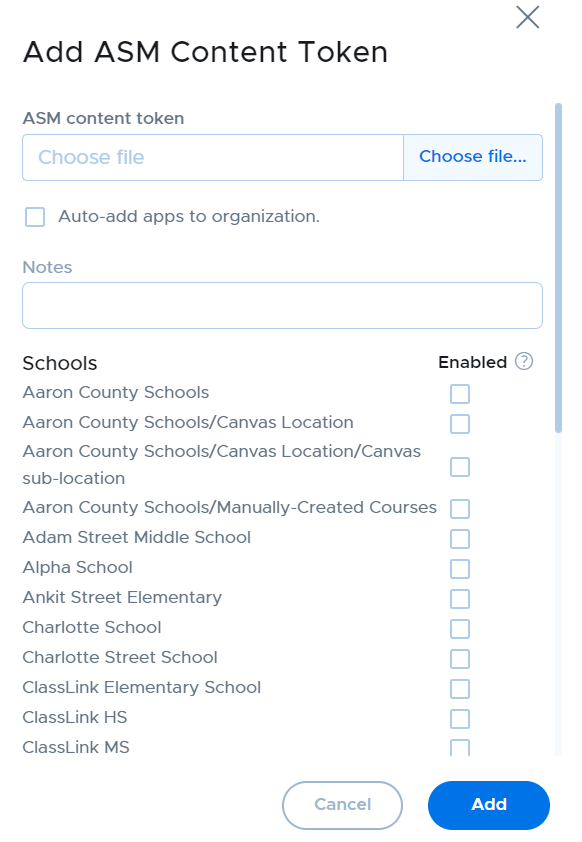
- From the list of schools, check the box in the Enabled column to allow content from this Content Token to be assigned to devices and users from that school.
- Check the box “Auto-add apps to organization” if you want to have all new apps purchased on that token to automatically be added to the organization’s apps list in Securly MDM.
- Click the Add button.
- The Content Token will now appear in the table, showing the expiration date and last sync date.
Apps and Books added to this token through ASM will now be available to add to the list of apps available to assign to users and devices in Securly MDM from the Content menu.