Filter › Deploying Securly Filter
Deploying SmartPAC on Mac devices using Airwatch MDM
To deploy the Securly SmartPAC solution using AirWatch MDM, follow the steps below:
-
Log in to AirWatch and navigate to Devices > Profiles > Add Profile.
-
Select "Apple Mac OS X".
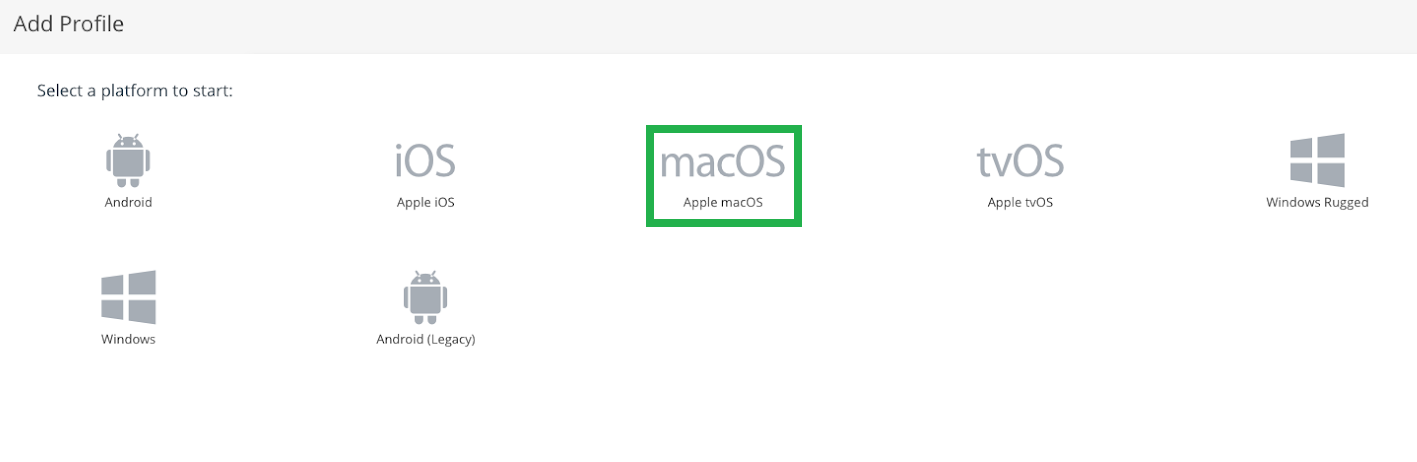
-
On the Select Context page, choose "Device Profile".
-
Add a Profile name and set the other fields as follows:
- Version - 1
- Deployment - Managed
- Assignment Type - Auto
- Allow Removal - Always
- Exclusions - No
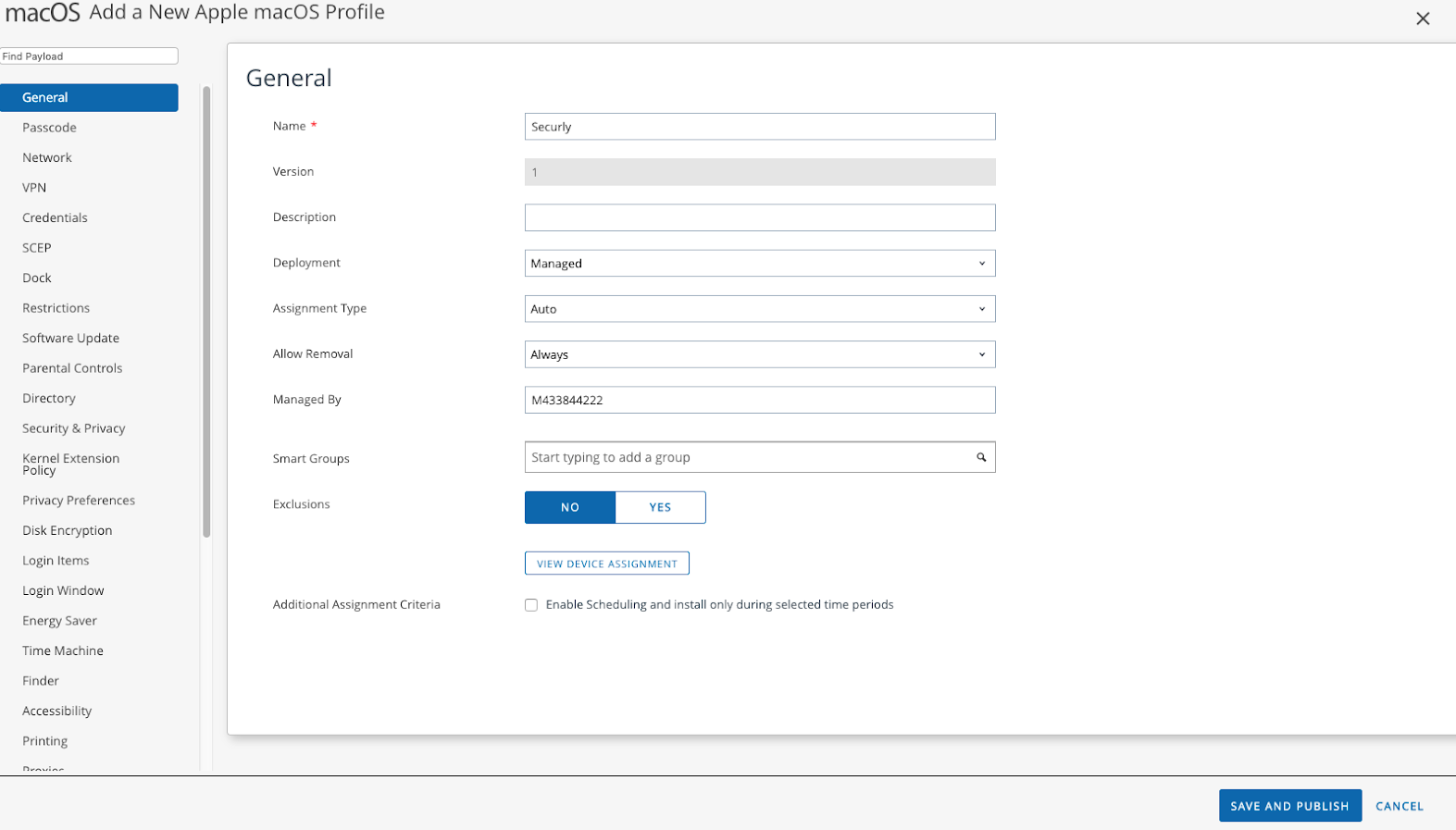
-
On the left side menu, scroll down to ‘Network’ and under ‘Proxy’ settings change from Gateway Platform to Auto and enter the SmartPAC URL for your school. If you do not know the URL, please contact support.
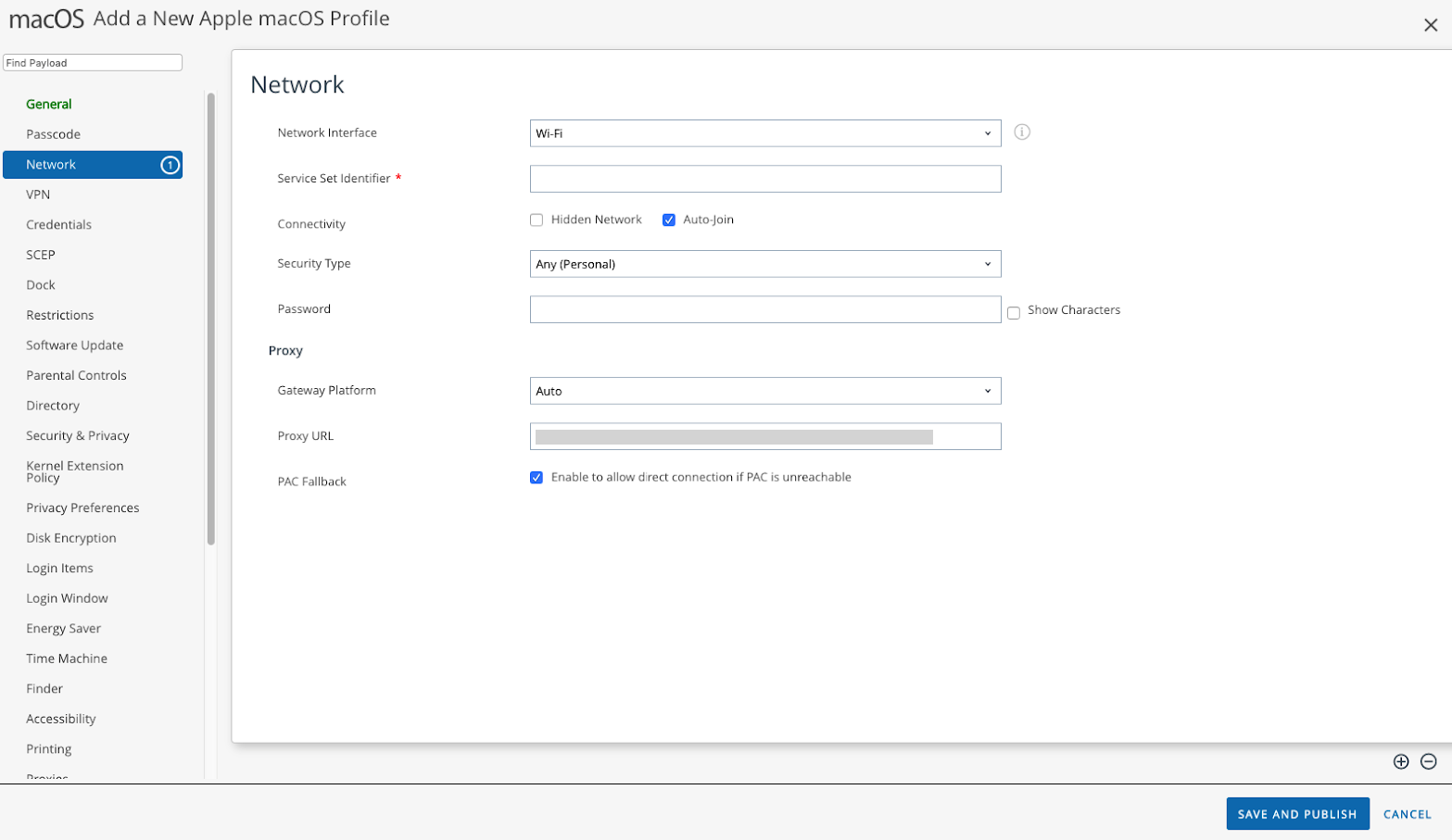
-
In the left-side menu, navigate to ‘Credentials’. Click on "Upload" next to "Certificate" and browse to where you downloaded the Securly certificate and click on "Save".
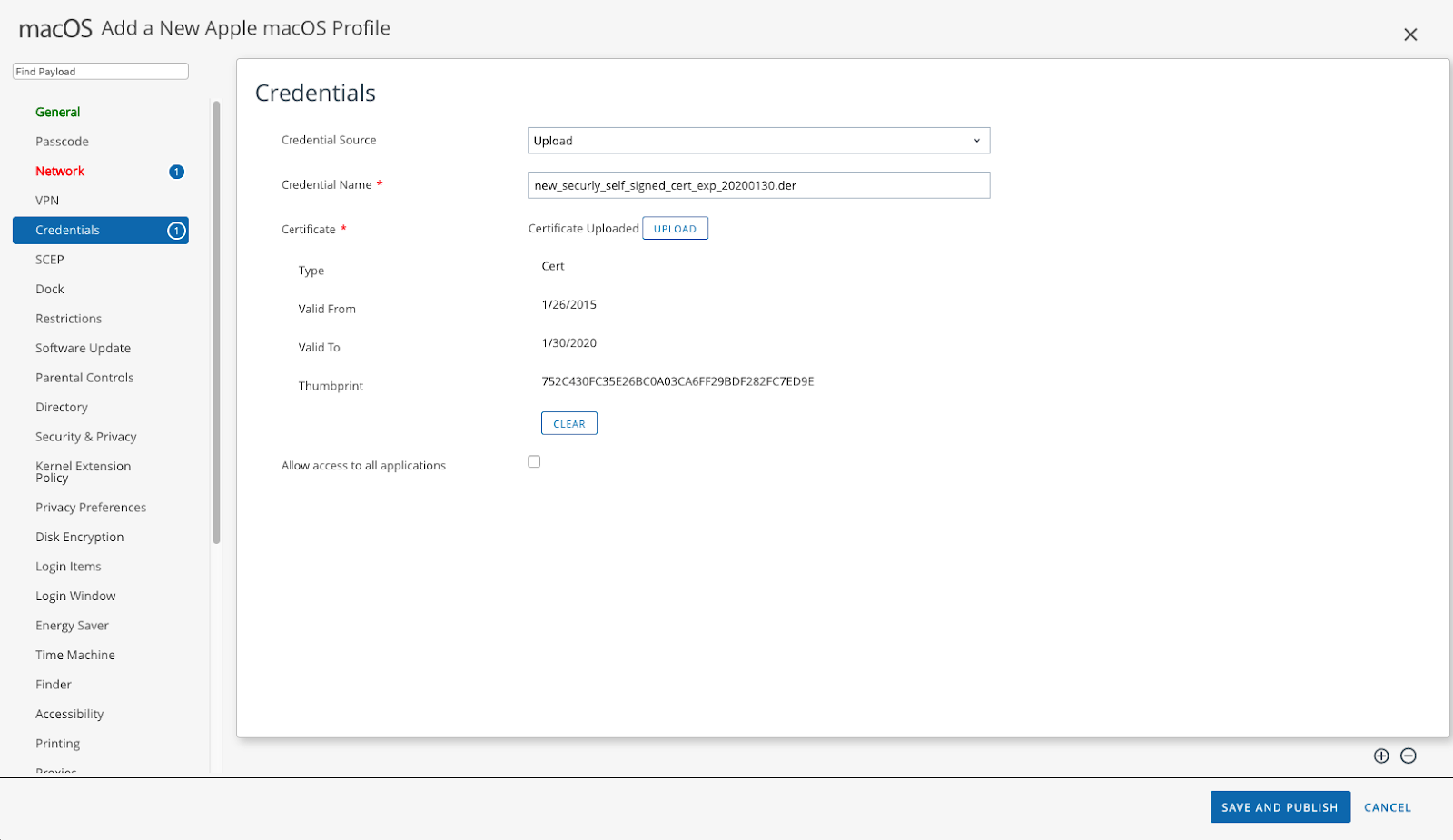
-
Click on "Save & Publish".