Pass › Visitor
Denied Status
A “Denied” status will appear for a visitor if the visitor:
- Is NOT present on the Pre-set Visitor List (if functionality is enabled).
- Is NOT listed on the Guardian/Student Matrix
- Using a nickname (“Rob” or “Bob” for “Robert”) will result in a Denial status.
- Name of the visitor MUST MATCH EXACTLY what is listed on the matrix.
- FAILS the Customized Question(s)
- IS a match on the National Sex Offender Registry.
- IS a match with someone on the school’s Watch List.
Denied - National Sex Offender Registry Match
When a visitor checks in via the Visitor App and a match is triggered, the Front Desk staff can click on the “Denied” button, and a pop-up window will appear with the option to “Allow entry” or “Cancel” (Clicking on “Cancel” will keep that visitor in the “Denied” status.) A reason for re-allowing entry is required. Click Submit or Cancel.

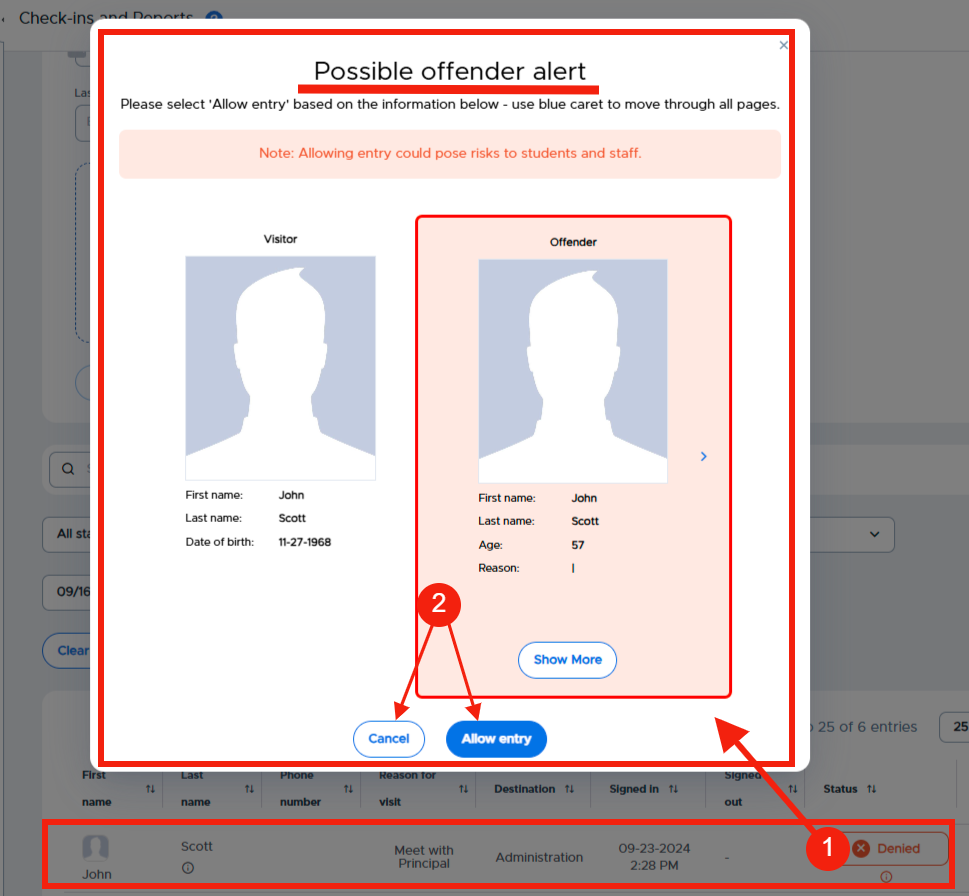
Allow entry with reason“
Appointment with Principal Moyer”
(Hover over the “i” to see reason)
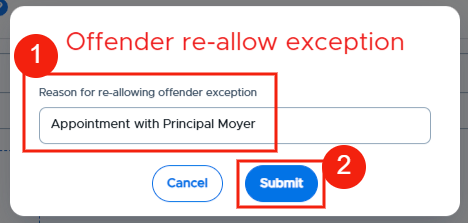

If the visitor is allowed entry, the permission would be valid for only one (1) day.
Denied - Watch List Match
When a visitor checks in via the Visitor App and a match is triggered, the Front Desk staff can click on the “Denied” button, and a pop-up window will appear with the option to “Allow entry” or “Cancel” (Clicking on “Cancel” will keep that visitor in the “Denied” status.) A reason for re-allowing entry is required. Click Submit or Cancel.

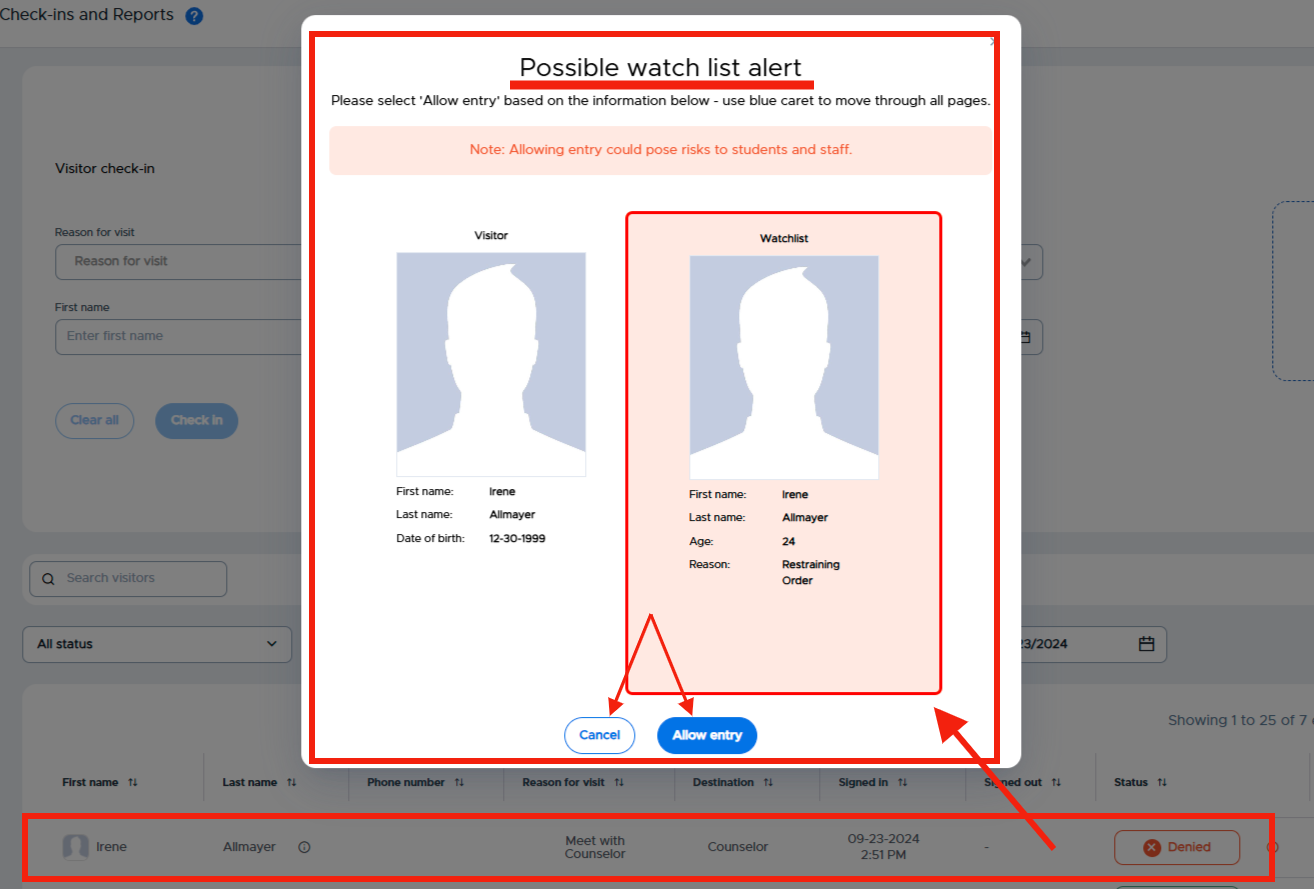
Allow entry with reason
Scheduled appointment with Mrs. Frey
(Hover over the “i” to see reason)
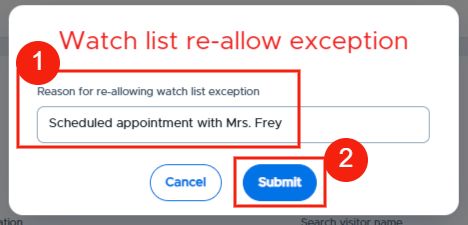

If the visitor is allowed entry, the permission would be valid for only one (1) day.
Important Note: While using Chrome or Safari (supported browsers) for Pass/Visitor, you will be prompted to “Allow updates”. Please allow and then refresh your browser. The log will then update automatically.