Pass › Pass Admin Guide
My Profile
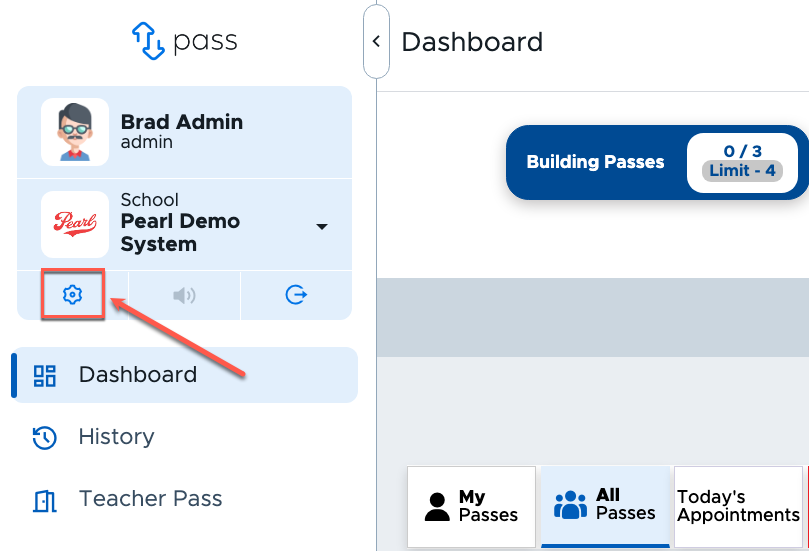
As an Admin, you can update your profile at any time. From the dashboard, click the gear icon underneath the name of your school.
On the Profile Settings page, you can make adjustments to your profile (My profile) and/or associate yourself with locations (My locations) in your building.
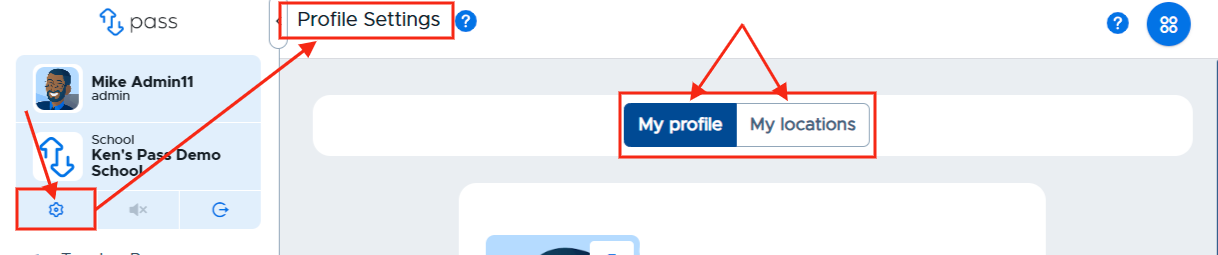
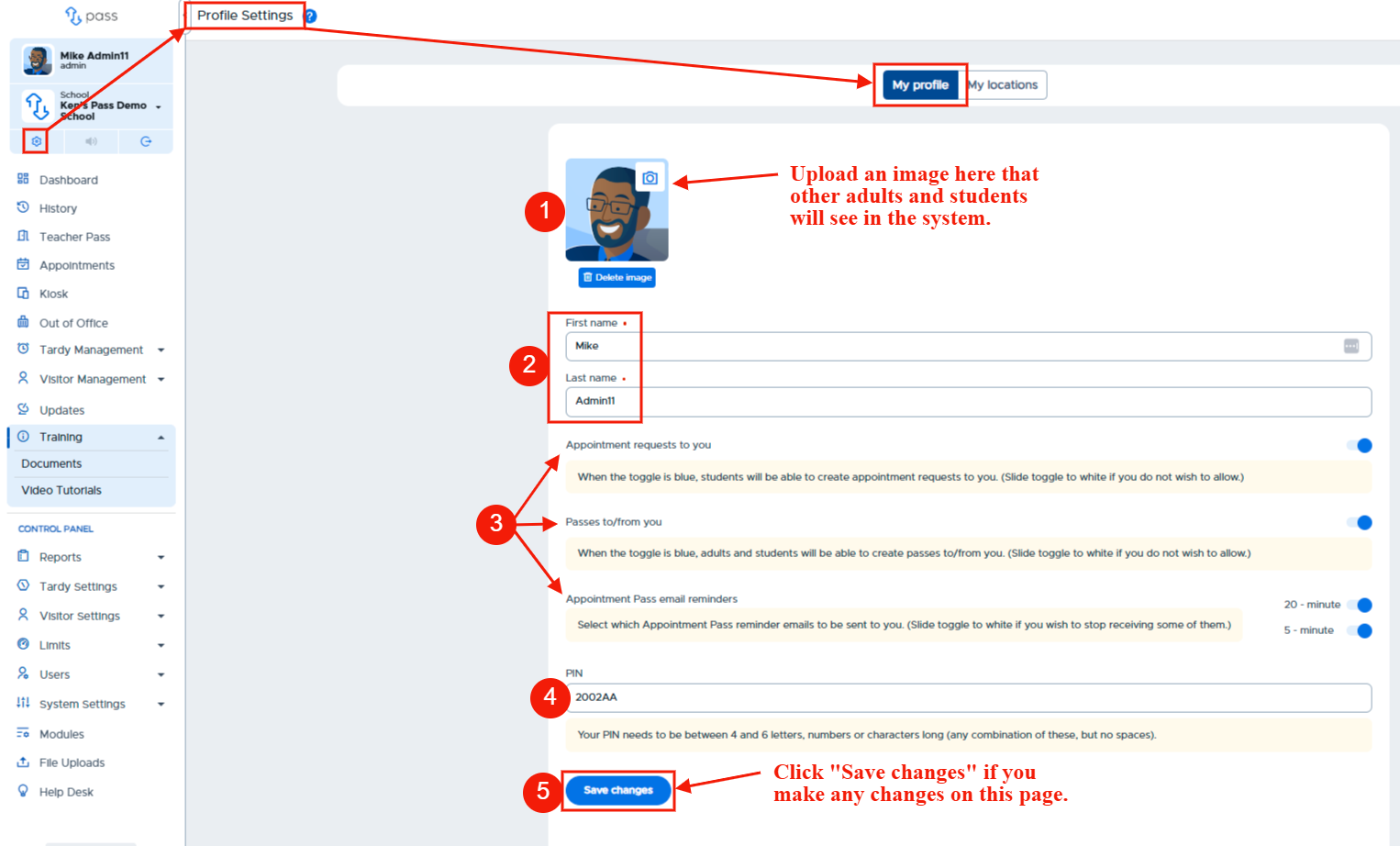
To make adjustments to your profile, click the gear icon underneath the name of your school, click My profile, and make any adjustments necessary to your profile settings. The following items can be adjusted on this page:
- Photo
- First/Last name (If provisioning users via a 3rd party, you can change your name, but it will revert back to the previous name during the next sync.
- Questions regarding appointments and passes
- PIN (used to approve/end passes from a student’s device)
Please see the screenshot below for more details. (Teachers and Staff will need to update their Pass Profile Settings once they log in.)
If you happen to choose a PIN that is being used by someone else, you will receive the following message: “Error - Unable to update profile. PIN already assigned to another adult.”