Classroom › Classes
Using the Pass notification center
The Pass notification center contains the list of pass requests and active passes that you are involved in. For passes that you are not involved in but are for a student in your class, you'll still see a badge.
Pass requests can be accessed during a class session as well as outside of a class session by clicking on the floating action button with the Securly Pass icon at the bottom right corner of the screen. A red dot will appear on the Pass notification center button to notify you of a pending request.
NoteA co-teacher will not see the same notifications as the main teacher. For instance, if a student requests a pass from Mrs.Smith (departing from location) to the bathroom, only Mrs. Smith will receive the notification.
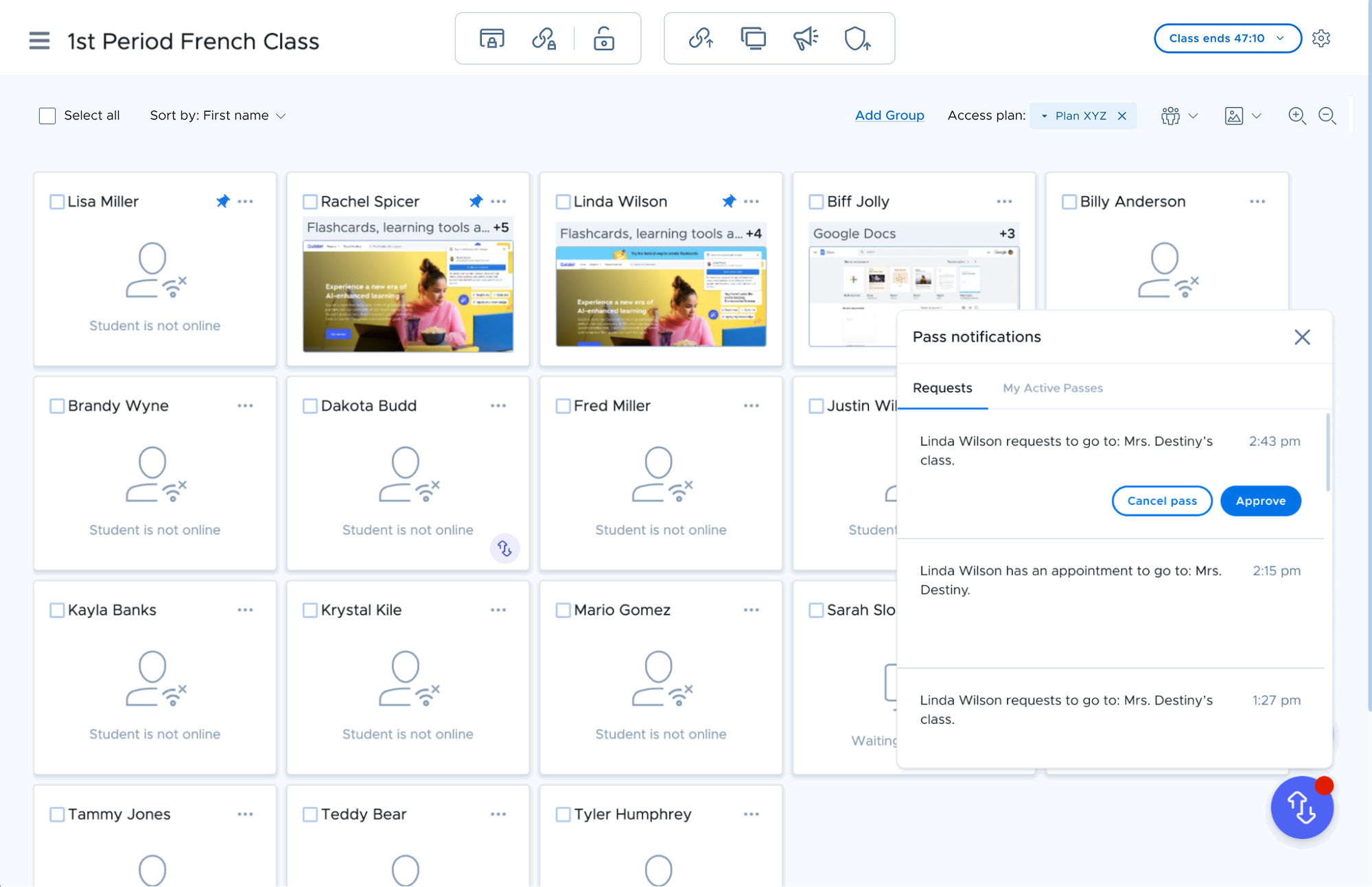
In the notification center, you can see two tabs – Requests and My Active passes.
Requests tab
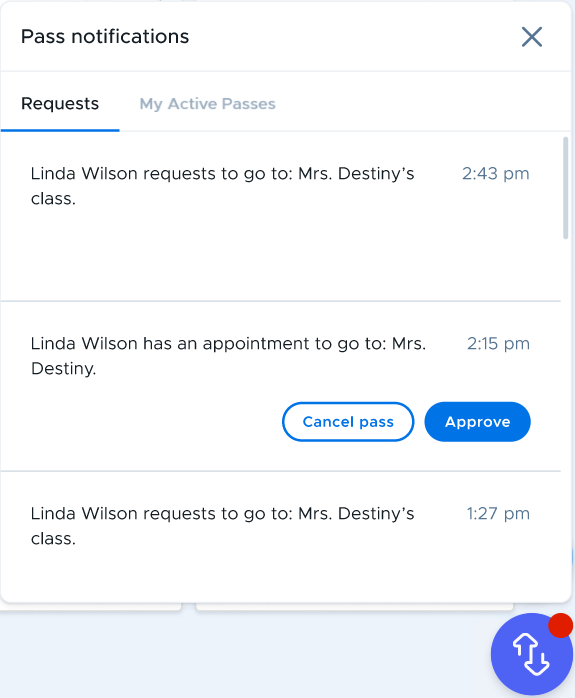
Any pending request will be shown in the Requests tab. A teacher can interact with any pass request by hovering over it. Note that Appointment pass requests will also be shown here.
My Active passes
This area shows details for the passes that are currently active, including Auto-passes. You can end an active pass by hovering over it and clicking the ‘End pass’ button.
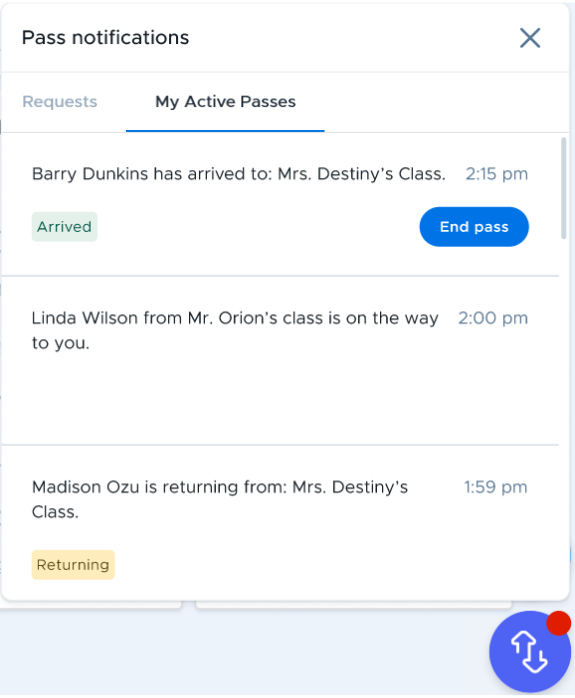
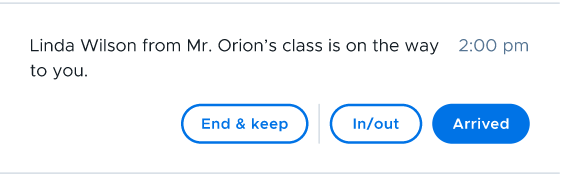
Student passes from other classrooms will also be shown here if you are the destination teacher.