Classroom › Classes
Pin a student
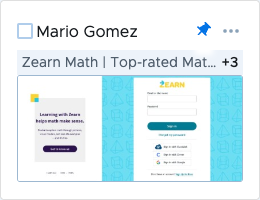
Both Thumbnail View and Tab View allow a student to be "pinned" which moved them to the first position in the list. This makes it easier to monitor selected students.
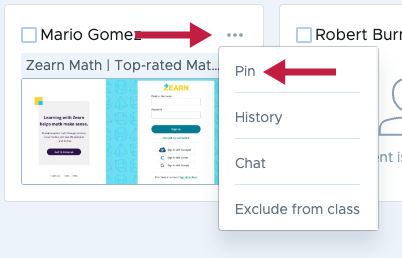
To pin a student, click the student options menu in the upper right corner of the student card, and then select Pin.
When a student is pinned, click the blue pin icon to unpin the student and have them return to the normal position in the list.