Reveal › Screen Time
How does Securly Reveal calculate screen time?
Securly Reveal tracks student screen time across supported devices during designated monitoring hours, providing actionable insights into digital learning habits and application usage across your district.
Ways to access screen time data
Securly Reveal offers three main methods to explore screen time and usage data:
Access Method | Description & Coverage |
Screen Time View | Provides population-level screen time metrics. View daily averages, overall trends, and drill down by school, grade level, or individual student. Allows filtering by total usage, approved applications, or subscribed applications. |
Usage Explorer | Surfaces granular activity detail, showing specific websites and applications used by students. Filter by school, time period, or specific application to analyze engagement across your district. |
Automated Reports | Custom scheduled CSV reports delivered weekly for administrators requiring specific data exports or custom grouping options. |
Supported operating systems
Operating System | Deployment Method | Version Support |
Windows | MSI Package | Windows 8, 8.1, 10, 11 |
macOS | PKG Package | macOS 10.12 and above |
ChromeOS | Cloud Connector Extension | Current ChromeOS builds |
Screen time calculation methodology
Screen time is calculated by taking the active duration of each foreground application or open web tab while the device is awake, unlocked, and actively in use. Reporting automatically pauses when devices go to sleep or log out, and collection is restricted to designated monitoring hours.
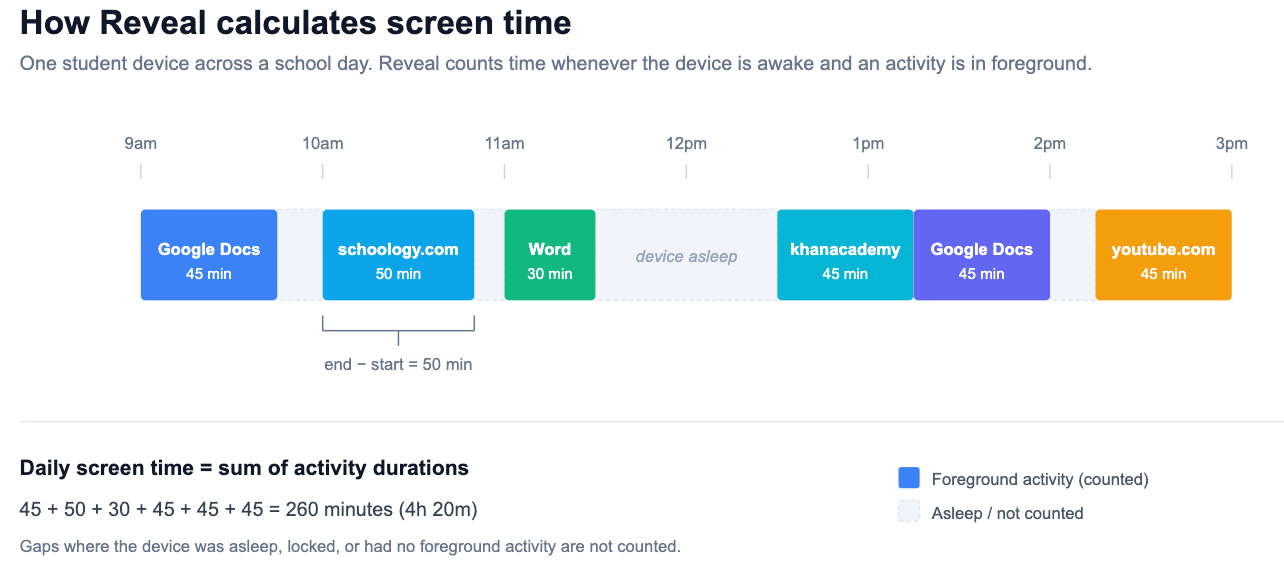
Key Metrics
Screen Time’s Daily Average / Person: Calculated as total screen time divided by unique active students and total days in the selected date range. This includes weekends and holidays. This does not use enrolled students.
Screen Time’s Top Student Average: Identifies the highest daily average screen time recorded by an individual student within a school or grade level.
Screen Time’s Trend Percentage: Compares current period daily averages against the preceding period of equal length to highlight usage shifts over time.
Usage Explorer’s Daily Average Screen Time: Calculated as total screen time divided by the number of student-device-days. Unlike calendar days, student-device-days count each student’s device separately for each day it reports qualifying activity. One student using two devices on one day contributes two student-device-days; days without qualifying records contribute none.
Usage Explorer’s Average Viewing Time: Total time for the row ÷ unique active students for the row ÷ calendar days.
Screen Time Custom Reports
The custom report suite is enabled per-customer via a Support ticket; it isn't a default report yet. Once enabled, it outputs three weekly CSVs - district-by-grade, district-by-school, and school-by-grade - plus an optional school-level per-student breakdown. Customers can optionally provide their bell schedule to get an in-school vs out-of-school split.
The avgscreenTimeInMinutes field is averaged per day-when-used, not per calendar day. Worked example: 2 students with 1 hour of screen time each on Mon-Wed and nothing the rest of the week = 6h total ÷ 3 days where used ÷ 2 students = 1h average.
Note the different convention from the Screen Time view's Daily Avg / Person, which divides by all days in the selected range. Districts comparing figures between the two will get different numbers.