Pass › Visitor
Checking out a Visitor
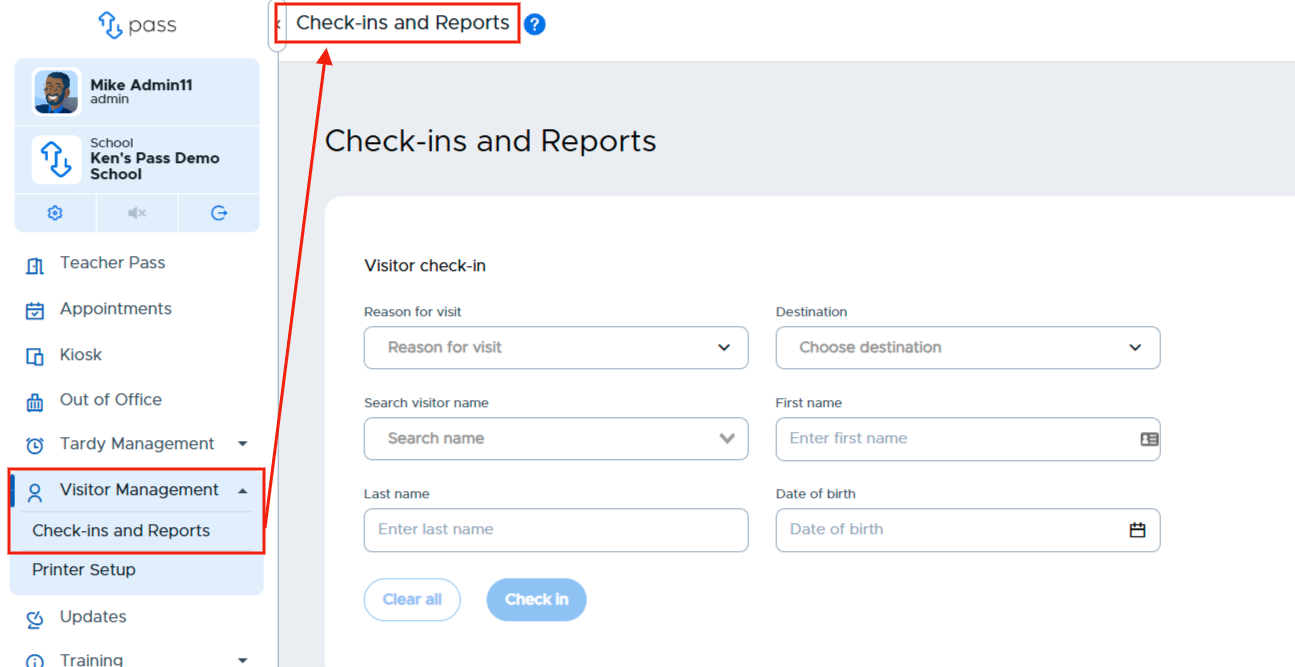
To check out a visitor who is leaving the building, click Visitor Management and then Check-ins and Reports.
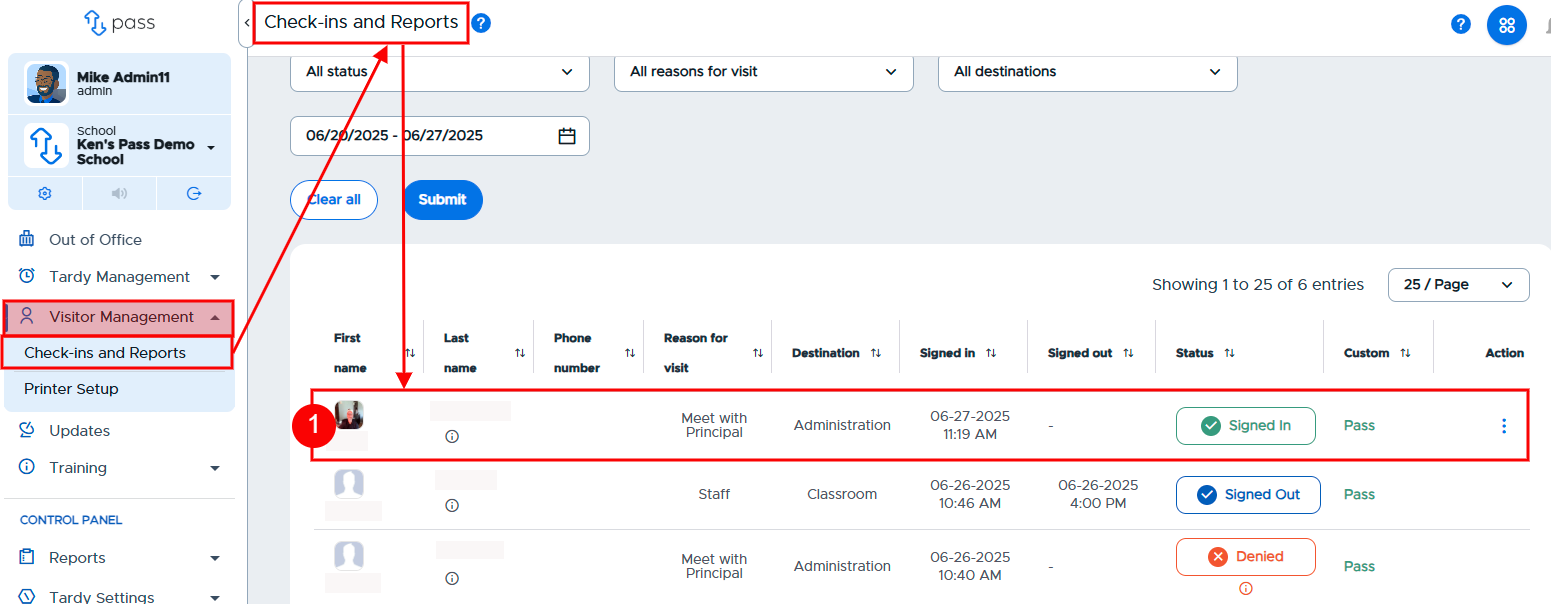
Scroll to the Visitor Log toward the bottom of the page and locate the visitor who is checking out.
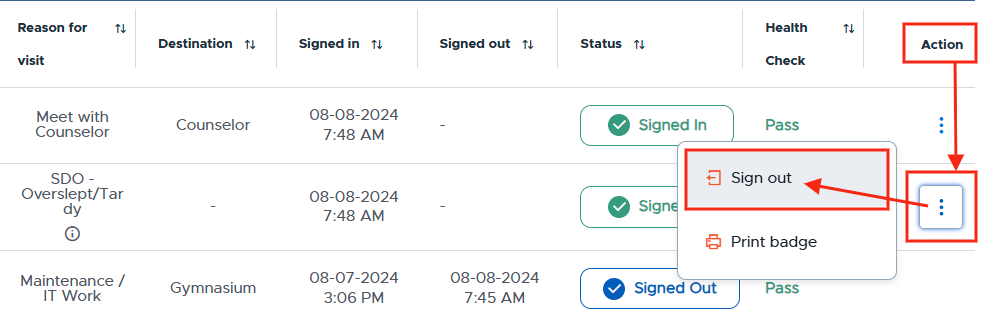
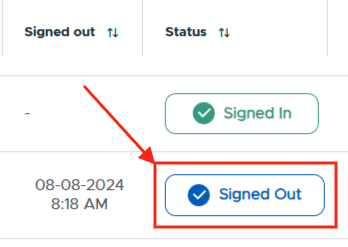
Click the three (3) dots under the Action column, and click Sign out. The status of that visitor will change from a green Signed in to a blue Signed out. You will also be able to see the date/time stamp for when that visitor was signed out of the building.
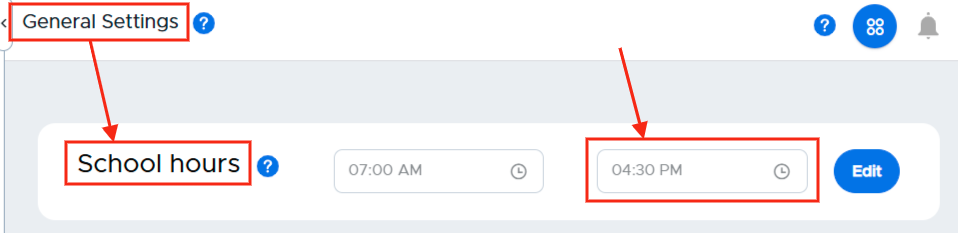
Remember: Under Visitor Settings → General Settings, if you activated the Automatic checkout functionality, all visitors will be checked out of the building at the designated end time of your school day.