Classroom › Devices
Deactivating Lost Mode
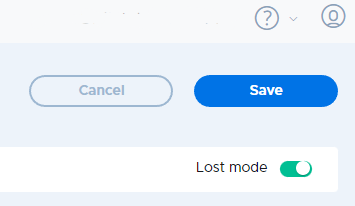
To deactivate Lost Mode for a device, select a device and flip the Lost Mode switch on the Device Details page.
Click to choose an OU where the device should be placed. This will move the device out of the Lost Devices OU and into the selected OU.
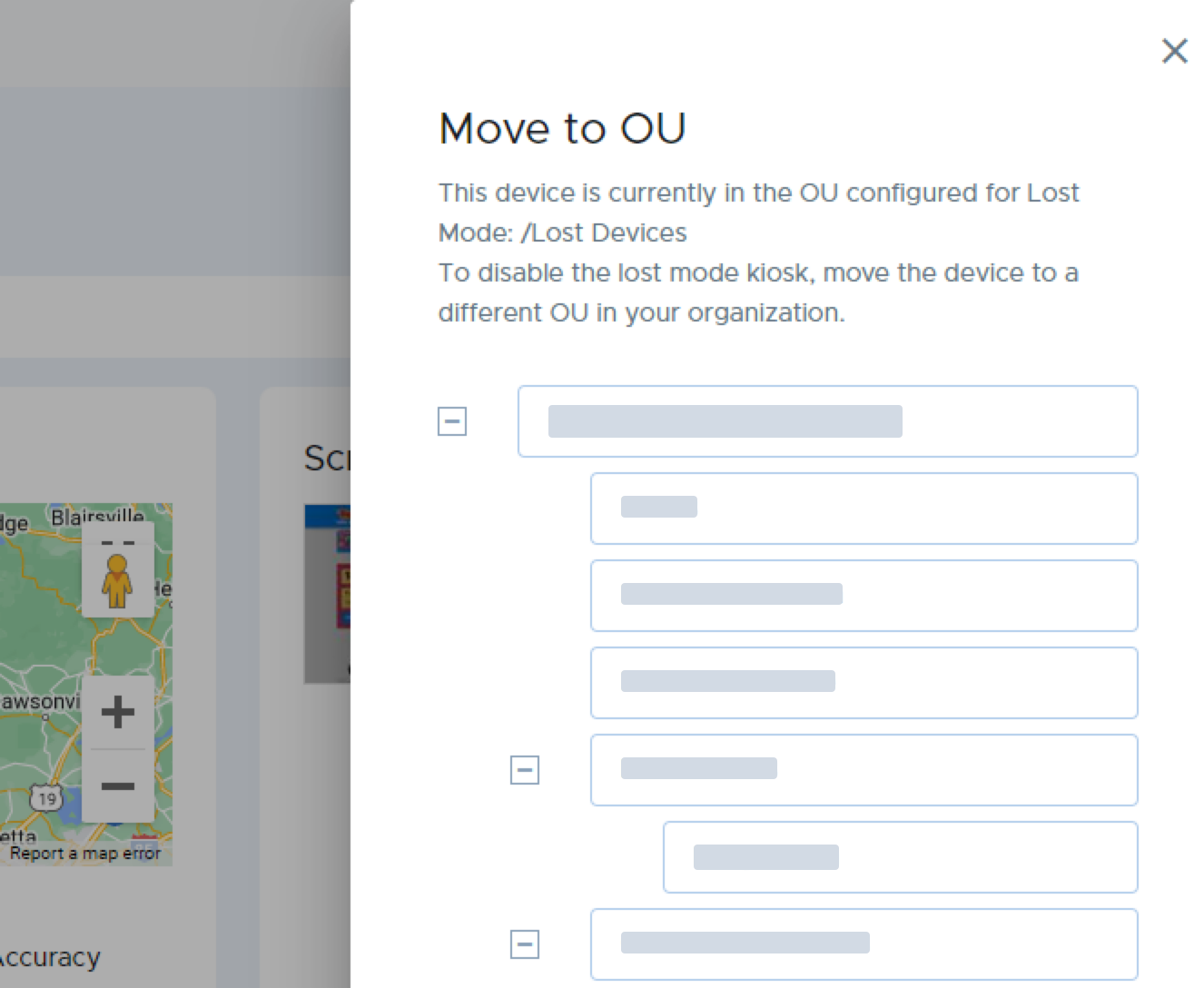
Once moved, the device will exit the Lost Mode kiosk (a reboot might be required) and normal login and use of the device will resume, based on the configured settings of the OU where the device is moved.