Aware › The Activities Report
The Activities Feed
.PNG)
At the top of the feed, you have tabs to filter activity by grief/self-harm, bullying, violence, nudity/pornography, gun terms, or all categories. Below it, you can use the dropdown selectors to filter activities based on type, confidence levels, and quarantined activities. Next to it is the the 'Include Observations' checkbox which adds observations made by teachers/staff to the Activities feed. Learn more about how teachers and staff members can make observations.
Assessing activities
.PNG)
Each activity entry logs the date, time, day, email ID of the student involved, and associated wellness level.
For some activities, you will also see an info icon next to it, indicating that is was conditionally flagged. These appear when a student’s wellness level drops and related activity may be a cause for concern. These flags are meant to support proactive review and users won’t receive any alerts for them.
.png)
On the right side of each activity entry, you have five available actions :
- The first one
.png) opens the activity in Case Manager. In some activities, you'll may see a caution
opens the activity in Case Manager. In some activities, you'll may see a caution  icon instead, indicating that the activity alert isn't logged as a case in Case Manager.
 - Clicking the the Analyze Activity icon
.png) opens up a detailed view of the recent activities and past activities that preceded the flagged activity.
opens up a detailed view of the recent activities and past activities that preceded the flagged activity. - The info icon
.png) , when hovered over, shows you the category in which the activity falls under, the site URL, IP address, and the org unit.
, when hovered over, shows you the category in which the activity falls under, the site URL, IP address, and the org unit. - The Location icon
.png) provides location details.
provides location details. - The External Site icon
.png) opens the activity site URL in a new browser tab.
opens the activity site URL in a new browser tab.
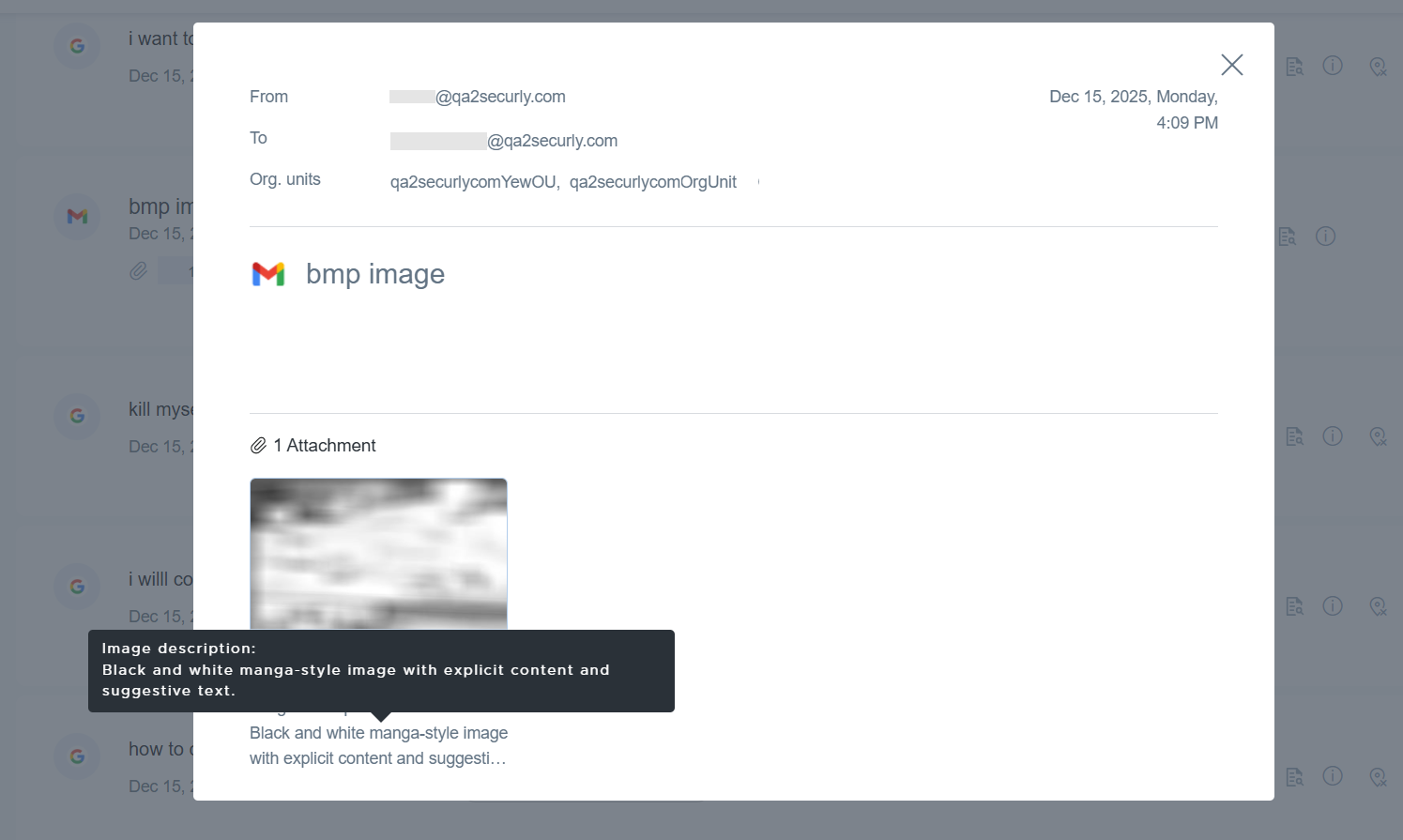
AI summary for flagged images
Aware also provides an AI-generated summary of any flagged images, enabling admins to review activities with blurred images more efficiently.