MDM › Setting up Securly MDM
Enrolling Mac Devices Manually
Manual device enrollment provides a simple way to enroll a Mac device by downloading an enrollment profile to the device via the web browser.
NoteEnrolling through this method does not lock the MDM enrollment onto the device, making it easy for a student to remove this by navigating to System Preferences settings > Profiles. Therefore, this method is generally not recommended.
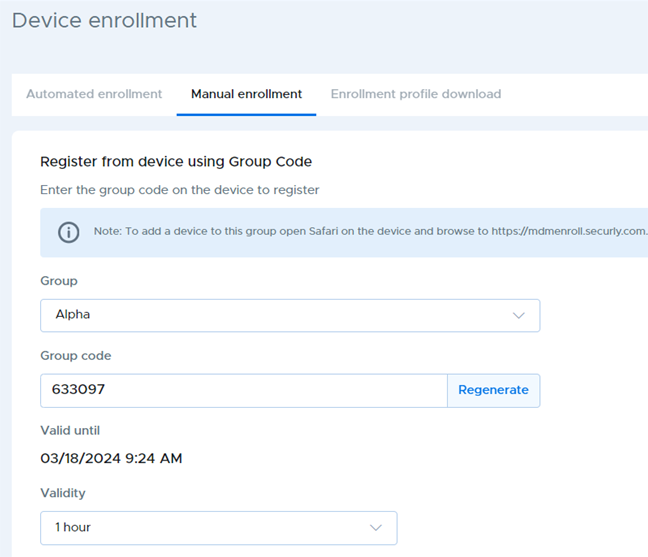
To enroll manually, go to Settings > Device Enrollment and click the Manual enrollment tab. Choose the device group into which you want to enroll a device and take note of the generated Group code. The code will be valid for the length of time specified in the Validity setting.
On the Mac device to be enrolled, open the Safari browser and go browse to https://mdmenroll.securly.com. Enter the group code and provide a name for the device. Follow the on-screen prompts to accept and load the MDM enrollment profile onto the device.