Aware › Deployment (For IT Admins only)
Enable API access
To ensure that you can use Securly Aware, it is essential to add Securly as an Application to your API control in Google Workspace.
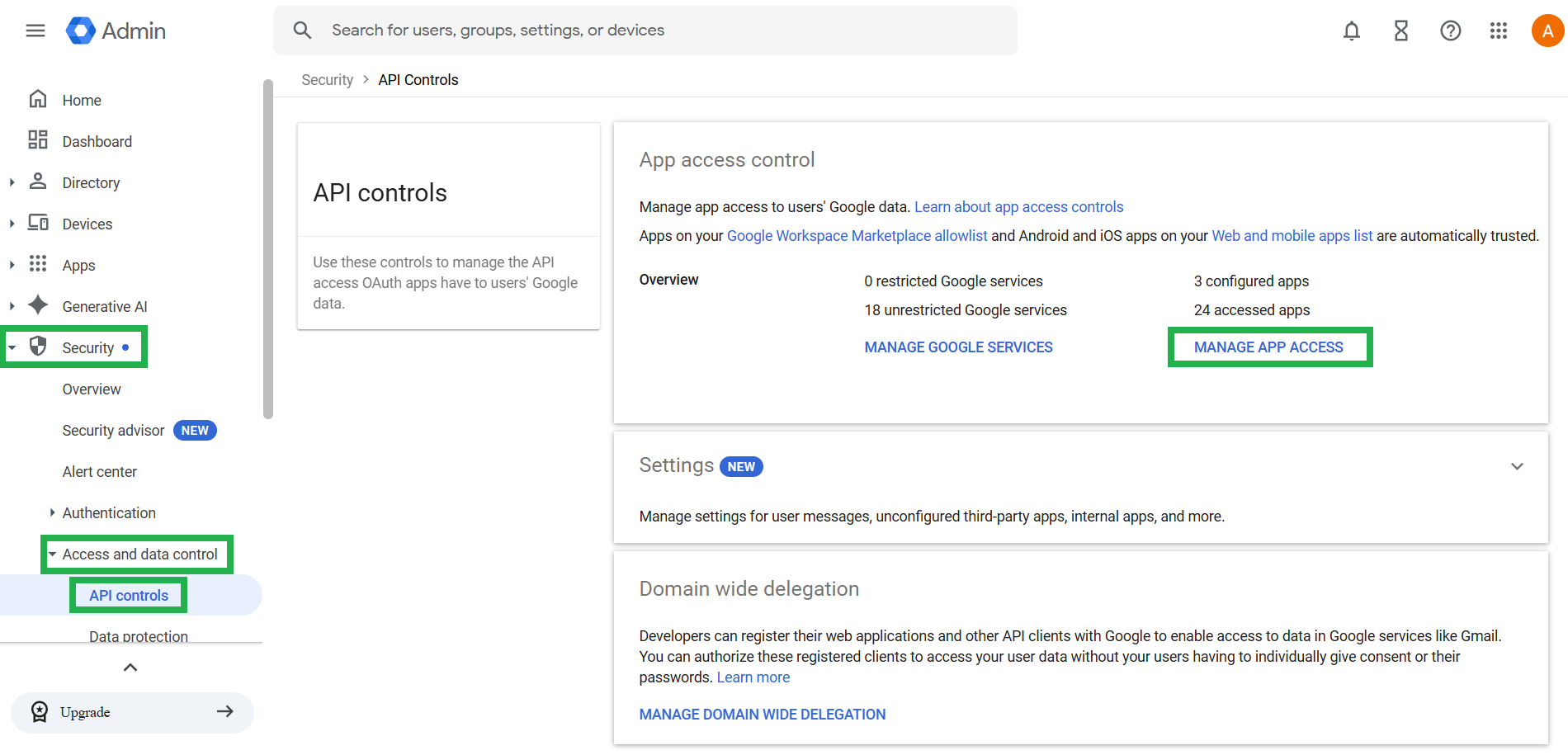
Log in to your Google Admin console and navigate to Security > Access and Data > API controls. Then, click on MANAGE APP ACCESS.
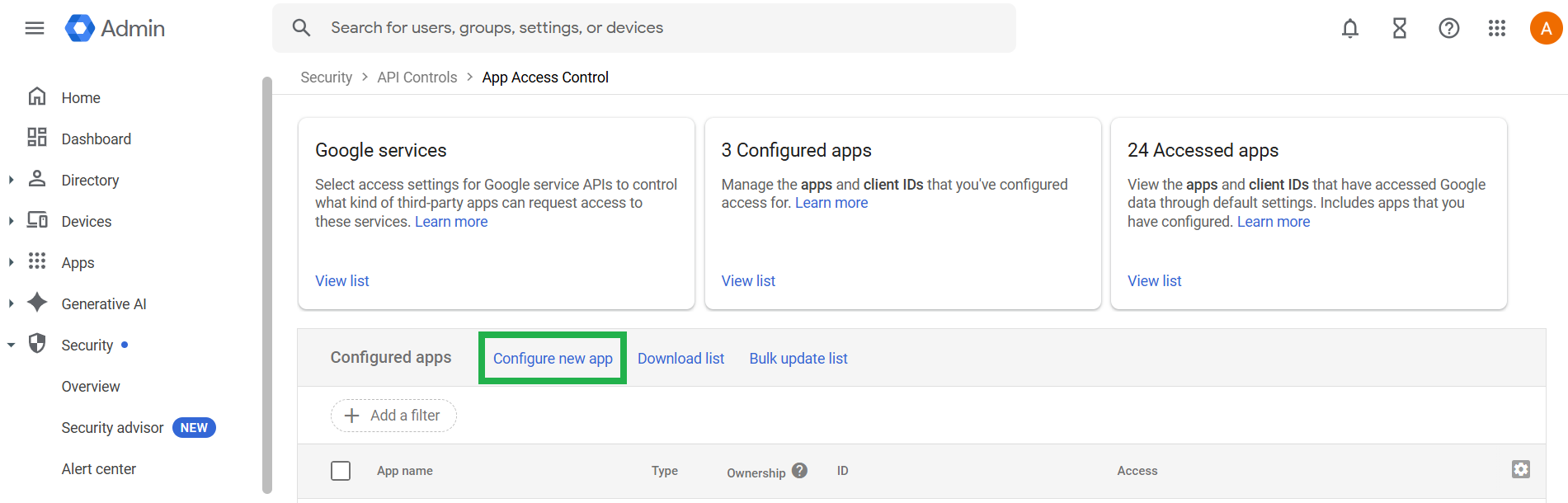
Click on Configure new app.
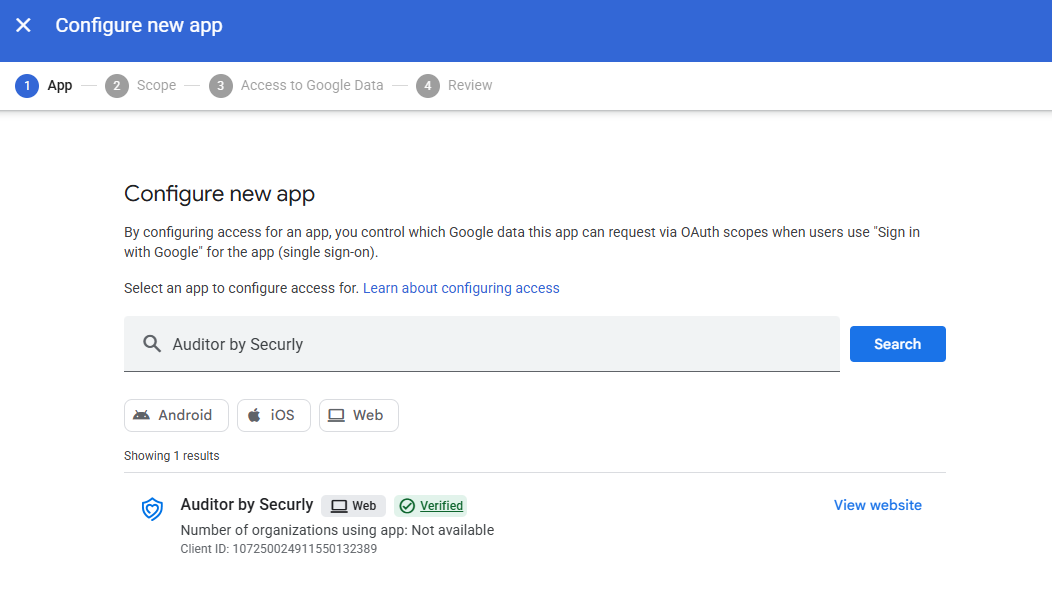
Search for "Auditor by Securly" with the Client ID - 107250024911550132389.
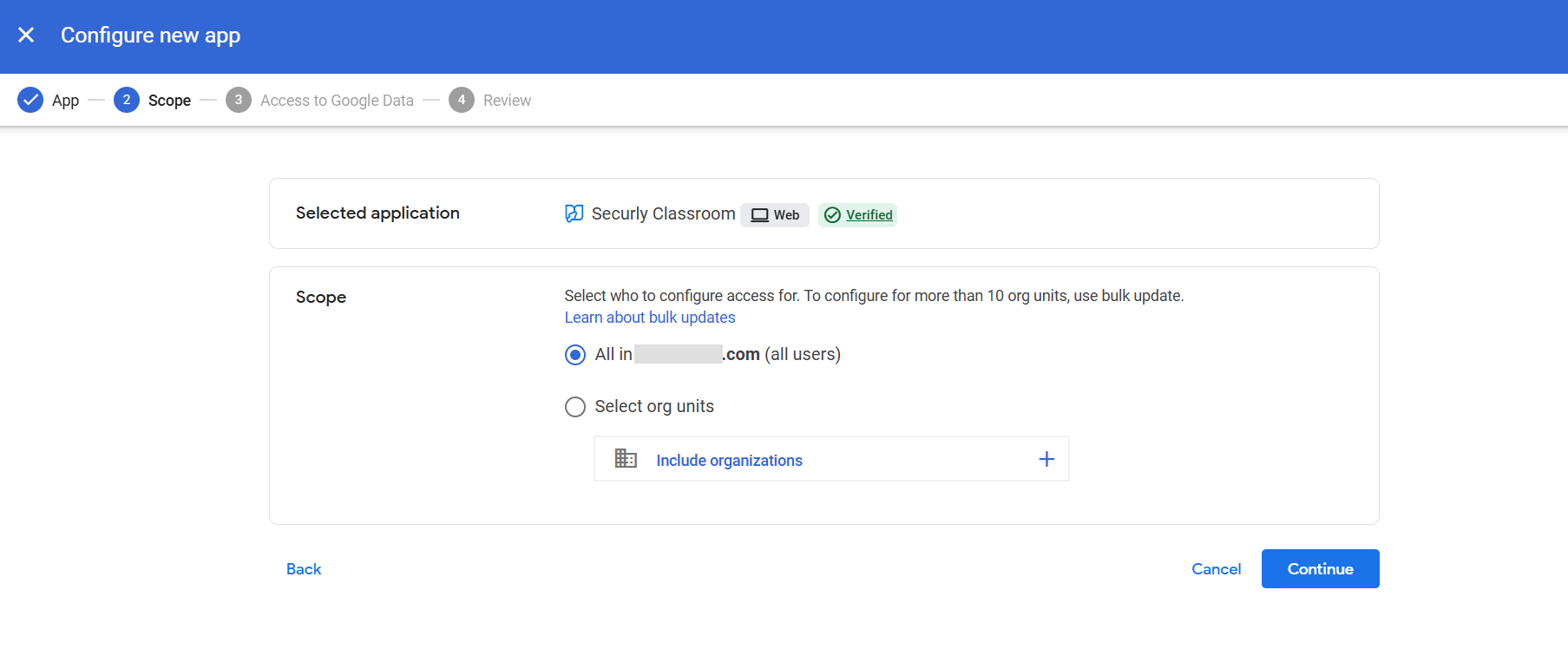
Under Scope, select which org units to configure access for.
Select "Trusted".
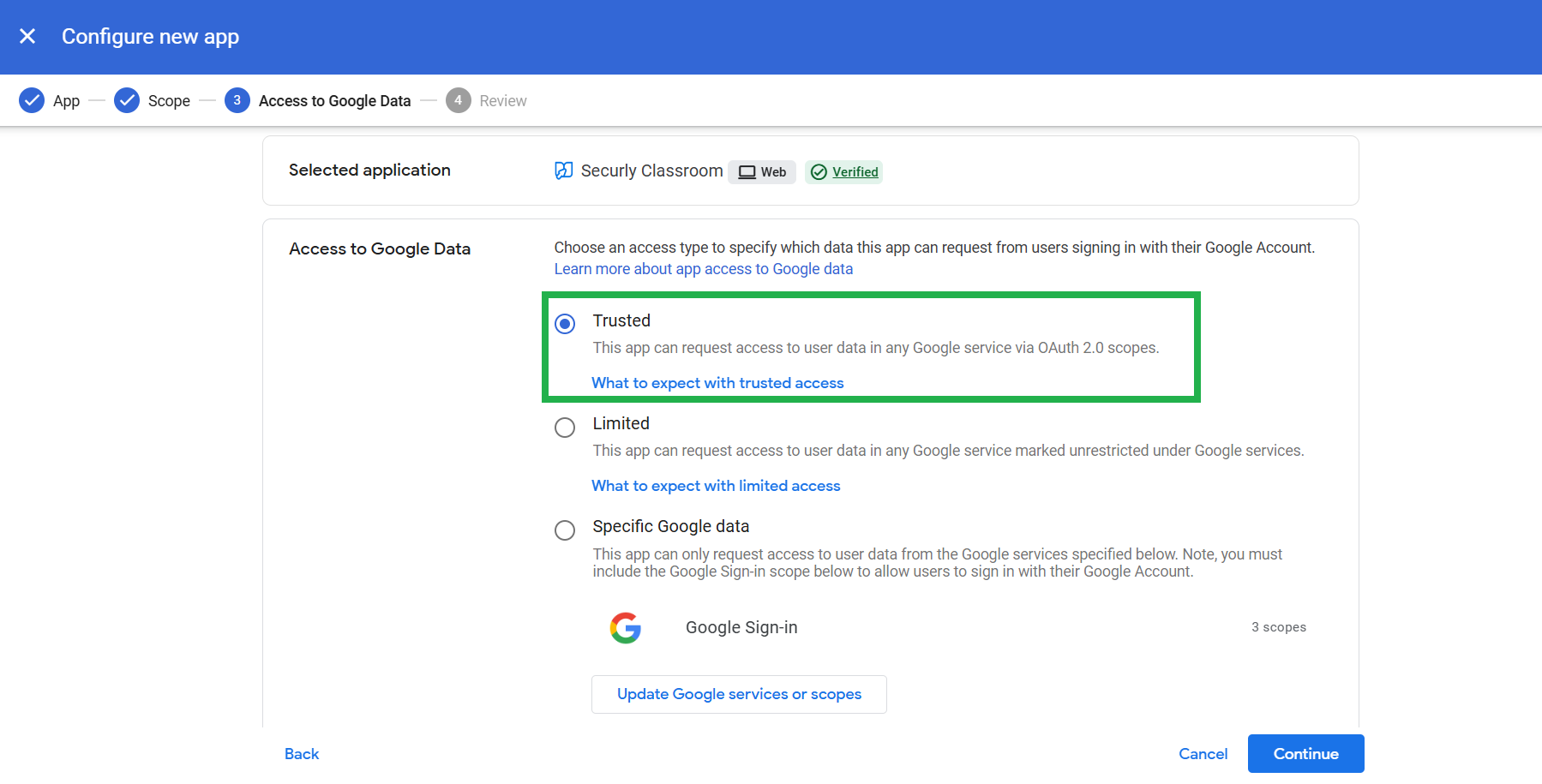
Review your selections and click Finish.
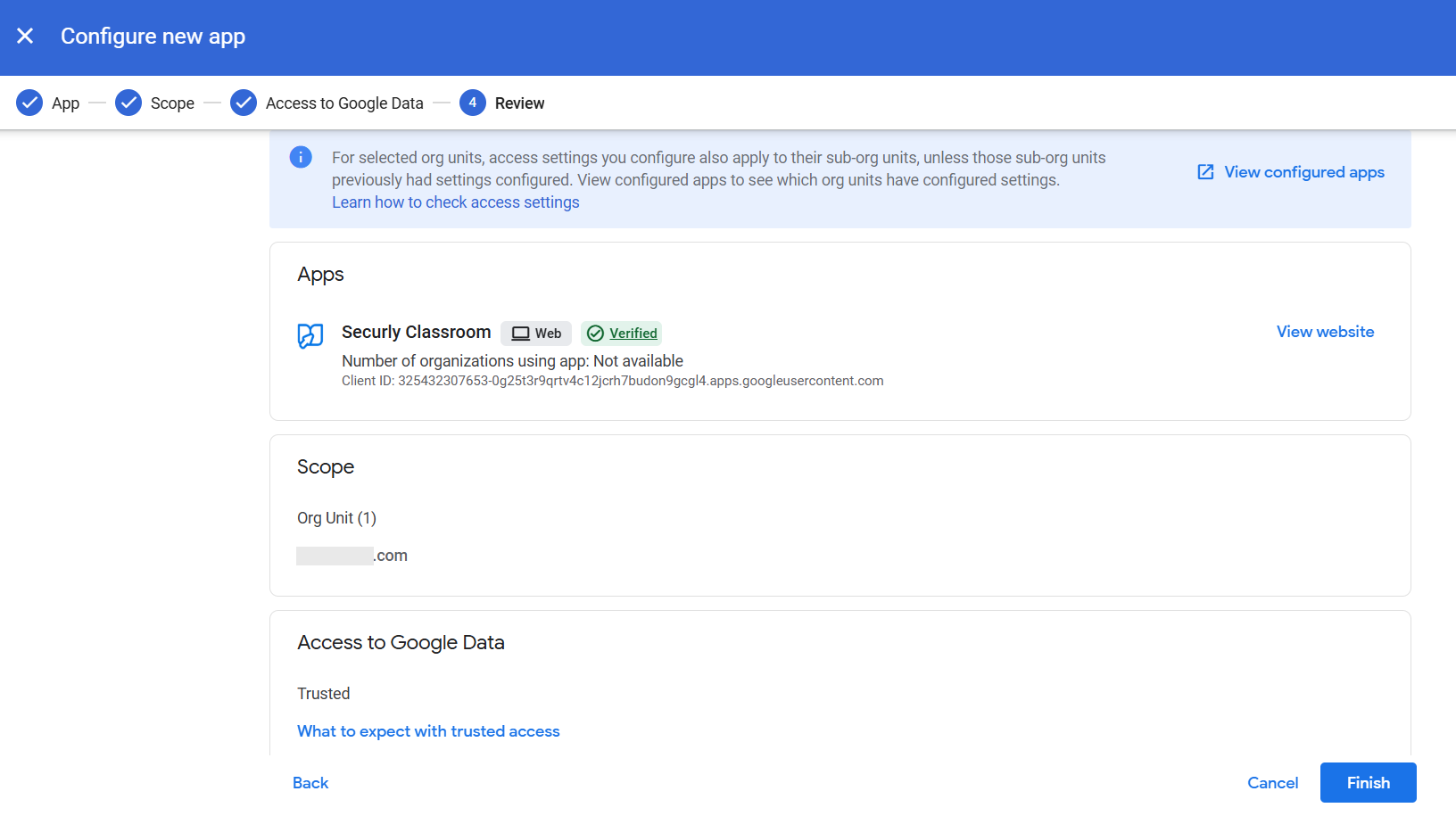
If you are using any other Securly apps, you can repeat this process to enable access for each.