Classroom › Classes
Adding a Nickname for a synced Class
When a class is synced from your SIS, you can set a Nickname for the class to identify it more easily. To do so, click the name of the class in the Classes menu to edit it.
Once on the Class Edit screen, enter a nickname in the Nickname field, then click Save.
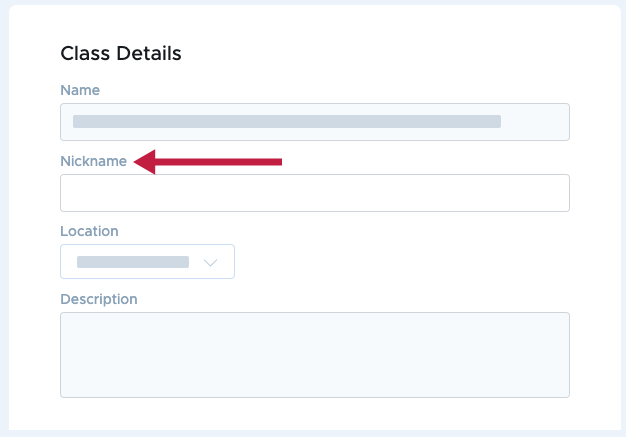
The Nickname will be used to refer to the class in place of its default name.