Filter › Deploying Securly Filter
Manually deploying SmartPAC on a standalone Mac device
Follow the steps below to manually install SmartPAC:
-
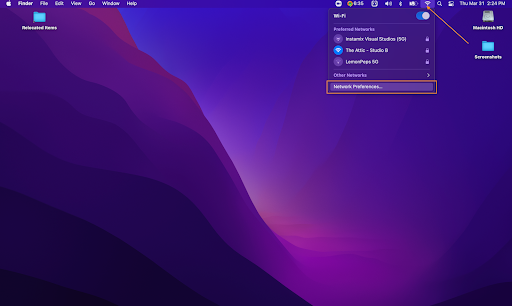
Select your network connection icon, and open the “Network Preferences” panel.
-
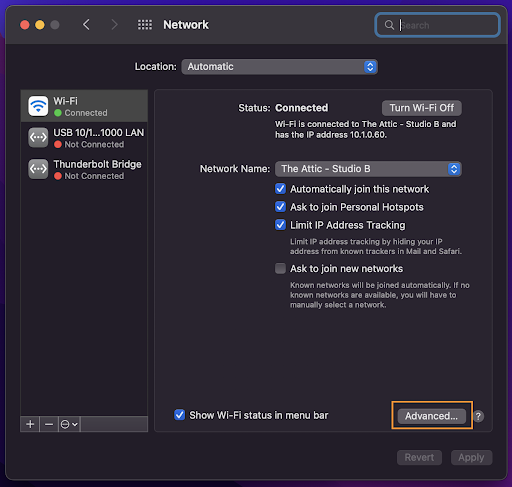
Select the “Advanced” section.
-
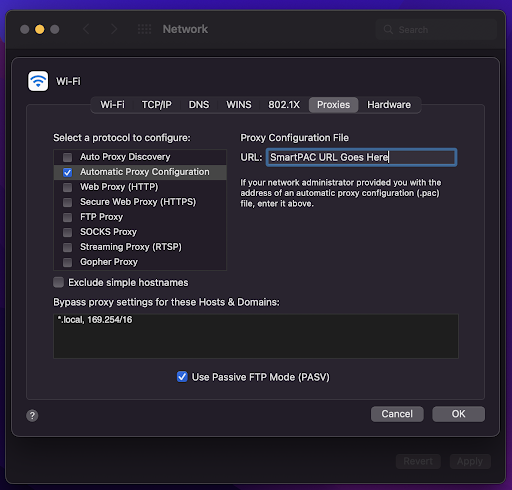
Select “Proxies” and place a check in the “Automatic Proxy Configuration” box. The final step will be to place your SmartPAC URL (provided by Securly Support) into the “Proxy Configuration File” box, and click OK, then “Apply” to save these settings.