Classroom › Set up and get started
Create an OU in your Admin console for lost devices
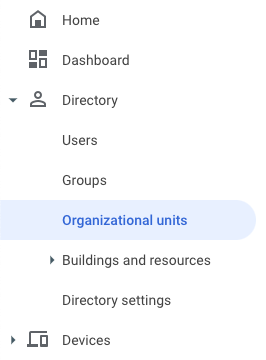
From Google Admin, select Directory, then Organizational units.
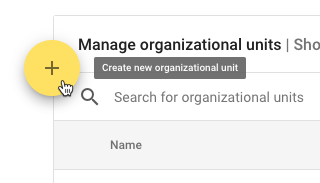
From this screen, click the + icon to add a new Organizational unit.
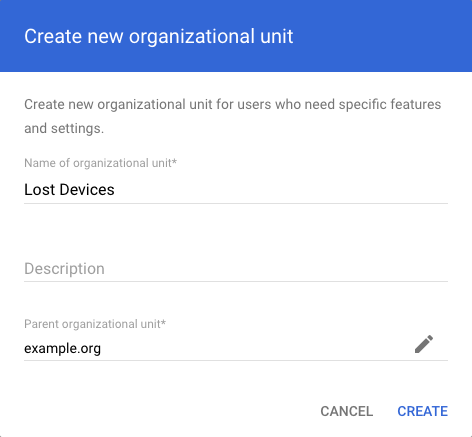
You can use any name you would like, but we'd recommend "Lost Devices" or something similar. Click Create.
The new OU should now show up in your organization structure.
Let's move to the next step, Configuring the Lost Device OU for the kiosk app.