Pass › Pass Admin Guide
Queue Management Module
Queue Management allows an automatic queue to form when certain locations reach their maximum capacity. For these locations, once the capacity is reached, subsequent students attempting to create passes there will be added to the line. Students will receive real-time updates on their queue position and the student and teacher will both be notified when it's their turn.
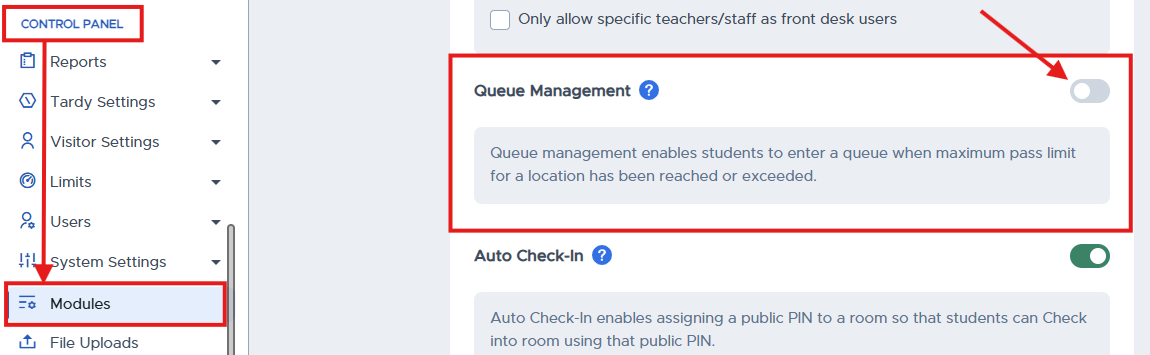
To enable the Queue, in the Control Panel, click Modules, scroll to Queue Management, and slide the toggle on the right side of the screen to the right.
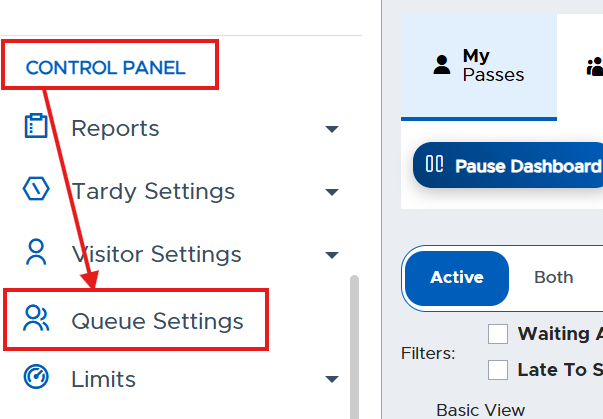
Once enabled, you will see Queue Settings under the Control Panel. Click on Queue Settings to manage your Queue.
Additional Info:
For the daily functionality of Queue Management, please reference the Pass Teacher/Staff Guide .