Filter › Managing Activity Reports
Scheduling Reports
To schedule a report, use on the Email reports button in the top right corner of the Admin dashboard.
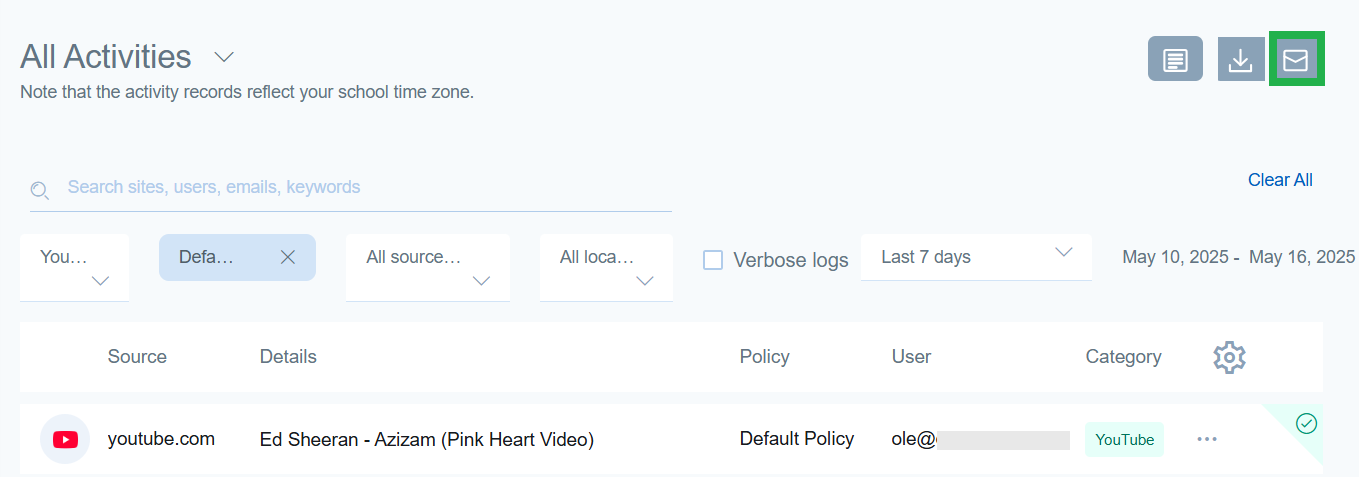
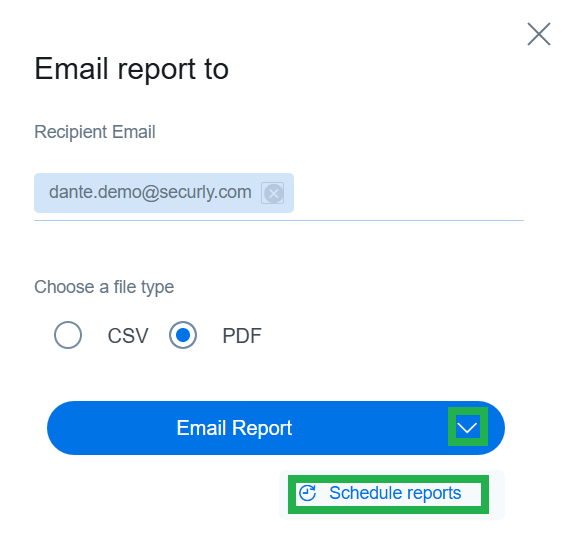
In the following sidebar popup, enter the recipient's email address, and then select 'Schedule reports' by clicking on the downward arrow icon next to the Email Report button.
Note: For security reasons, scheduled and emailed report links are restricted to the exact email address added as a report recipient. Users must be signed in with that same address to view the report. Distribution lists, unlisted admins, and forwarded emails will return an "Unauthorized Access" error. To ensure recipients can open the report, make sure to add their individual email address to the report recipient list.
Select the start and end date for the reports, and also the time when they should be delivered. Reports will be delivered weekly during that period.
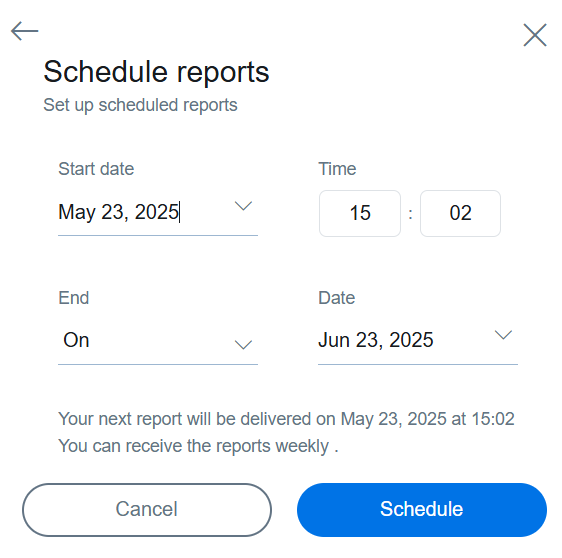
Click Schedule to complete the process. You can review your schedules or delete them at any time by visiting Settings > Scheduled Reports.
Notes
Report will be emailed on the specific date you selected, and will display activities up till the previous date irrespective of the delivery time you may have selected for your report.
Admins can schedule up to 100 activity reports at a time. This can be especially helpful for larger organizations managing multiple schools.