MDM › Teacher Tools
Activating a Screen Layout
Activating a Layout for a Group
-
Select a group.
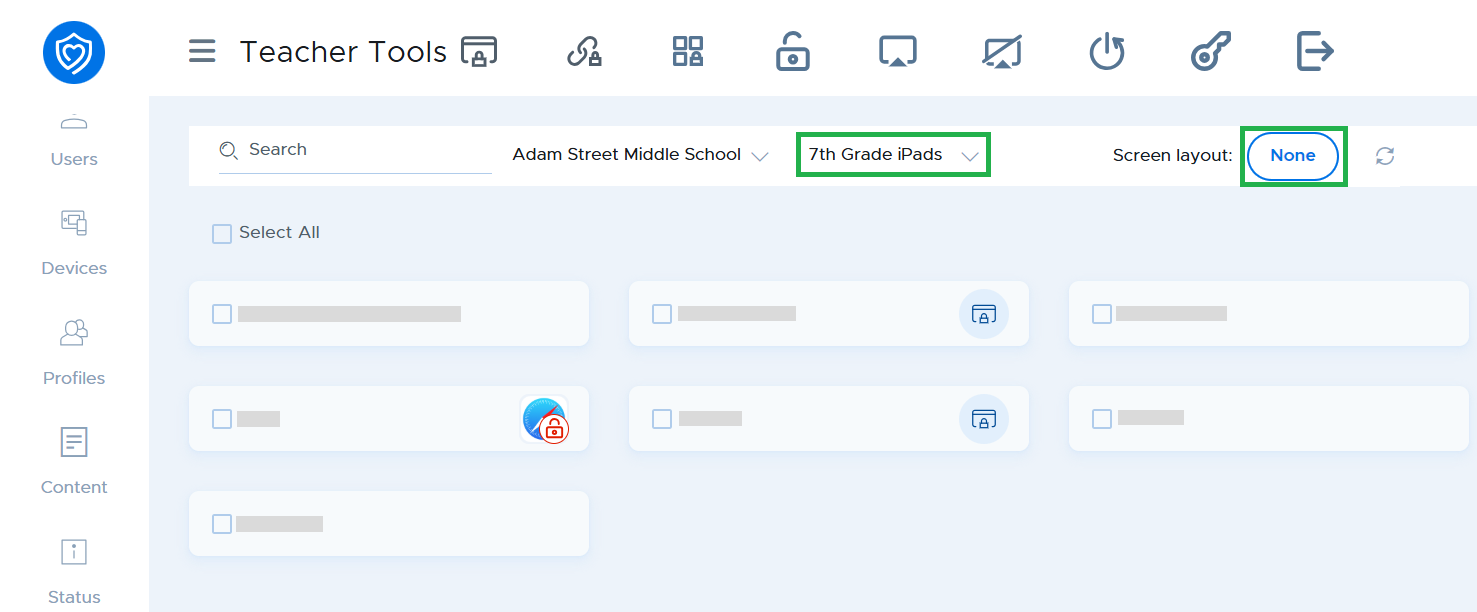
-
Select a layout by clicking on the button next to Screen layout.
-
Select your desired layout from the popup window and click the Add button to apply the layout to the devices.
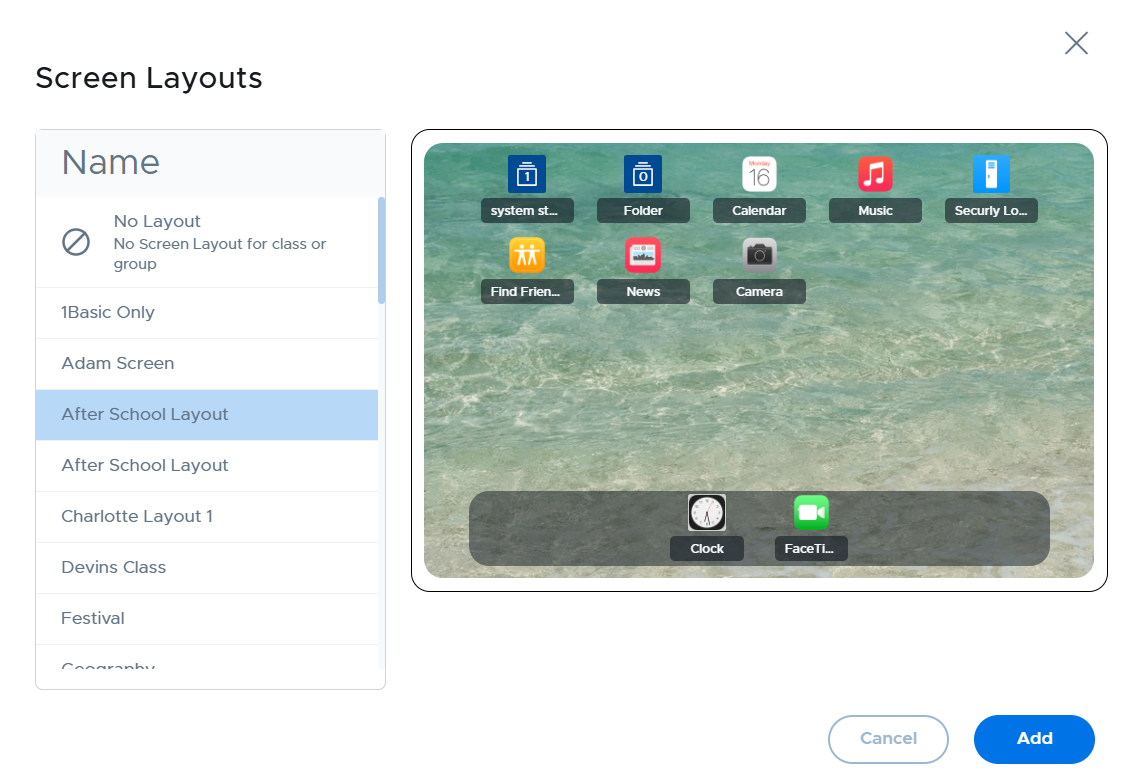
Screen layouts are applied to the entire selected group (selected with the group dropdown), and not to individual devices (selected with the checkboxes on the left of the student card).
To remove a layout, select "No Screen Layout for class or group" from the Screen layout list.