Filter › Home
Adding Parents manually
To add a parent/guardian manually, follow the steps below:
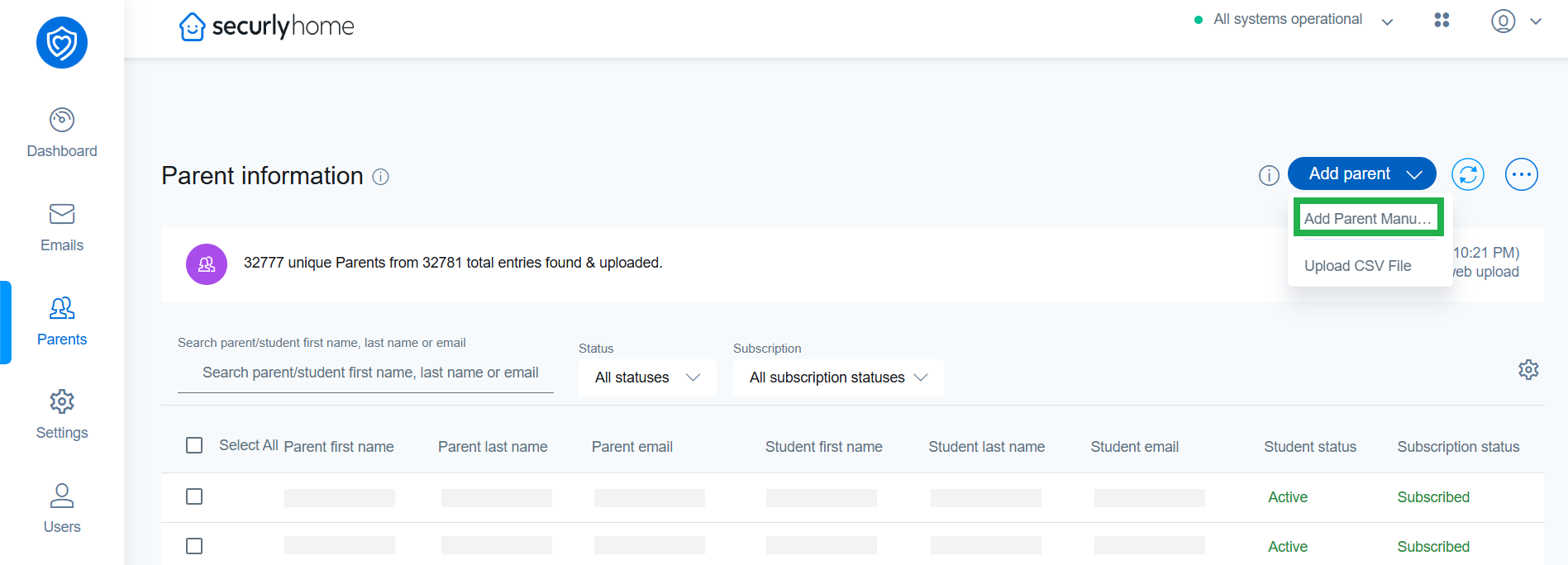
- Click the Add parent button, then select "Add Parent Manually" and fill up the form.
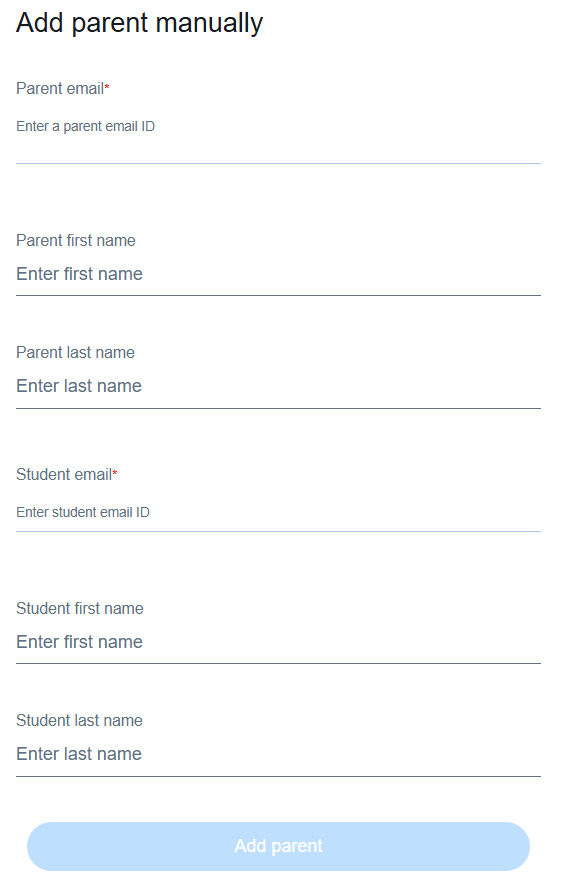
- Enter the parent's email address and the corresponding student's email address. Parent first name and last name are not mandatory fields, but it is recommended that you provide those as well.
- When you enter the student's email address, the student's first name and last name will be auto-populated.
- Click Add parent to complete the action. The newly added parent will be displayed in the Parent Information table.
You can edit individual parent details by clicking the parent name. Parent email address or student email address cannot be edited.